
Participant
February 10, 2017
Answered

Lightroom not reading XMP files

  • February 10, 2017
  • 3 replies
  • 7392 views

Hi everyone,

I've been using lightroom without any problems for about a month and I've not had any problems. Even when importing my old raws, which have the relevant xmps in the same folder, lightroom automatically imported these settings.

Unfortunately a couple of weeks ago my mac broke so I've just got a new one and I've just opened up lightroom on my new mac and it's just not reading the data from the xmp files. No idea why as it worked automatically on my other mac without me having to change any settings or do anything at all.

Any ideas?

I've tried 'metada>read from file' nothing, also 'synchronize folder>check for metada updates', nothing. I've selected all of the raws and XMPs and dragged them into lightroom for import...please help!

This topic has been closed for replies.
Correct answer dj_paige

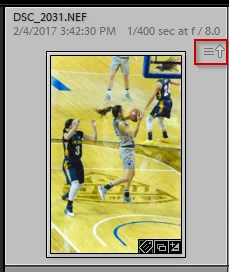
Is there an "up-arrow" icon on your photos indicating that the metadata in Lightroom doesn't match the metadata in the xmp file?

Are you sure that the xmp files themselves have the metadata of interest? If you open one of the xmp files in a text editor, you should see your keywords, captions, etc. Do you see that?

3 replies

Participant
February 11, 2017

You make an excellent point...

I have just realised by opening my xmp files for older photos (that I edited in photoshop) versus those edited in lightroom - the photos where I've worked on them solely in lightroom, the xmp files contain none of my 'edit' information. This is a bit rubbish, what if in the future I migrate to another program?... Is there not a way to save my edits to the xmp using lightroom?

Theresa J
Community Expert
Community Expert
February 11, 2017

Yes. There are a few different ways to save the xmp metadata outside of the catalog.

1. You can save metadata for each file individually by selecting the image and doing a file>save metadata. Just like file save in other applications, but with Lightroom it saves the metadata externally.

2. To automatically save metadata for everything in your catalog, turn it on in the catalog settings under the metadata tab. This can be very slow.

3. You can export a folder or a collection to a new catalog. This doesn't save the metadata external to LR, but it sends it to a new catalog. This method will retain all of your collections.

4. You can import from old catalogs into the new catalog and this will bring all the metadata along with the images, including any collections you created.

Hope this helps.

Theresa J
Community Expert
Community Expert
February 11, 2017

How did you move your catalog from the old computer to the new one? Or, did you create a new catalog on the new computer? Are you reimporting images that were in the previous catalog, or importing images for the first time? How did you move the images from the old computer to the new one?

Participant
February 11, 2017

I just moved all of the folders over (containing the images and xmp files) and I am importing again 'from scratch', by selecting all of the images (and xmp files) and dragging them over the lightroom icon. Before this I didn't realise that catalogs were a big deal, presumed I could just import them again as all of the data is there?

dj_paige
dj_paigeCorrect answer
Legend
February 11, 2017

Is there an "up-arrow" icon on your photos indicating that the metadata in Lightroom doesn't match the metadata in the xmp file?

Are you sure that the xmp files themselves have the metadata of interest? If you open one of the xmp files in a text editor, you should see your keywords, captions, etc. Do you see that?