Participant
June 2, 2023
Question

Lightroom not recognizing NEF+JPEG in certain folders

  • June 2, 2023
  • 2 replies
  • 897 views

I imported several thousand photos from a recent trip and for some of the days it seems like LR is not recognizing that photos are joint (one NEF and one jpeg).
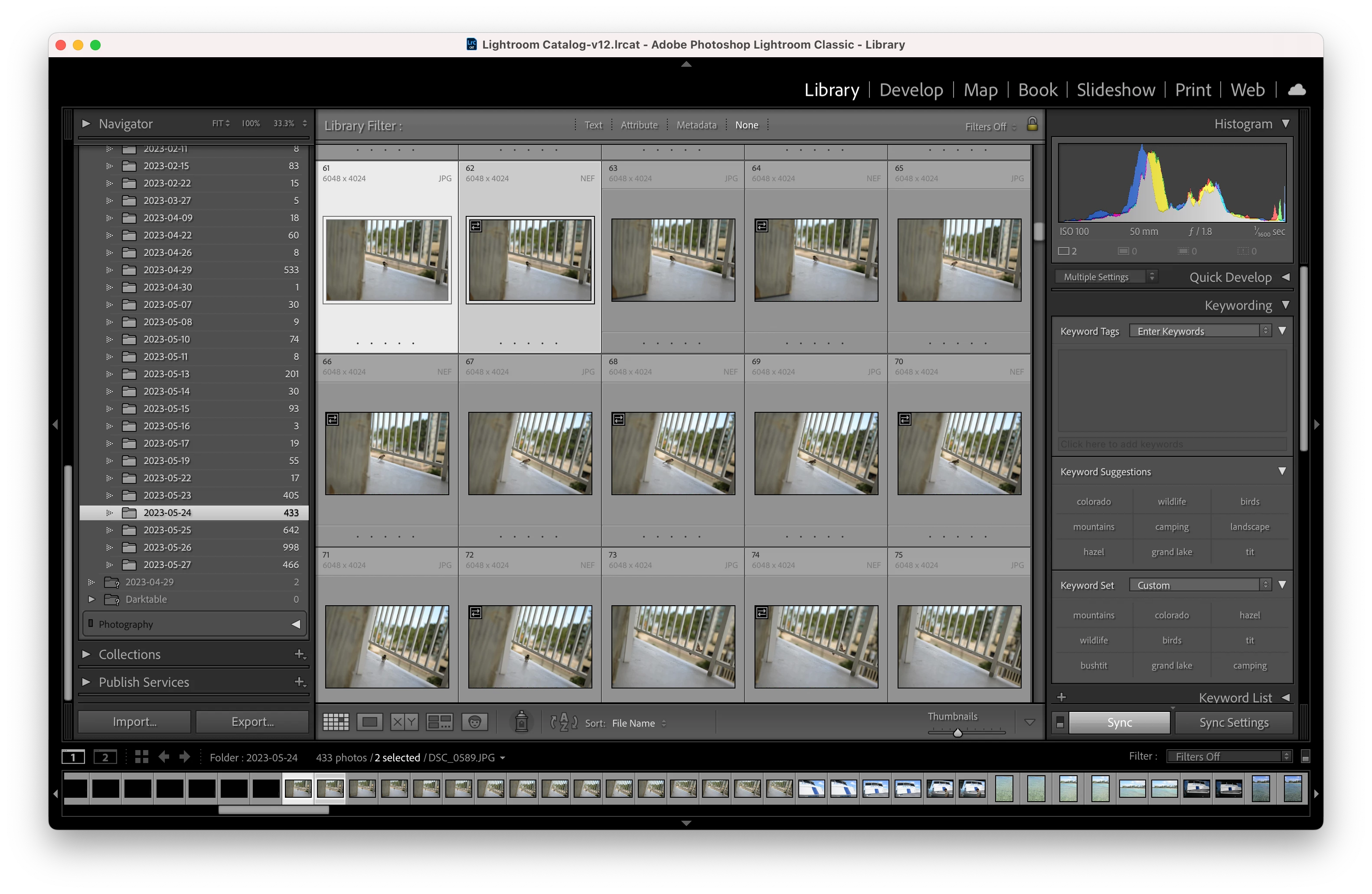
but other folders from the exact same import is working just fine.
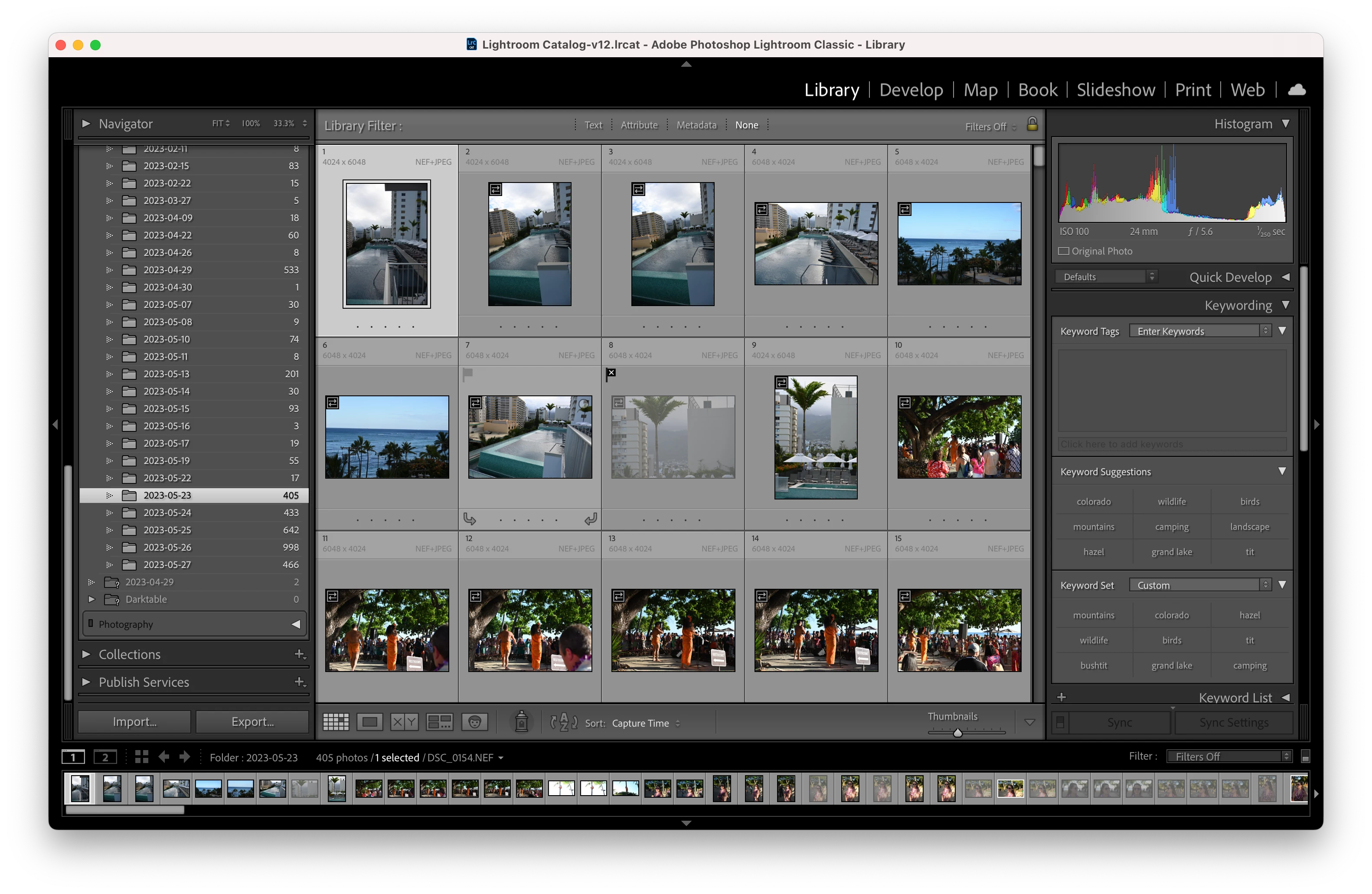


The only thing I can think of is that I ran an Edit Capture Time on all of the photos from this trip to set them back a few hours. Is there any way to fix this? I tried using Stacking, but that didn't really do anything.


up to date macOS (13.4) with latest Lightroom (12.3)


If there is any more information I can provide please let me know


This topic has been closed for replies.

2 replies

Community Expert
June 4, 2023

If you use Select All on a folder - "All" means all currently visible images. If there were any stacks in the collapsed state at that time, within this folder, the images nested away within those stacks would not have been highlighted and thus would not have been included in Edit Capture Time. They then would show widely separated when you viewed this folder sorted by (as updated) capture time. Could that be it?


You can change sort order to Filename to check this. This option should move the respective Raw and JPG of each photo back alongside each other regardless. With the menu command to expand all stacks within the folder.

johnrellis
Genius
June 4, 2023

[This post contains formatting and embedded images that don't appear in email. View the post in your Web browser.]


@snowe_ 's issue is that some folders from what he believes came from the same import have recognized the NEF+JPG pairs:


and some haven't:


That wouldn't be caused by stacking or sorting.


Community Expert
June 4, 2023

OK, thanks - sorry for confusion (mine, or caused).


Might be illuminating to sort by date/time imported to see whether the separated pairings show sequentially or spaced wide apart. Perhaps due to sheer size of batch - expecially if processing was interrupted and resumed during - the Catalog may have in effect treated this as more than one import batch.


I do agree Edit Capture Time was not relevant to initial detection of Raw+JPG, because subsequent.


If the single thumbnail is what's wanted, the pragmatic thing to do IMO is simply to remove those visible JPGs from the Catalog - but not delete from disk if there's a possibility of future usage. Sorting by filename allows a confirmation that a given JPG does have a corresponding NEF. One would not want to remove any shots taken only in JPG of course.


Personally I avoid all such complications, by setting the camera to Raw-only OR JPG-only in the first place! Then live with that decision cheerfully: just as we live with a million other decisions committed while shooting.


Except, shooting Raw-only is not really irretrievable. If desired the camera itself could re-process a genuine in-camera JPG for you after the fact, working off any Raw present on its memory card - with most, or all, camera models that might be used to shoot Raw, AFAIK.

johnrellis
Genius
June 4, 2023

If all the folders were indeed imported with a single Import command, I don't know what might have caused this -- I don't recall these symptoms being reported before.  To fix the existing situation:


1. Make sure you have backup of your current catalog.


2. Make sure Settings > General > Treat JPEG Files Next To Raw files As Separate Photos is unchecked.


3. In the Folders panel, select one of the problem folders.


4. In Library Grid view in the Library Filter bar, do "Filename Ends With .jpg":


Verify that only JPEG thumbnails are showing.


5. Select all the photos and do the menu command Photos > Remove Photos From Catalog.


6. In the Folders panel, right-click the selected photo and do Synchronize Folder, checking Show Import Dialog Before Importing.


snowe_Author
Participant
June 7, 2023

Hm. So I did exactly as you said, and it's showing only 5 jpegs. But the jpegs actually do exist in the folder, so not sure what's up with that. If I choose "All Photos" instead of new photos it only shows the 5 new jpegs and the NEFs.


Like, clearly the photos are there, so why aren't they showing up able to be imported?

johnrellis
Genius
June 7, 2023

"Like, clearly the photos are there, so why aren't they showing up able to be imported?"


Is Settings > General > Treat JPEG Files Next To Raw Files As Separate Photos checked or unchecked?