Yes, there is a discrepancy between the image and the histogram.
I cropped your screenshot to the image area and opened it in Photoshop. Although these two histograms are not directly comparable (raw file vs. screenshot), they are similar in the midtones and highlights, but very different in the shadows.
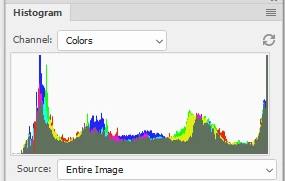
This is most likely caused by a defective or incompatible monitor profile.
As troubleshooting, and as a possible temporary fix, try setting the monitor profile to Adobe RGB. If that fixes the issue, you should ideally calibrate the monitor with a hardware calibrator, making sure to create a version 2, matrix-based profile.
This profile will be an accurate description of your monitor, and will make sure that Lightroom, as well as other color managed software display correct colors.
Depending on the characteristics of your monitor and your requirements, Adobe RGB may be close enough, but for complete accuracy, calibrate with a hardware calibrator.
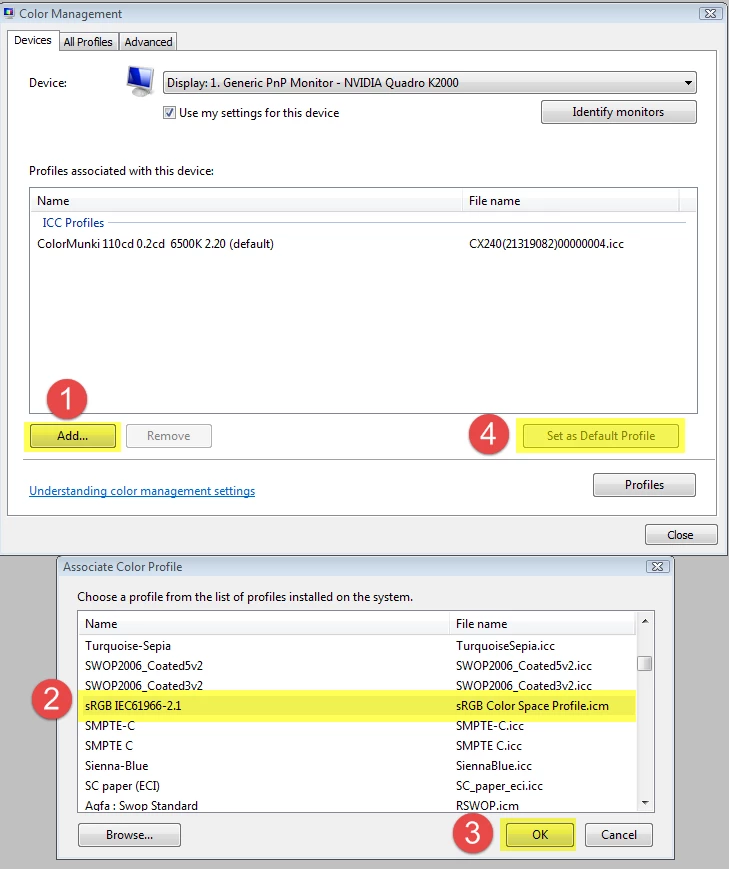
Go to Control panel > Color management, add the Adobe RGB profile, then set it as default.
Make sure that Use my settings for this device is checked.
If Lightroom is running, it must be restarted to become aware of the new profile.
The screenshot below uses sRGB, but since you have a wide gamut monitor, use Adobe RGB.
I am viewing photo in windows photo. |
The Photos app is not color managed.
You have a wide gamut monitor, and applications without color management will inevitably display images over saturated on this kind of monitor.
The only native color managed application on Windows 10 is the Windows Photo Viewer. It's hidden, do a search for it.
A good third party option (free for personal use) is the FastStone image viewer.
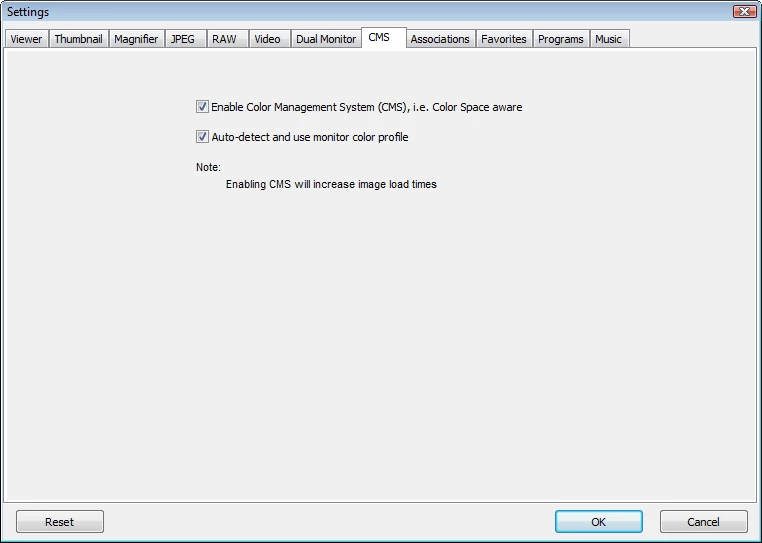
Make sure that Color management is set up like below – both boxes have to be checked.

 And other problem is that when i export photo it is more saturated then in lightroom
  AdChoices