Participant
March 19, 2017
Answered

Lightroom opening in background - Win 10

  • March 19, 2017
  • 1 reply
  • 2377 views

Since the most recent update (2015.9) i have trouble opening lightroom - the first time i try and launch the program nothing happens but when i go to task manager i see that lightroom is open as a background process and it's using about 90% of CPU.  When i end the process and re-launch the program it works perfectly fine.  Interestingly Photoshop launches without a problem and if i launch photoshop first then Lightroom always opens without any hitch.  I feel like i'm missing something in the LIghtroom launch sequence.

Anyone offer any help - i'm not too desperate to correct this if it involves uninstalling and reinstalling - it's a little annoying but not a disaster.

Cheers
This topic has been closed for replies.
Correct answer Rob_Cullen

To correct, try the following procedure-

1. End the process in task manager and re-open Lightroom , and then open the Task Manager. (CTRL+ALT+DELETE)

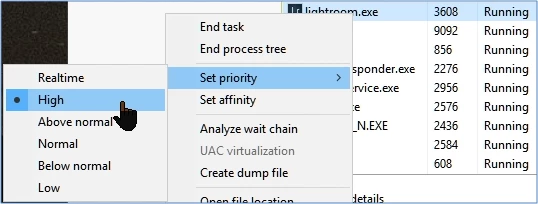
2. Set the Priority of Lightroom.exe to High (see 3 images below), close Task Manager.

3. Close Lightroom,

4. Restart the computer,

5. Reset the Preferences of Lightroom by holding [SHIFT+ALT] as you re-open Lightroom.

Hopefully this has solved the problem.

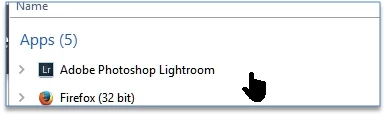
Image 1:          In Task Manager Right-Click on the App Adobe Photoshop Lightroom-

Image 2.          Select the option "Go to details"-

Image 3:          Right-Click on "Lightroom.exe"  to Set Priority to "High"

1 reply

Rob_Cullen
Community Expert
Rob_CullenCommunity ExpertCorrect answer
Community Expert
March 19, 2017

To correct, try the following procedure-

1. End the process in task manager and re-open Lightroom , and then open the Task Manager. (CTRL+ALT+DELETE)

2. Set the Priority of Lightroom.exe to High (see 3 images below), close Task Manager.

3. Close Lightroom,

4. Restart the computer,

5. Reset the Preferences of Lightroom by holding [SHIFT+ALT] as you re-open Lightroom.

Hopefully this has solved the problem.

Image 1:          In Task Manager Right-Click on the App Adobe Photoshop Lightroom-

Image 2.          Select the option "Go to details"-

Image 3:          Right-Click on "Lightroom.exe"  to Set Priority to "High"

Regards. My System: Windows-11, Lightroom-Classic 15.3, Photoshop 27.5, ACR 18.3, Lightroom 9.3, Lr-iOS 10.4.0, Bridge 16.0.3 .
Participant
December 19, 2019

This worked for me...Thanks! But I just wanted to add that after opening Lightroom with the SHIFT+ALT keys, click on the "Upgrade" option or it won't work. Maybe that's obvious for most people, but it tripped me up and I had to do it twice.