


Participant
July 16, 2017
Answered

Lightroom/Photoshop Edits not showing up in Photoshop

  • July 16, 2017
  • 4 replies
  • 7685 views

I just recently purchased and downloaded Lightroom CC (Version Adobe Lightroom [1117303]) and Photoshop CC (Version 2017.1.1) on a Mac, OS 10.12.5. I've been using Lightroom for a couple of years and I had an older version of Photoshop for a while. I want to be able to edit a photo from a collection in Photoshop and have it returned to the collection.

If I use "Edit In" for photoshop, the file transfers to PS okay and I can edit it fine, but if I save and close it, it doesn't show up in LightRoom any more. Sometimes I get a empty photo box, with a exclamation point that expands to a complaint that the file could not be found. But that's not consistent.

In Lightroom 5 if I edited a photo in PS it returned okay. I also have a number of other editors imported to PS, like Tonality CK to eures, dit the photo. That used to work as well, but with the latest version of LR, it doesn't work at all. And once I use it, the selection is greyed out for all other photos in the collection.

Is anyone else seeing anything like this?

Can anyone suggest an answer. I thought going to the newest version would give me more features, not less.

-Peter
This topic has been closed for replies.
Correct answer Rob_Cullen

Bob, a comment on

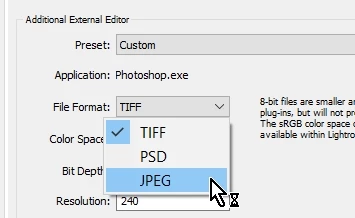
there is only PSD and Tiff

It is possible to add Photoshop as an "Additional External Editor" and select JPG as an option.

Lightroom does force a question "Use anyway" when you create the preset in Preferences.

ps:  On my laptop I updated 'all'  Lr Ps ACR, two days ago, and the problem with the file not appearing back in Lr seems to have been fixed- for me.

4 replies

Participant
October 26, 2017

I have seen something similar since upgrading to Lightroom Classic CC and Photos CC 2018.  Ino Lightroom I choose Photo, Edit in Adobe Photoshop CC 2018. Note, I have the image in a Collection, and I have the image selected in the Collection (not the “Folder”). I do my edits in Photoshop and use the Luminar plugin. I save my image, then I return to Lightroom.  All I see is the original NEF file (Nikon raw format). It turns out the image did get saved, but I have to return to the Folder to see it. The edited image is not part of the Collection. Before I upgraded the edited image would be in the Collection. I cannot figure out where the setting resides that will make my image show up in the Collection. Help!

Joe

Rob_Cullen
Community Expert
Community Expert
October 26, 2017

I have upgraded to Lr-Classic (windows-10)

Editing in an External editor (Nik) successfully returns the new file to my Collection next to the original.

It works for me from both a Standard Collection and a Smart Collection, even from the Develop module when editing a file in a Collection.

In fact  from Grid View I see the new file created in the collection for a brief moment before Nik plugins open with the 'new' file'.

So I am at a loss to explain why you do not see the same, and to my knowledge there is no "Setting" to turn on/off.

Perhaps Luminar is changing something? Can you try other external editor actions?

Regards. My System: Windows-11, Lightroom-Classic 15.1.1, Photoshop 27.3.1, ACR 18.1.1, Lightroom 9.0, Lr-iOS 10.4.0, Bridge 16.0.2 .
Participant
October 28, 2017

The issue was happening with and without using the Luminar filters in Photoshop.

I had to reboot my iMac for another software install. Afterwards, the issue went away. Now after I save in Photoshop, I reopen Lightroom (in same Collection) and the PDF version shows up. Not sure how that resolved the issue, but I am happy!

on a side note, I am seeing a significant improvement in processing times with Lightroom.

thanks, joe

Bob Somrak
Legend
July 23, 2017

I do notice a NEW glitch using EDIT IN.  When doing an Edit In from Develop mode the returned photo in the filmstrip is highlighted but is only a GRAY BOX even though the full photo is correct.  As soon as you select another photo the thumbnail regenerates.  The behavior is correct when doing the Edit In from Library.

M4 Pro Mac Mini. 48GB
Rob_Cullen
Community Expert
Rob_CullenCommunity ExpertCorrect answer
Community Expert
July 24, 2017

Bob, a comment on

there is only PSD and Tiff

It is possible to add Photoshop as an "Additional External Editor" and select JPG as an option.

Lightroom does force a question "Use anyway" when you create the preset in Preferences.

ps:  On my laptop I updated 'all'  Lr Ps ACR, two days ago, and the problem with the file not appearing back in Lr seems to have been fixed- for me.

Regards. My System: Windows-11, Lightroom-Classic 15.1.1, Photoshop 27.3.1, ACR 18.1.1, Lightroom 9.0, Lr-iOS 10.4.0, Bridge 16.0.2 .
Bob Somrak
Legend
July 24, 2017

wobertc

Thanks for the info.  I didn't think about the "Additional External Editor" beings the OP was using Photoshop and Lightroom CC versions.

My glitch about the gray thumbnail showed up when I installed CC2015.12, at least I think so as I don't ever remember seeing the problem. 

M4 Pro Mac Mini. 48GB
jeffp14727410
Participant
July 23, 2017

I have the same or at least similar issue. After taking the latest LR update.

Open a file from LR to edit in Photoshop CC 2017

Make my edits - then save as jpeg

Go back to LR in Grid View for example - no jpeg to be seen or found - even via a LR search

Look in Finder and the jpeg is has been saved to the folder so it is there

Try to manually sync the folder via LR - nothing

Now I see the original file in Grid View at the top says NEF+JPEG

Do not have stacking enabled in Preferences

Do have checked treat JPEG next to RAW as separate (didn't have that checked before the update)

Again this just changed after taking on the latest update via the cloud.

Fairly new to LR and don't know where to go from here. I need to be able to view my edits/jpegs again in LR.

Any thoughts or help greatly appreciated.

Bob Somrak
Legend
July 23, 2017

Under the external editing preferences for Photoshop there is only PSD and Tiff so you must be doing a SAVE AS instead of SAVE in Photoshop to get a JPG so the photo will not be automatically reimported into Lr.

M4 Pro Mac Mini. 48GB
Rob_Cullen
Community Expert
Community Expert
July 17, 2017

Yes I am seeing similar, but in my case nothing comes back to Lightroom! I have to synchronize the folder where the original is located to 'import' the new Ps edited file.

And my Photoshop defined Workspace has changed back to Adobe's default without my doing!

One thought (as you do see an empty box)- check the Photoshop preferences-

Edit > Preferences > File Handling / Maximize psd and psb FIle Compatability  = ALWAYS.

Regards. My System: Windows-11, Lightroom-Classic 15.1.1, Photoshop 27.3.1, ACR 18.1.1, Lightroom 9.0, Lr-iOS 10.4.0, Bridge 16.0.2 .