

10k Portraits
Inspiring
June 30, 2022
Question

Lightroom Preferences Window Too Big

  • June 30, 2022
  • 7 replies
  • 3361 views

When I open Edit >> Preferences, this is how it looks. Despite the task bar being unlocked and hidden, I can't see Ok and Cancel button. Can't resize the preferences window, hence can't save the changes I made.

OS: Windows 10 Pro - 64bit

Lightroom Classic Version 11.4
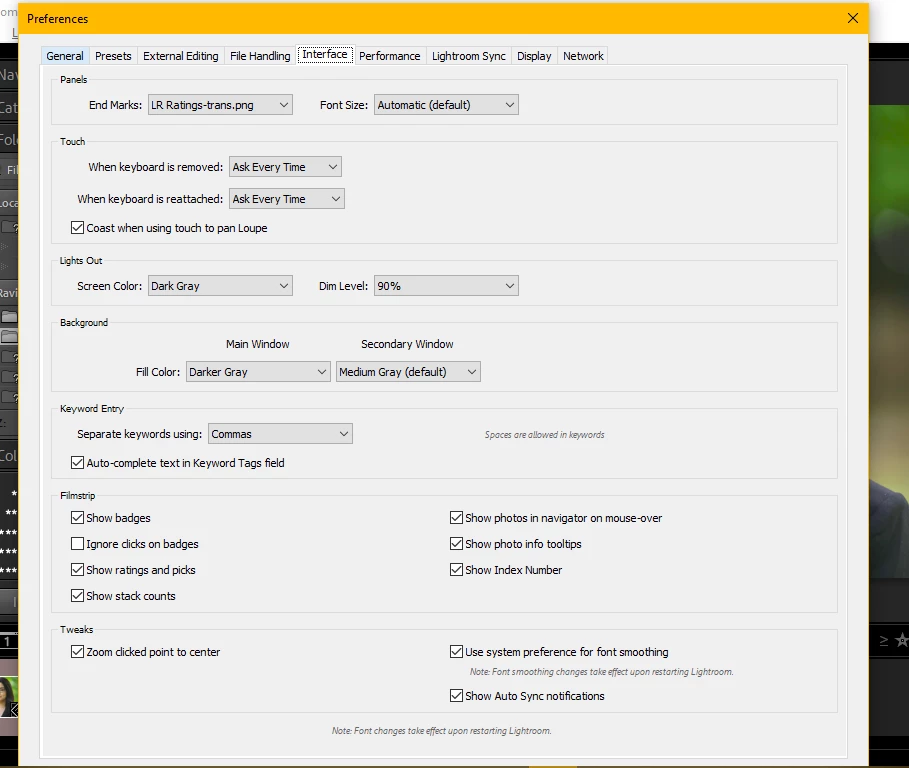
 

Can somebody help me with this please?


Thank you!


7 replies

Participant
September 11, 2025

Also having this issue in September 2025 on Windows 11, release 14.5.1. I do know how to fix it, but...


I have my font set to large - 150% because it impossible to read anything in LR when it's set to default or medium. If the font size is set to default or medium, the preferences window fits on the screen.


As others have said, the simple and obvious fix is to allow the preferences window to be resized - why is this not an option?

Known Participant
November 26, 2023

I am having the same issue, November 26, 2023  ( Running the lastest updates to LRC)

Windows 10 64 bit

As many updates as Adobe has made - why does this presist.

Simply reduce the size to fit on the screen or allow one to "grab" a corner and resize.


johnrellis
Legend
November 26, 2023

"Simply reduce the size to fit on the screen or allow one to "grab" a corner and resize."


The Preferences window can't be resized.

Participant
September 17, 2024

it doesnt work

Inspiring
October 14, 2022

As I've already said, I think it should be treated as a design issue to be fixed, but as a work-around you can always press Enter instead of clicking Ok, and Escape for Cancel.

Participant
January 24, 2024

What key do you press for save?

Jill_C
Community Expert
Community Expert
January 25, 2024

What are you trying to do? There is no Save button in LRC when you're editing. The change takes effect immediately.

Jill C., Forum Volunteer
Inspiring
October 14, 2022

I would like to add my own interest in seeing this addressed as a design issue by Adobe. The Preferences window should be redesigned in my opinion. I understand that users can increase screen resolution, but for many people this can only be done by sacrificing readability and image quality using their existing hardware. 

Conrad_C
Community Expert
Community Expert
July 3, 2022

Regarding the window you attached as a screen shot: There is no more to that window. You are seeing all options, right down to the last one. And it’s a window, not a dialog box, so there is no OK and Cancel button there.


There may be an issue with not being sure if you can see the bottom of the window, but every available option is shown there.


What does it show for the Presets tab? That one is much deeper, and the bottom section (Lightroom Defaults) has nine buttons. Do you see all of those?

johnrellis
Legend
July 3, 2022

Unlike on Mac, on Windows the Preferences window has OK and Cancel buttons at the bottom right and Restart Lightroom Classic button at the bottom left.  


On a 1024 x 768 screen at 100% Windows scaling and the default font size, other than the OK, Cancel, and Restart buttons, the only thing that's totally cut off in Preferences is the Performance > More Performance Tips and the bottom of the expanded Sync Activity section.


Conrad_C
Community Expert
Community Expert
July 4, 2022

Thanks, I stand corrected…I was looking at a Mac, and did not realize this is one of the places where the two platforms are different in Lightroom Classic.

JohanElzenga
Community Expert
Community Expert
June 30, 2022

Looks like your monitor resolution is set too low to meet the Lightroom Classic specs.


-- Johan W. Elzenga
johnrellis
Legend
July 2, 2022

Though the minimum required screen size is 1024 x 768, people have reported a number of problems like this at this size.  There are issues even at the next size, 1280 x 1024.  Some workarounds:


- Typing Esc will invoke the Cancel button and close the window. Typing Enter / Return invokes OK to save your changes and close the window.


- Make sure you've got Windows display scaling set at 100%. (You almost certainly do, but double-check.) Right-click the Windows desktop and do Display Settings and set Scale And Layouter to 100%.


10k Portraits
Inspiring
June 30, 2022

I tried running Lighroom in Windows 8 Compatibility mode but that's not working either.