Participant
October 21, 2018
Answered

Lightroom problem with Photoshop Gradient layers (bug?)

  • October 21, 2018
  • 2 replies
  • 1365 views

Hi.

When using Gradients in Photoshop I've encountered this issue in Lightroom today. Both PS CC19 and LR Classic are updated.

No matter the color of the gradient I use, Lightroom interprets it as white. I've restarted the computer, purged the LR cache and also uninstalled LR. To no avail. If I export the image out of photoshop it look correct, but if I export it out of LR it's still wrong. I've never had this issue before and I didn't change any settings, it just appeared today.

If I disable the gradient layer in PS, the image will be read correctly by LR.

Any help will be highly appreciated.

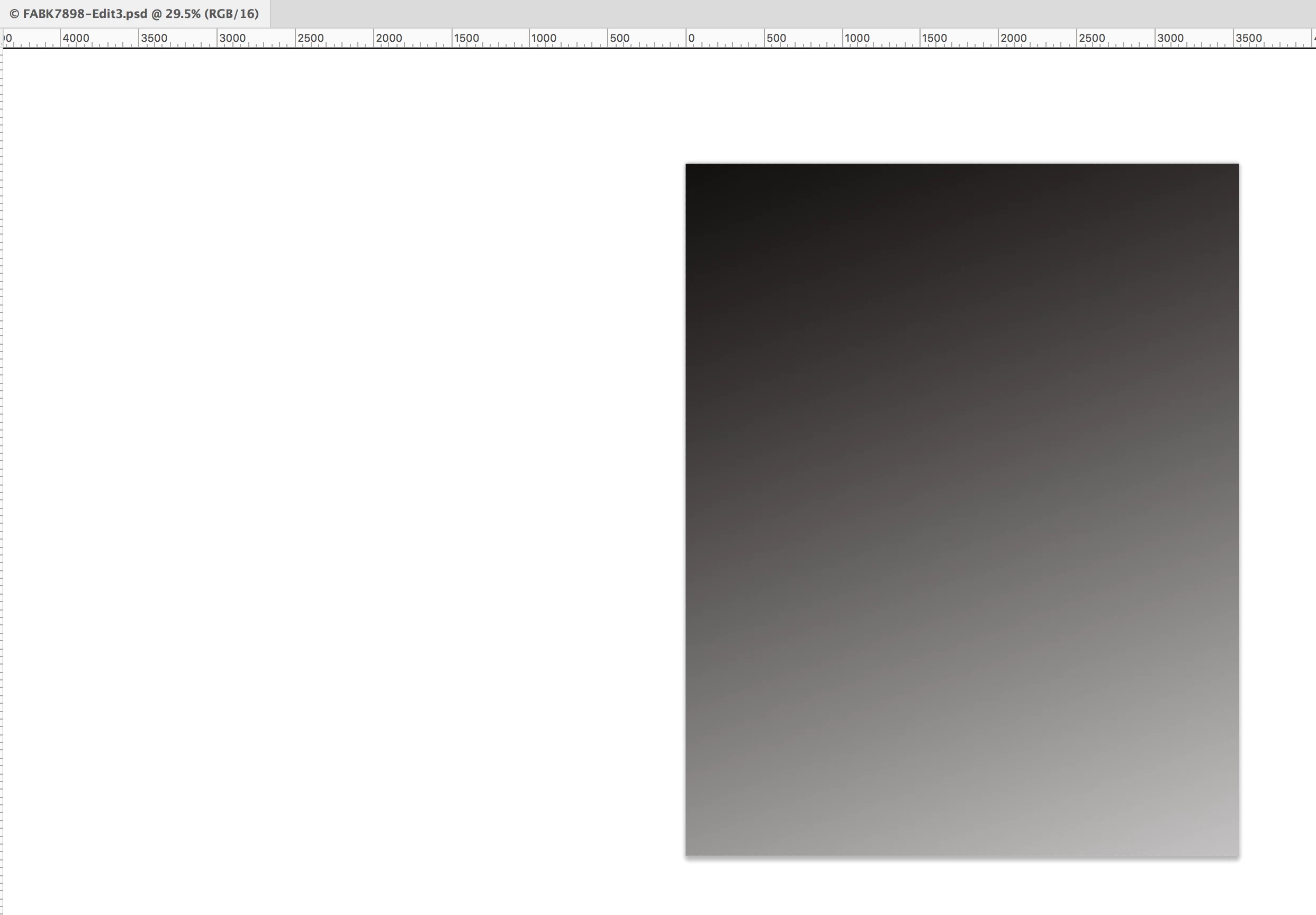
Here's what the image looks like in Photoshop. Just a simple gradient (dither enabled) on top of everything.
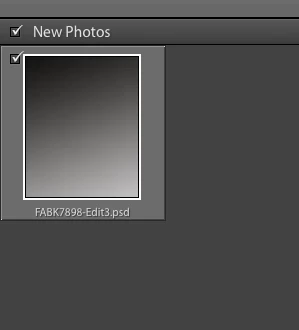
Now the import dialog in Lightroom Classic still shows it correctly.
But inside Lightroom:
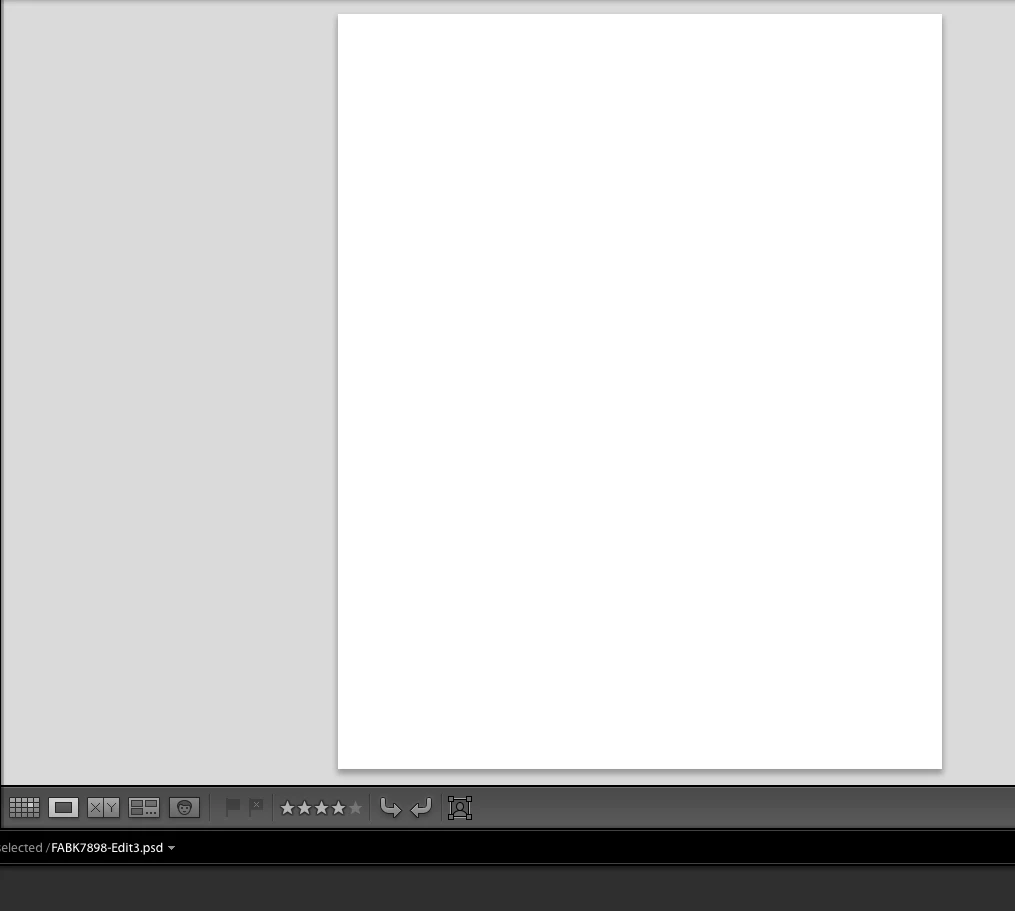
If I export it, it'll stay white.

This topic has been closed for replies.
Correct answer D Fosse

This is a bug in the new layer compositing engine in Photoshop CC2019. It's not the compatibility setting.

Go into Photoshop Preferences > Performance and check "Legacy Compositing". Then save out a new copy. Keep that preference if you have problems like this.

We haven't had much information about what this new compositing engine is compared to the old, and what the differences are. But we all assume it will be fixed in an upcoming dot release.

2 replies

D Fosse
Community Expert
D FosseCommunity ExpertCorrect answer
Community Expert
October 21, 2018

This is a bug in the new layer compositing engine in Photoshop CC2019. It's not the compatibility setting.

Go into Photoshop Preferences > Performance and check "Legacy Compositing". Then save out a new copy. Keep that preference if you have problems like this.

We haven't had much information about what this new compositing engine is compared to the old, and what the differences are. But we all assume it will be fixed in an upcoming dot release.

f31792475Author
Participant
October 21, 2018

Thank you very much, this fixed it.

JohanElzenga
Community Expert
Community Expert
October 21, 2018

Check your Photoshop preferences and make sure that the ’Maximize PSD and PSB File Compatibility’ option is set to ‘Always’ under File Handling

-- Johan W. Elzenga
f31792475Author
Participant
October 21, 2018

It was already set to 'Always'.

johnrellis
Legend
October 21, 2018

What you're observing suggests that maybe the PSD wasn't initially saved with maximize compatibility.  If you set that option after a PSD is first saved, a bug in PS causes the file to never be compatible -- you have to do File > Save As with the option set to save a new copy.

If doing File > Save As to make a new copy doesn't help, upload the PSD to Dropbox or similar, and we can dig into what's going on.