


Participating Frequently
November 14, 2018
Question

Lightroom showing folders bot in root and subfolder

  • November 14, 2018
  • 4 replies
  • 1587 views

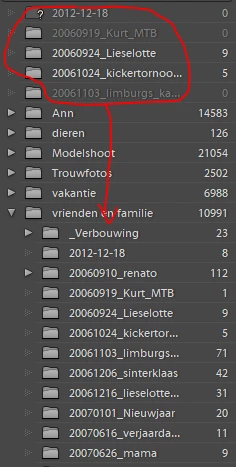
Lightroom shows my folders both in the root and in a subfolder. See picture for more information.

If I delete the folders in the room they disappear in the subfolder but stay in the root folder just empty
    This topic has been closed for replies.

    4 replies

    GoldingD
    Legend
    November 25, 2018

    The posting by

    JohanElzenga
    Community Expert
    Community Expert
    November 25, 2018

    This is a well-known problem, called the 'Capitalisation problem'. Basically, what happens is that you have two different folders, one called ‘XXXX’ and the other one called ‘xxxx’. In other words, the names are the same, except for the capitalisation. Because MacOS and Windows are case-insensitive, your OS sees those two folders as one and the same folder and so it deals with this without you even being aware of it. You will only see one version. But Lightroom is case-sensitive, so Lightroom does see two different folders. In your case the folder in question could be “vrienden en familie”, but it could also be a parent folder of that one.

    Here's how to fix the problem:

    1. Backup your catalog!

    2. Try to reveal the parent folder of these root folders. Right-click on one of them and choose ‘Show Parent Folder’. If that works, follow the rest of this procedure on this parent folder. If you get an error message, then repeat the next steps for each double root folder.

    3. Create a folder directly on the root of your internal hard drive, call it whatever you want, say "Capitals Fix". Note: do this in Windows Explorer/Macintosh Finder, not in Lightroom.

    4. Right-click on the first double root folder in the Lightroom Folders Panel and select "Update Folder Location". In the file browser that then opens, browse to and select the "Capitals Fix" folder.

    5. Don't be alarmed as the folder will disappear from the Folders Panel, "Capitals Fix" will appear but all the sub-folders that were listed under this folder will now have "?" marks.

    6. Now right-click on "Capitals Fix" in the Folders Panel, and again choose" Update Folder Location". This time browse to and select the correct folder. You may get a "Merge" dialog box, select "Merge" and everything should resolve itself.

    -- Johan W. Elzenga
    Participating Frequently
    November 29, 2018

    Step4 gives me the following error:

    Here is a larger screenshot of the folder:

    JohanElzenga
    Community Expert
    Community Expert
    November 29, 2018

    Describe exactly what you've done so far and which folder you try to relocate in step 4.

    -- Johan W. Elzenga
    Just Shoot Me
    Legend
    November 25, 2018

    What OS are you using?

    There is a bug someplace dealing with Capitalization on Mac OS X. Are you using a Mac?

    Participating Frequently
    November 25, 2018

    I'm running Windows 10 on that computer

    Just Shoot Me
    Legend
    November 25, 2018

    stevev79562377  wrote

    I'm running Windows 10 on that computer

    OK but that doesn't mean you don't have those same folders in the ROOT of the drive and then again in another folder as subfolders.

    Do you have "Show Parent" selected?

    Also you haven't bothered to show the full "Folders" section listing the drive letter and you have one folder that has a Question mark on it.

    Looks like you have been moving things around, possibly outside of LR.

    Participating Frequently
    November 25, 2018

    Nobody?