

Lightroom: Why is the Folders panel not reflecting the folders on my hard drive?
When I import photos into LR from a camera SD memory card, I have LR copy the photos into a new subfolder in the 'My Lightroom Photos' folder, which it does correctly, according to Finder:
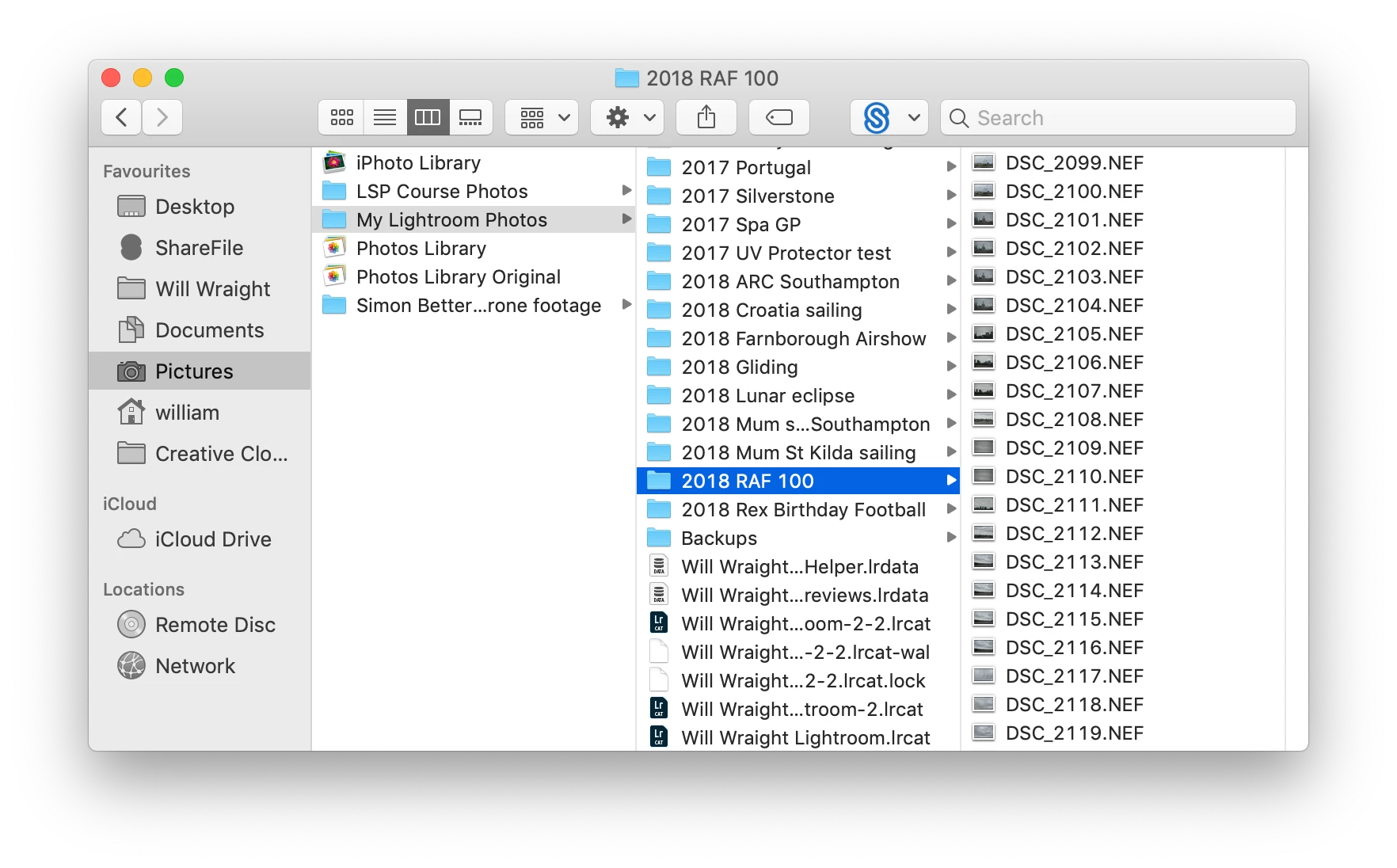
But this now does not match what LR shows me in its Folder layout:
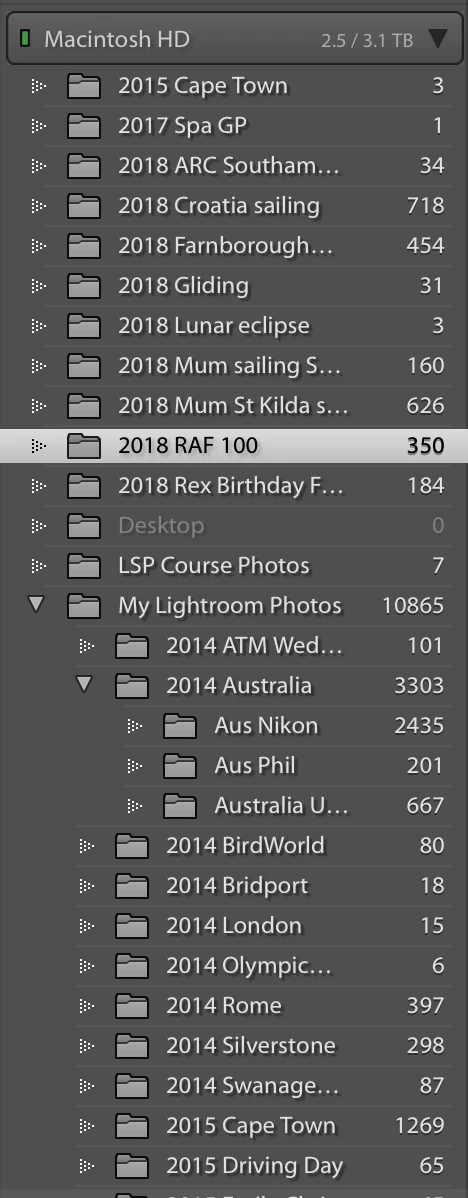
So, for example, folder '2018 RAF 100' is shown in LR as being outside 'My Lightroom Photos', as are lots of other folders, as you can see in the LR screenshot. But, if you look back at the Finder screenshot, above, they are all actually properly in the right place in 'My Lightroom Photos'
Note also that LR is showing two '2015 Cape Town' folders, one inside 'My Lightroom Photos' with 1269 photos and one outside/above 'My Lightroom Photos' with another 3 photos, but when I look in Finder, there is only one '2015 Cape Town' folder, which has got all the right photos in it. I don't know why LR has separated these three out. It's done it as well for '2017 Spa GP', with a single photo showing in the extra folder outside 'My Lightroom Photos' in LR, but not in Finder (that single photo is actually a panorama stitch done in LR, which was then saved to the correct location according to Finder but a new location according to LR).
I have tried to 'Update Folder Location...' for each folder, but nothing changes. Sometimes I get the following error pop-up:
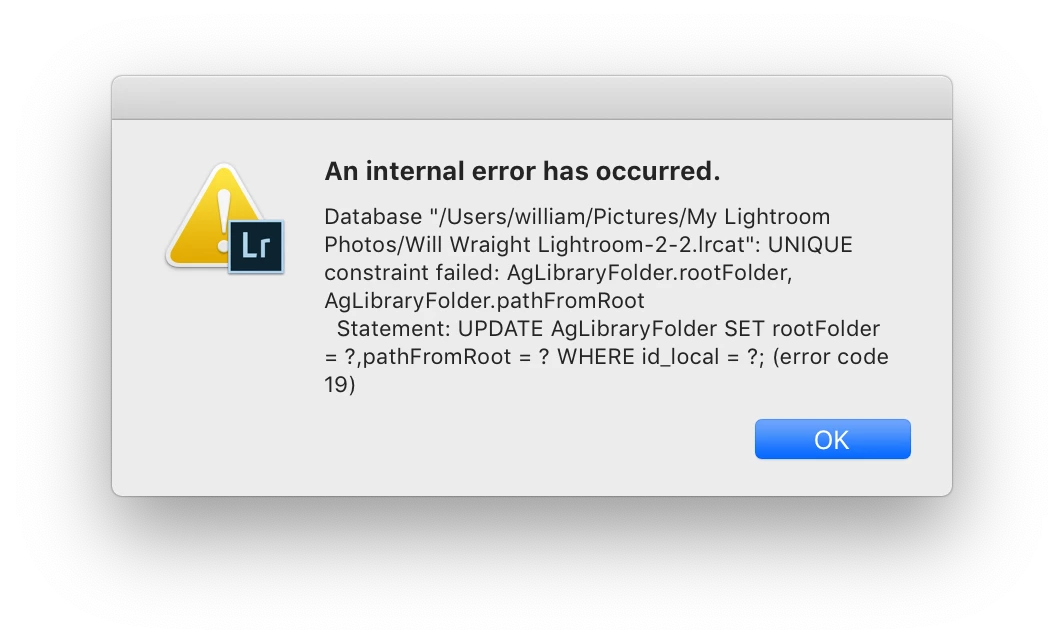
I have tried renaming folders, through LR, but that doesn't fix it. I am nervous of the 'Synchronise Folder...' command because it talks about copying and deleting photos, which I don't want to do.
Fundamentally, LR still works and I can access all the photos and all my previous developing, etc, is all still there and still working, so I don't want to do anything that jeopardises 5 years of editing! But it is frustrating and worrying that the folder structure is not correct in LR and that the error message pops up.
Help, please!
Thanks,
Will
PS: Lightroom Classic 8.1; Mac OS Mojave 10.14.2; all up to date
 AdChoices