Participant
August 29, 2025
Answered

Linear and radial mask cursors disappear.

  • August 29, 2025
  • 3 replies
  • 316 views

Hello,

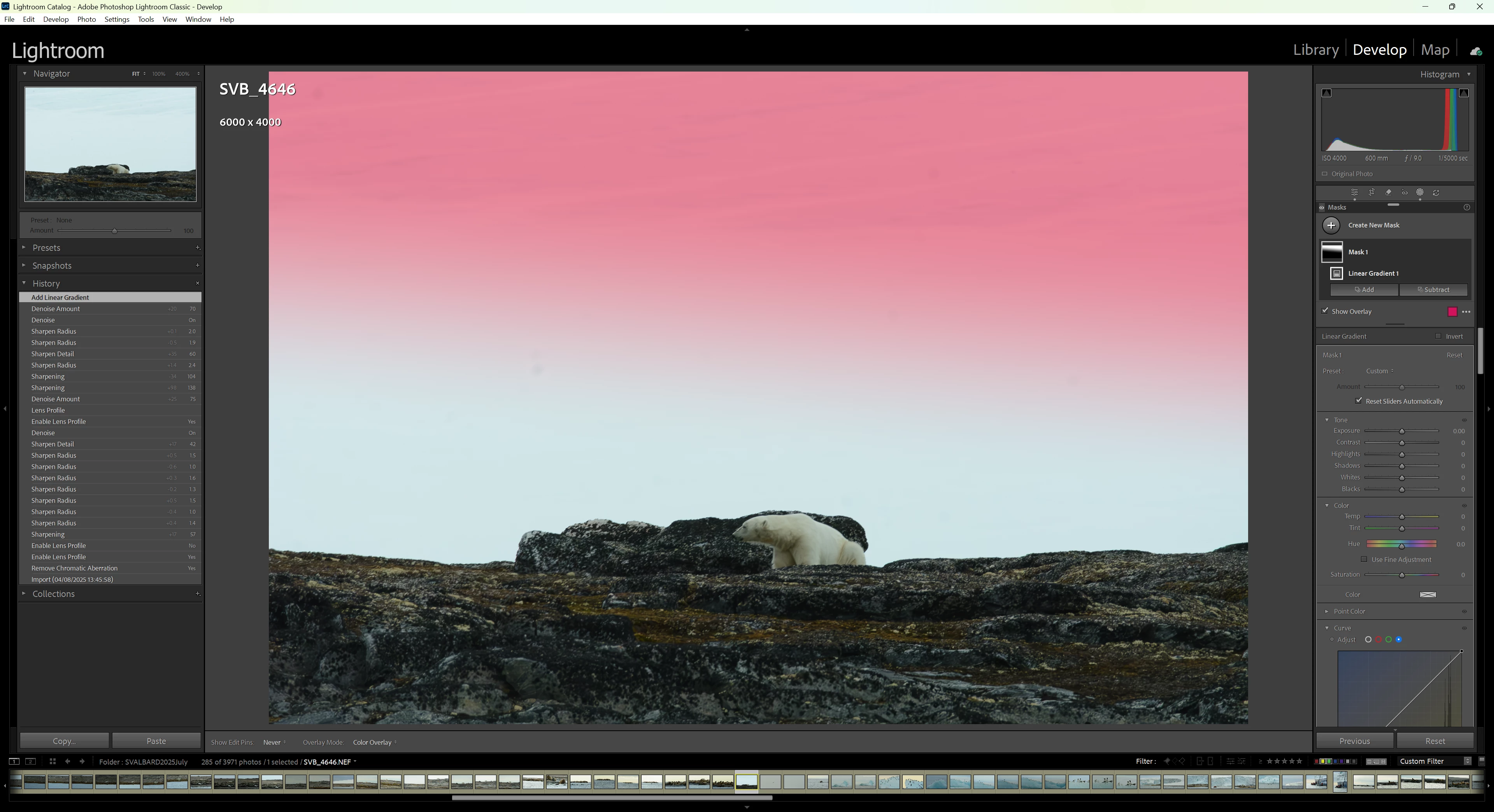
Without any known changes in the last updated version of LrC, the linear and radial masks lost their controls lines/dots/cursors. there is no way to change size or placement after you leave it. I need help to get it back. 

Thanks,

Philippe Trougouboff - <Email removed>
 

Correct answer richardplondon

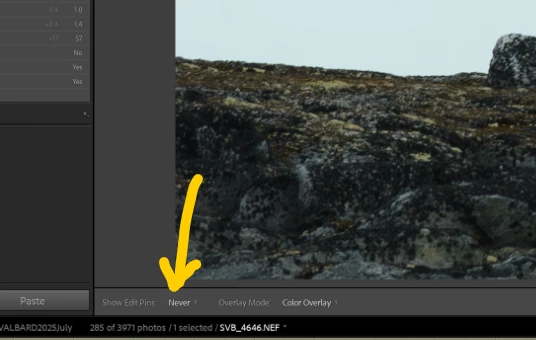
alternatively, you can use this control - 'Never' option is the same thing as being hidden with the H shortcut. 'Always' means they all show whenever you are in masking mode. Or you can opt to have these pins only show for the currently active radial or grad. 

3 replies

Conrad_C
Community Expert
Community Expert
August 29, 2025

If you forget what the keyboard shortcut is, the menu commands controlling this are on the Tools > Tools Overlay submenu. The Never Show shortcut (H for “hide”) is a toggle so you can press it to cycle between hide/show.


So although the H shortcut is what’s normally taught, you can control edit pin visibility in three ways:

The Show Edit Pins menu on the Toolbar that richardplondon showed

The menu commands on the Tools > Tools Overlay submenu

The keyboard shortcuts for the menu commands


AxelMatt
Community Expert
Community Expert
August 29, 2025

@Philippe T  Press shortcut "H" to toggle the viewing mask's lines and dots.


My System: Intel i7-8700K - 64GB RAM - NVidia Geforce RTX 3060 - Windows 11 Pro 25H2 -- LR-Classic 15 - Photoshop 27 - Nik Collection 8 - PureRAW 6 - Topaz Photo AI
dj_paige
Legend
August 29, 2025

@AxelMatt has the right answer.

Sameer K
Community Manager
Community Manager
August 29, 2025

Hey, @Philippe T. Welcome to the Lightroom Community. I'll need more info to help you figure this out.

Are you working with multiple displays? Has this started to happen since the recent release of Lightroom Classic? 


As primary steps, try this:

  • Unplug additional displays & use only the default.
  • Go to Lightroom > Preferences > Performance > Use Graphics Processor > Set it to Off if it is on Custom or Auto. If this shows you any differences, please check this article to troubleshoot further: https://adobe.ly/3uYiJo4

Let me know how it goes. 

Thanks!
Sameer K

(Type '@' and type my name to mention me when you reply)

Participant
August 30, 2025
Hi @ Sameer K,
Thanks for your reply.
I finally solved the problem, with the help of the LR community posts.
I found the "H"shortcut was applied (probably inadvertently), and the
cursors were back with applying it again.

Have a good day.
Philippe T.