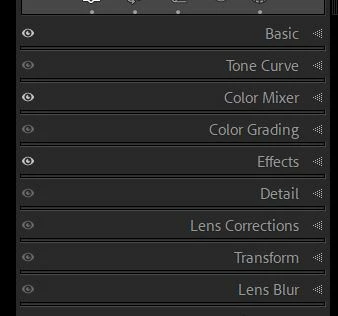
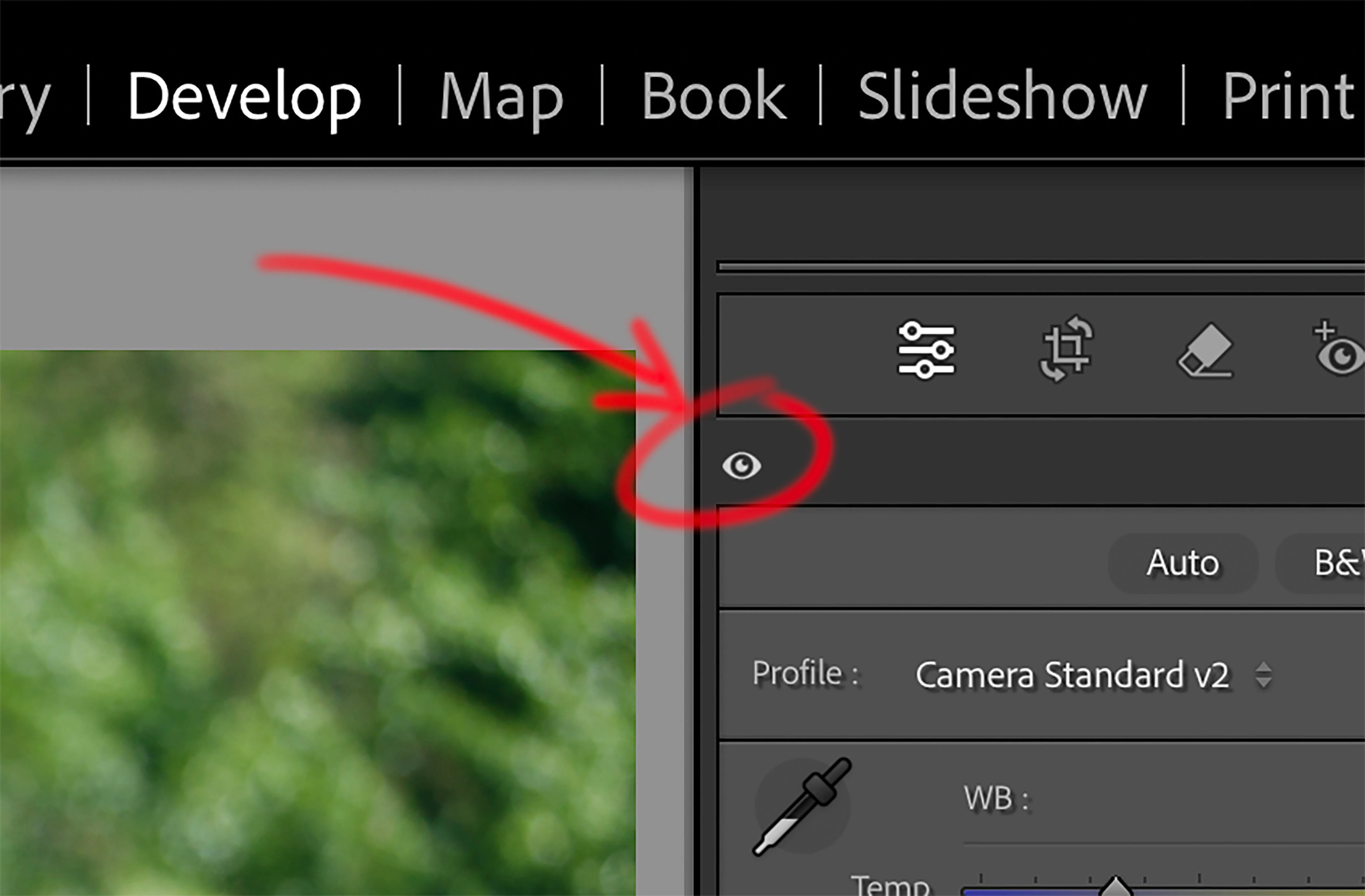
The (eye) icon is an indicator that there have been edits made in the panel where you see a bright-white 'eye'
A grey 'eye' indicates nothing in that panel has been adjusted.
If you click on the white 'eye' then it temporarily disables the adjustments in that one panel (and not other panels).
Clicking on a white 'eye' does not hide or cancel adjustments made in any other panels- so you will still see the effects of other panels, including adjustments that might have been made by a develop preset.
If you want to 'keep an original' version of your image visible in the filmstrip (or Grid view) then you should be using Virtual copies. You can work on a virtual copy and leave the 'original' untouched. And you can always [Reset] an image to delete all edits made.
Regards. My System: Windows-11, Lightroom-Classic 15.4.1, Photoshop 27.8, ACR 18.4, Lightroom 9.4, Lr-iOS 10.4.0, Bridge 16.0.3 .





 AdChoices