


Participant
October 4, 2019
Question

LR classic freezing at opening

  • October 4, 2019
  • 3 replies
  • 281 views

Everytime I attempt to open LR classic in the last week, it freezes. The program opens, I can see previous photos and then a window opens with the spinning circle as though something is attempting to load. Only nothing ever loads. If I click on the x to close the window, the entire program closes. This is what I see. I have uninstalled and reinstalled the program but this keeps happening and it is annoying to say the least. What is causing this problem? I am not a highly technical person so any explanation or steps to correct it will need to be very detailed step by step.
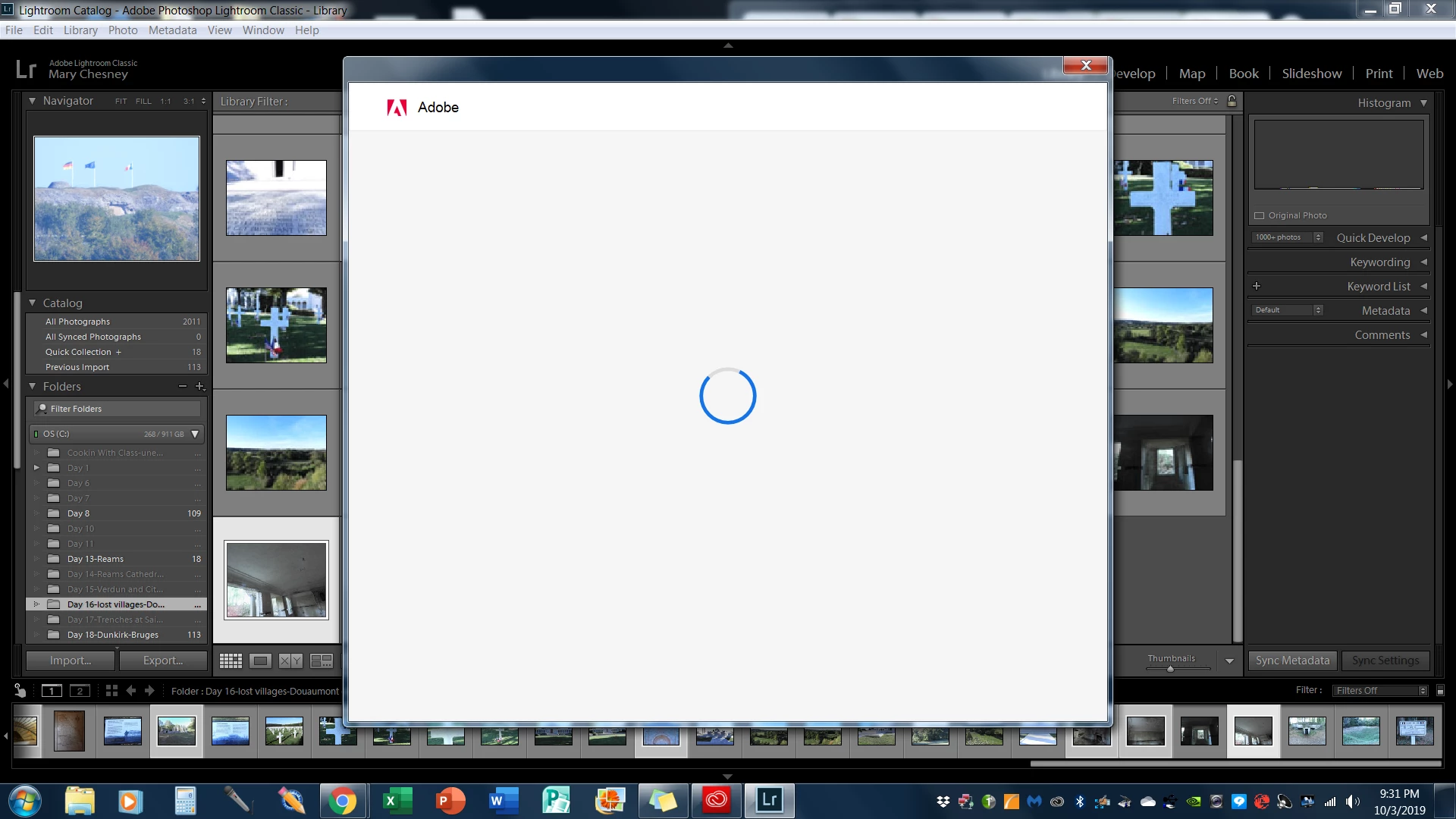
    This topic has been closed for replies.

    3 replies

    GoldingD
    Legend
    October 4, 2019

    Bring up your copy of the Adobe Creative Cloud Desktop App.


    See if you are signed in. If you are signed in, sign out then sign back in. Try now.


    If you were signed out, just how long ago were you signed in, anyhow sign in and try.


    see: https://helpx.adobe.com/in/lightroom-classic/kb/lightroom-not-launching-after-splash-screen.html


    and/or: https://photographybay.com/2015/04/21/lightroom-cc-crashing-at-launch-heres-how-to-fix-it/


    TheDigitalDog
    Inspiring
    October 4, 2019
    Author “Color Management for Photographers" & "Photoshop CC Color Management/pluralsight"
    AxelMatt
    Community Expert
    Community Expert
    October 4, 2019

    Please try switch off the GPU support from the Lightroom preferences and check if that helps to fix the issue 

    Go to Lightroom > Preferences > Performance tab > Uncheck "Use Graphics Processor" > Restart Lightroom. 

    Adobe Lightroom GPU Troubleshooting and FAQ 


    In case that Lightroom doesn't st art, you have to edit the preferences file to disable the GPU. 

    With Lightroom closed, use the File Explorer, and navigate to 

    C:\Users\[your username]\AppData\Roaming\Adobe\Lightroom\Preferences 

    Open the file Lightroom 6 Preferences.agprefs in a text editor, like Notepad. 

    Close to the end of the file there is a line that says useAutoBahn = true, - change this to useAutoBahn = false, 

    Save and close the file. Then launch Lightroom. 


    Another point that you can check:

    https://helpx.adobe.com/lightroom-classic/kb/lightroom-not-launching-after-splash-screen.html


    My System: Intel i7-8700K - 64GB RAM - NVidia Geforce RTX 3060 - Windows 11 Pro 25H2 -- LR-Classic 15 - Photoshop 27 - Nik Collection 8 - PureRAW 5 - Topaz Photo