Participating Frequently
December 29, 2017
Answered

LR Classic update a bust

  • December 29, 2017
  • 2 replies
  • 2321 views

Updated LR Classic tonight.  Now I get the dreaded "this action cannot be completed because the other program is busy. Choose switch.." What other program???? Really aggravating. Adobe's fix is to disable "superfetch" in Windows 10, restart and try it again.  That doesn't work. Slowed my computer down to a crawl taking close to a half an hour to restart then got the same message in LR Classic.  All was fine up until the update. LR is installed. Started it from the desktop and the APP with the same results. Will try to uninstall and try this over again. Went back into superfetch (services.msc) and changed it back to automatic but my computer is down to a crawl. Suggestions welcome. Why are two versions of LR installed -- one is just "Lightroom" the other is "Lightroom Classic"? Thanks.  
This topic has been closed for replies.
Correct answer Rob_Cullen

because the other program is busy

.The error message is seen because a Catalog was not closed in the proper manner, either by a software or hardware crash.

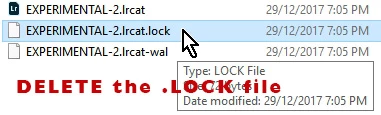
When a catalog is 'open' and functioning in Lightroom, a file that ends with the suffix .LOCK is created. This .LOCK file is normally deleted when the catalog is closed correctly.

If Lightroom sees the .LOCK file existing, then it assumes that the Catalog is already 'open' with (another) Lightroom running.

To fix the .LOCK problem - use the operating system to locate your Catalog (xxxx.LRCAT) and delete the nearby (xxxx.lrcat.LOCK) file.  (Do NOT delete the xxxx.LRCAT file )

2 replies

john beardsworth
Community Expert
Community Expert
December 29, 2017

Do you have any traditional hard drives? ie spinning drives rather than SSD. If so, take a look at the power settings on your PC, and particularly at a mismatch between the PC's settings and those of hard drives.

I had been getting this Server Busy message for a couple of years. It wasn't every startup and it never locked me out - I could continue via Retry after waiting a few seconds. Then I followed up this recent post on the forum and changed the power settings on my drives, turning off "sleep mode" and restarting the PC. Since then, I haven't had the message once.

jkingletAuthor
Participating Frequently
December 29, 2017

Thanks for the heads up. I do, checked, the settings are all good. Computer startup however has gone from 3 minutes to over a half an hour.  I just tried a handy dandy creative cloud cleaning tool and am reinstalling creative cloud as we speak.Again, this all happened on the heels of the LR Classic update. Dell 8900 XPS running Windows 10 pro by the way. Never a problem with it.  What a mess. Wish me luck.

Just Shoot Me
Legend
December 29, 2017

jkinglet  wrote

Thanks for the heads up. I do, checked, the settings are all good. Computer startup however has gone from 3 minutes to over a half an hour.  I just tried a handy dandy creative cloud cleaning tool and am reinstalling creative cloud as we speak.Again, this all happened on the heels of the LR Classic update. Dell 8900 XPS running Windows 10 pro by the way. Never a problem with it.  What a mess. Wish me luck.

If your system is taking 1/2 hour to start up you have some very serious hardware or Windows problems.

None of those would be related to updating LR.

Even if it was just after doing the LR update.

Rob_Cullen
Community Expert
Rob_CullenCommunity ExpertCorrect answer
Community Expert
December 29, 2017

because the other program is busy

.The error message is seen because a Catalog was not closed in the proper manner, either by a software or hardware crash.

When a catalog is 'open' and functioning in Lightroom, a file that ends with the suffix .LOCK is created. This .LOCK file is normally deleted when the catalog is closed correctly.

If Lightroom sees the .LOCK file existing, then it assumes that the Catalog is already 'open' with (another) Lightroom running.

To fix the .LOCK problem - use the operating system to locate your Catalog (xxxx.LRCAT) and delete the nearby (xxxx.lrcat.LOCK) file.  (Do NOT delete the xxxx.LRCAT file )

Regards. My System: Windows-11, Lightroom-Classic 15.3, Photoshop 27.5, ACR 18.3, Lightroom 9.3, Lr-iOS 10.4.0, Bridge 16.0.3 .
jkingletAuthor
Participating Frequently
December 29, 2017

Thanks. But no go. Found my catalog (.lrcat) but there is no associated .lock file. Would you like a screen shot? The "..other program is busy.." message continues as before with a "switch to" and "retry" option, neither of which work. Just a reminder.  This happened when I pened LR Classic for the first time after the most recent update (yesterday). Sorry, just don't know where to go from here. Any other suggestions?

jkingletAuthor
Participating Frequently
December 29, 2017

Just got an Adobe update notice for Lightroom 2015 CC? LR 2015 CC is listed in my creative cloud APPS under Lightroom Classic (toggle the little black arrow). Updating as we speak. Could there be a conflict? Why is LR 2015 CC still available in the creative cloud? I've been using LR Classic. Could LR 2015 CC be interfering with LR Classic operation?