Known Participant
August 25, 2020
Answered

Lr does not import my photos

  • August 25, 2020
  • 8 replies
  • 1265 views

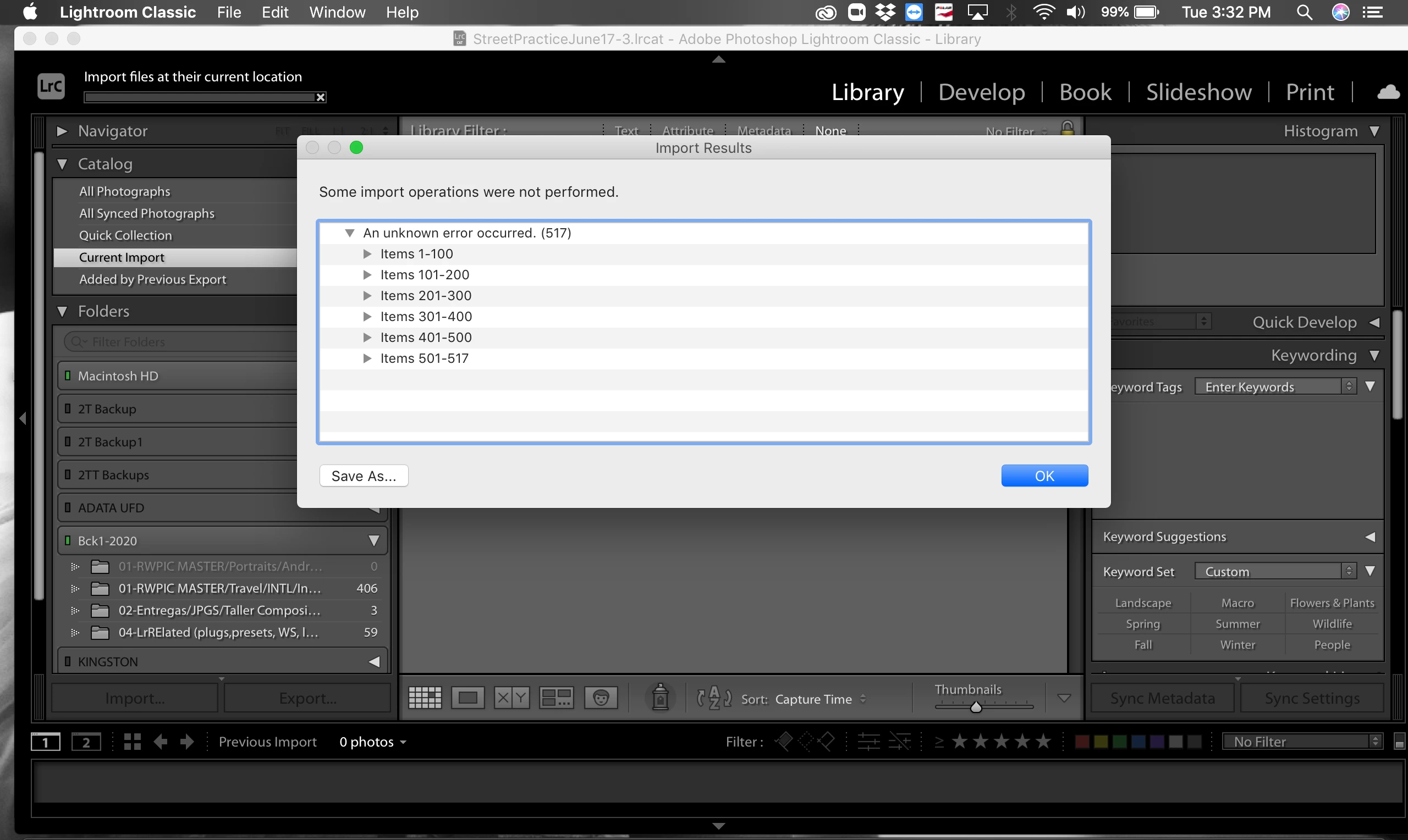
Hello, I've tried to import my photos from my external HD as usual, but since last sunday Lr shows the same error. I deleted a bunch of files from my lap and updated Lr assuming this would solve the problem... it did not.  What can I do? I urgently need to develop the series. Attached the error I've got since sunday. Please help! Thanks
This topic has been closed for replies.
Correct answer Just Shoot Me

It is a problem with the file names of those images. LrC doesn't like the colon (:) in the file names.


Did you Renamed them in some other program to the Capture tiome and date? I don't remember Nikon have the option tom use the capture time and dat as the file name.


As a Test take one, or several, of those images and use either a hyphen or an Underscore as a separator ansd then run the import again. If the file that removed the colons from imports ok then you have you answer.

8 replies

kentdesign
Community Expert
Community Expert
August 26, 2020

AH Yes, now I see the screen names or files names with colons - like the other's said, try replacing the colon with an underscore on one image and see if that works

Known Participant
August 26, 2020

Yes, it did work! 🙂 Gracias!

Michael J. Hoffman
Community Expert
Community Expert
August 26, 2020

Please show a snapshot of the Import dialog, showing the source, action and destination of your import, but prior to telling Lightroom to begin the actual import.


kentdesign
Community Expert
Community Expert
August 26, 2020

Can you double click on the file and does it launch something?

Known Participant
August 26, 2020

Sorry! the screenshot was not meant to be sent to you. If I double click it opens in Ps 2020

dj_paige
Legend
August 26, 2020

You might want to look into hardware issues and also corrupted files.

Can other software (like Photoshop) open these files?

Known Participant
August 26, 2020

Yes, Ps opens the files

Geoff the kiwi
Community Expert
Community Expert
August 26, 2020

Can you add a screen shot of the Import Window please?

Which OS are you running and when did you last update??

Known Participant
August 26, 2020

Hi, here you have the screenshot of the import error I get. Mac version is the previous one (not catalina) so is Mojave 10.14.6

Rob_Cullen
Community Expert
Community Expert
August 26, 2020

I notice that your Lightroom folders panel shows several drives that might be 'Backup' drives  (Names include Backup, Bck, etc)

Normally Backup drives should not be referenced in the Catalog.

Is it possible that the files have already been imported to the catalog?


Regards. My System: Windows-11, Lightroom-Classic 15.3, Photoshop 27.5, ACR 18.3, Lightroom 9.3, Lr-iOS 10.4.0, Bridge 16.0.3 .
Known Participant
August 26, 2020

No, I have reviewed and the files are not imported. Yesterday I was up very late at night working with the support team via chat and nothing... Very dissapointed at the service, so I can only rely now on this forum because Adobe is not supporting at all.


Gracias!

F. McLion
Community Expert
Community Expert
August 26, 2020

What is the source of the images (camera type)?

Are these raw files?

How did you copy them from camera to external HD?

--- Got your issue resolved? Please label the response as 'Correct Answer' to help your fellow community members find a solution to similar problems. ---
Known Participant
August 26, 2020

Raw files from a Nikon D750 I've downloaded photos direct from the SD card to the EHD (drag and drop into the folder created for this session)

Just Shoot Me
Legend
August 26, 2020

So people don't have to download the image you have attached to your post please Edit your post to remove the Attached screen shot and Include it in the body of the text of your post.

You do that by Clicking the "More..." link at the bottom of your post, Selecting "Edit Message" and then use the "Insert Photos" icon in the tool bar at the top of the Post/Reply/Edit dialog box like this.


Thank you.

Known Participant
August 26, 2020

Thanks, done.

Rob_Cullen
Community Expert
Community Expert
August 26, 2020

Hello, I've tried to import my photos from my external HD as usual,

Can you explain "as usual" ? Are you 'ADDing' files "from" the external HD, or 'Copying' files "from" the external HD to the internal drive?

I deleted a bunch of files
What "bunch"?  Were they image files? Why did you delete files?

Your screen-clip of the error shows that somehow you are in the Book Module. Did you try and swap to the Book Module while the Import was in progress?

A search for "unknown error 519" returned a couple of hits for "Error when changing modules". See this link for details-

https://helpx.adobe.com/lightroom-classic/kb/error-changing-modules-lightroom.html

If Copying or Moving files in the import, then having full Permissions for the Destination Folder is always necessary.


Regards. My System: Windows-11, Lightroom-Classic 15.3, Photoshop 27.5, ACR 18.3, Lightroom 9.3, Lr-iOS 10.4.0, Bridge 16.0.3 .
Known Participant
August 26, 2020

Thanks for replying!!, as usual means: I plugged in the EHD, selected files/photos and select the option to open them with Lr, in Lr I use the ADD files/photos. After I click "import" the message I've attached appears.

I deleted a bunch of files because the lap was very slow in the past weeks, so I assumed that somehow memory was not enough, so I deleted all kinds of files that I don't use or didn't use for a period of time, in aims of freeing space for Lr to work... It didn't.

Let me go to the link you have shared!

Gracias!

Ivette