
Participating Frequently
June 21, 2022
Question

LR import panel cleanup

  • June 21, 2022
  • 4 replies
  • 303 views

Hello

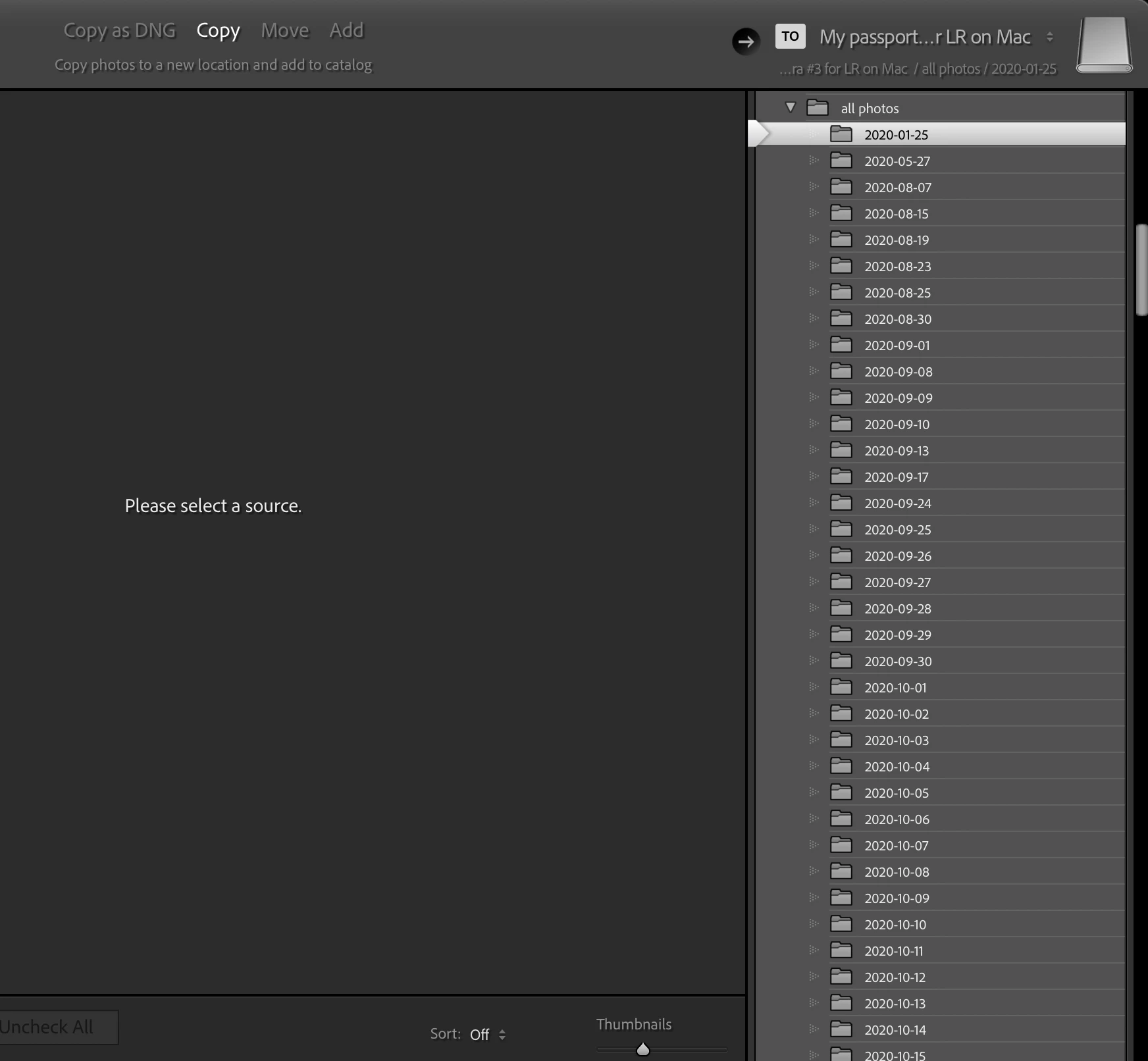
How do I remove empty folders that appear in the right panel on import in LR?  I store images on an Ext HD. these folders were zip files for LR's backups by date.  I deleted the backups yet the folders still appear in the right panel when I import.  I've attached an image showing these folders that have nothing in them and that I want removed.

I am on a macbook M1 and running the latest LR classic via the creative cloud.

Thank you in advance, 

shawnie 
This topic has been closed for replies.

4 replies

DdeGannes
Community Expert
Community Expert
June 22, 2022

If a folder shows 0 in the Library module simply right click and select remove.

If the folder has no files in your system it will be removed from Lightroom and your system, if there are files in the folder it will not be removed. You will then need to move or delete the files using explorer or finder if you want the folder removed from Lightroom.


Regards, Denis: iMac 27” mid-2015, macOS 11.7.10 Big Sur; 2TB SSD, 24 GB Ram, GPU 2 GB; LrC 12.5,; Lr 6.5, PS 24.7,; ACR 15.5,; (also Laptop Win 11, ver 24H2, LrC 15.0.1, PS 27.0; ) Camera Oly OM-D E-M1.
drshawnieAuthor
Participating Frequently
June 22, 2022

Denis, your suggestion is on point. Thank you so much! 

Joy2yadrshawnie
Rob_Cullen
Community Expert
Community Expert
June 21, 2022

If they really are totally "empty" folders (ie. no backups, no photo files, nothing at all.), then simply Delete them using Mac Finder.

The Destination Panel of the Import dialog will always show any folders that exist on a hard-drive.


Regards. My System: Windows-11, Lightroom-Classic 15.1.1, Photoshop 27.3.1, ACR 18.1.1, Lightroom 9.0, Lr-iOS 10.4.0, Bridge 16.0.2 .
drshawnieAuthor
Participating Frequently
June 22, 2022

Rob,

I right clicked on folder in the destination panel of the import and chose locate in finder and deleted once it appeared in finder and now they are removed from my import panel.  Thank you!  It's odd to me that removing the folders from the ext HD didn't remove them from the panel.  

Joy2yadrshawnie
GoldingD
Legend
June 21, 2022

Typically LrC displays in the Destination panel, what was selected at previous import. Select a different destination, probably a different main folder, import one image. In the Library module, move that one image currently probably in a folder you do not like. Return to the Import Screen, see if that looks cleaner, select the folder you actually want, repeat. Any better?


drshawnieAuthor
Participating Frequently
June 21, 2022

Ok If I followed your directions correctly,  then the folders still appear. Might you have any other suggestion?

Joy2yadrshawnie
GoldingD
Legend
June 21, 2022

ADMIN

Please move to Discussions