Inspiring
November 29, 2023
Answered

LR says different names when trying to locate files. Files missing but they are there

  • November 29, 2023
  • 1 reply
  • 266 views

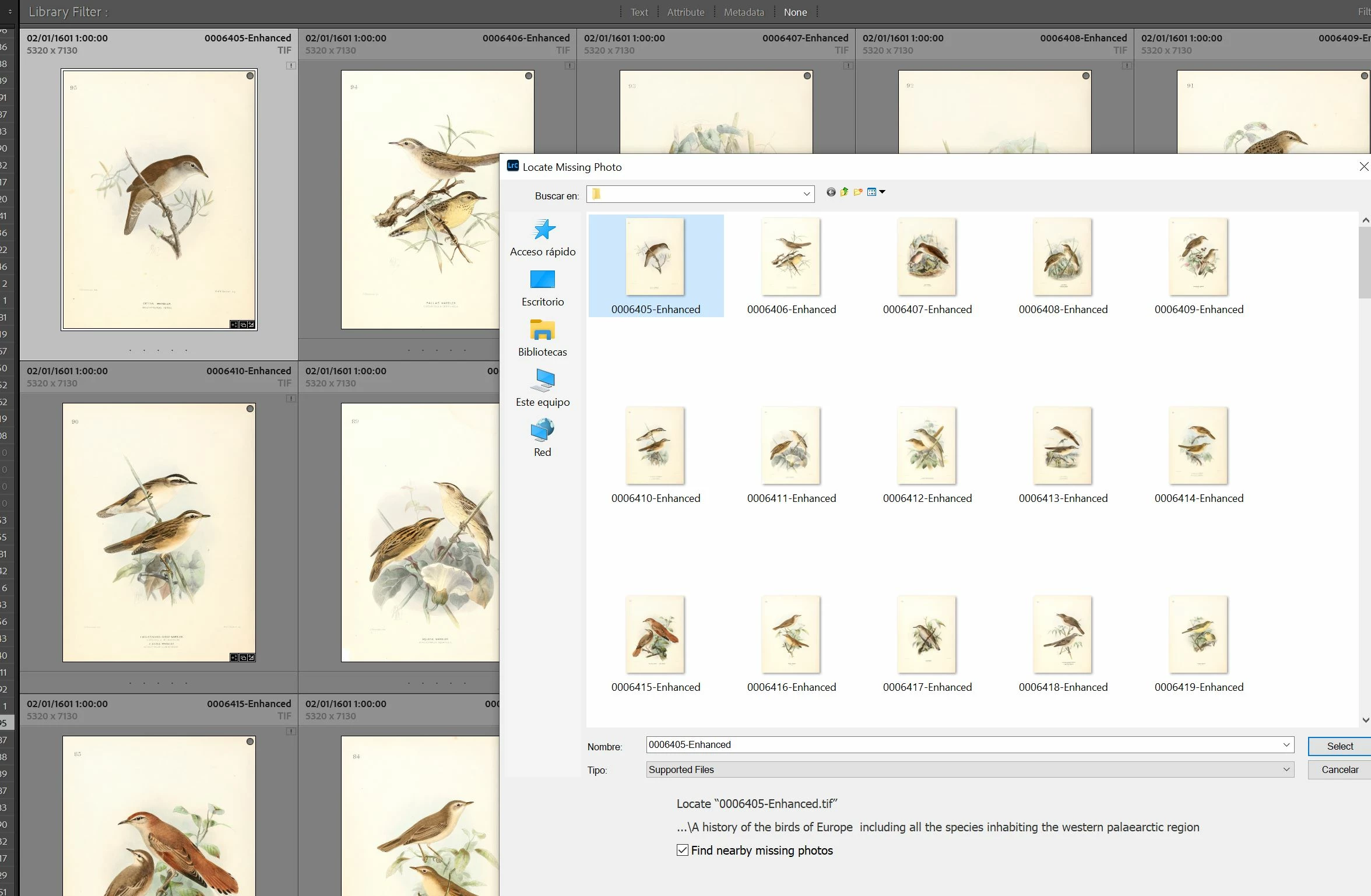
I have been just now more than one hour with Adobe offcial chat support that connected remotely to my computer. I found a few folders with images missing. When I tried to locate them they were in the correct location but LR was unable to detect them. Synch , Update location did not help or solve the issue.

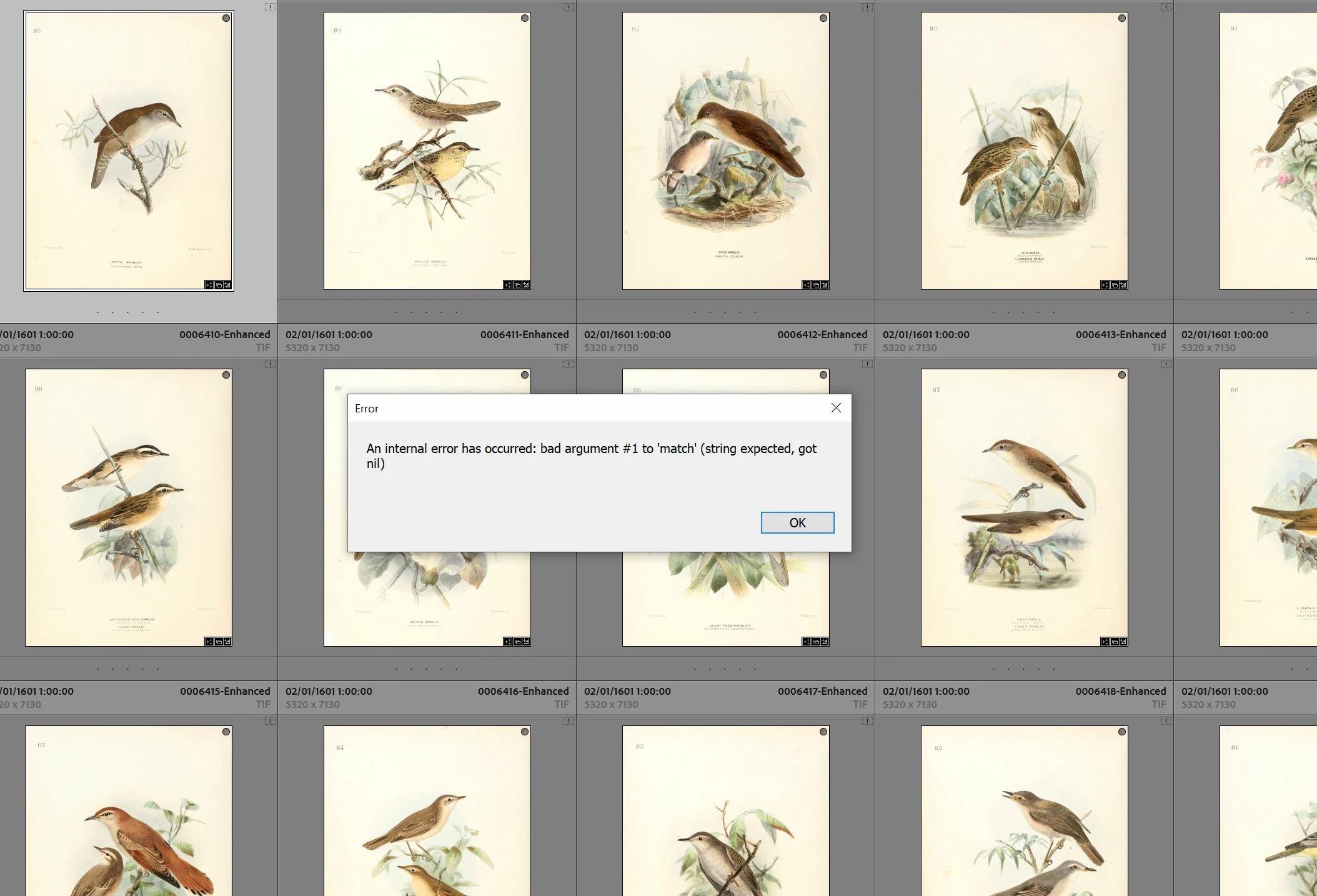
When trying to point to the actual file I get an error seen in the image.


Support was unable to know what was going on.......Anyone has a clue why this is happening and how to solve it and point again to the files? 

This topic has been closed for replies.
Correct answer mastix

Ok. I finally found a solution. I hope it helps other people that face this same problem in the future. After the remote Adobe service could not help I kept searching for the web for similar problems like I was facing. I found this website

https://www.halfhalftravel.com/photography-advice/fix-the-file-could-not-be-found-error-in-lightroom.html#:~:text=Lightroom%20references%20your%20local%20file,within%20your%20local%20folder%20structure. 


Here there was the suggestion that sometimes for a different reason the path name might become corrupted because you changed something in the upper level of the nested folder. And the way to solve it was to simply drag the problematic folder with the files not being recognized to an upper level in the folder structure. This is what I did, and the problem got solved immediately. Files were recognized again.


I just changed the long folder name to a short one without moving up the folder to a top level and it also solved the issue. As I said it seems a problem related to Windows or LR no accepting to many characteres in a folder name path (that remember includes always the top level folders)


My suspicion has to do with my very long file names and very deep nested subfolders. There is a limit of total characters that windows can handle and from this point you get error (it has happened to me copying from one drive to another). I think this same error is hitting here. 


So if this happens to you, I suggest you move your folder facing the issue to a more top level of the nested structure. And to keep folder titles short so you don't hit those windows limits.

1 reply

mastixAuthorCorrect answer
Inspiring
November 29, 2023

Ok. I finally found a solution. I hope it helps other people that face this same problem in the future. After the remote Adobe service could not help I kept searching for the web for similar problems like I was facing. I found this website

https://www.halfhalftravel.com/photography-advice/fix-the-file-could-not-be-found-error-in-lightroom.html#:~:text=Lightroom%20references%20your%20local%20file,within%20your%20local%20folder%20structure. 


Here there was the suggestion that sometimes for a different reason the path name might become corrupted because you changed something in the upper level of the nested folder. And the way to solve it was to simply drag the problematic folder with the files not being recognized to an upper level in the folder structure. This is what I did, and the problem got solved immediately. Files were recognized again.


I just changed the long folder name to a short one without moving up the folder to a top level and it also solved the issue. As I said it seems a problem related to Windows or LR no accepting to many characteres in a folder name path (that remember includes always the top level folders)


My suspicion has to do with my very long file names and very deep nested subfolders. There is a limit of total characters that windows can handle and from this point you get error (it has happened to me copying from one drive to another). I think this same error is hitting here. 


So if this happens to you, I suggest you move your folder facing the issue to a more top level of the nested structure. And to keep folder titles short so you don't hit those windows limits.