
Inspiring
March 30, 2023
Answered

LrC is no longer automatically writing to xmp

  • March 30, 2023
  • 3 replies
  • 754 views

I am using v12.2.1 on a MacBook Pro running MacOS Monterey v12.6.3. My images are on an external drive. I have always (since LR Beta) set my preferences to "Automatically write changes into XMP". I noticed when working on a recent job that I am getting the downward arrow indicating "Metadata file needs to be updated" on every image after I work on it. I tried disabling the "Automatically write changes into XMP" and then enabling it. I have been saving everything manually. I have quit and backed-up LrC as well as restarted my computer. Is this a known bug and/or does anyone have a solution? Thanks!
This topic has been closed for replies.
Correct answer Ian Lyons

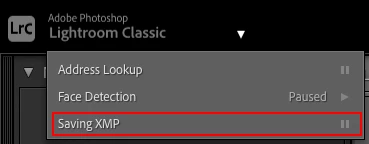
Check that you haven't paused Saving XMP. You'll find the 'Pause' by right clicking on the 'Identity Plate' at top left of LrC UI. 


3 replies

Inspiring
March 30, 2023

Hi dj-I tried this and it worked! 😁The problem is that it will take some time to set all the preferences back to where I like them.🙁 Thanks for your help! Eric

Ian Lyons
Community Expert
Community Expert
March 30, 2023

Great that you solved your issue. 


When you've recreated the preference file with your preferred settings, I recommend you save a copy of the file (location provided below), then store it somewhere safe. Next time you need to reset the preferences you can paste this copy into the same folder.


Mac


  • Lightroom Classic: /Users/[username]/Library/Preferences/com.adobe.LightroomClassicCC7.plist


Windows


  • Lightroom Classic: C:\Users\[user name]\AppData\Roaming\Adobe\Lightroom\Preferences\Lightroom Classic CC 7 Preferences.agprefs


Ian Lyons
Community Expert
Community Expert
March 30, 2023

A copuple of possibilities for this. Check each in order I shown below.


Make sure that LrC has 'Full Disk Access" as described in https://community.adobe.com/t5/lightroom-classic-discussions/quick-tips-how-to-give-full-disk-access-to-lightroom-classic-on-macos/td-p/12913413


Also, while not always necessary, you can try setting the permissions for your external drive as shown in attached screenshot.


Inspiring
March 30, 2023

Hi Ian-Thanks for the suggestions. It turns out that LrC had not been granted Full Access. Unfortunately after doing that and restarting, the situation hasn't changed. I also granted Read & Write permissions on the external drive for Everyone, with the same outcome.

Ian Lyons
Community Expert
Ian LyonsCommunity ExpertCorrect answer
Community Expert
March 30, 2023

Check that you haven't paused Saving XMP. You'll find the 'Pause' by right clicking on the 'Identity Plate' at top left of LrC UI. 


dj_paige
Legend
March 30, 2023

I have never heard of this, but it sounds to me like this is a case where the bizarre advice to reset your preference file might work.