Known Participant
May 11, 2024
Answered

LRC keeps adding a subfolder when importing

  • May 11, 2024
  • 2 replies
  • 431 views

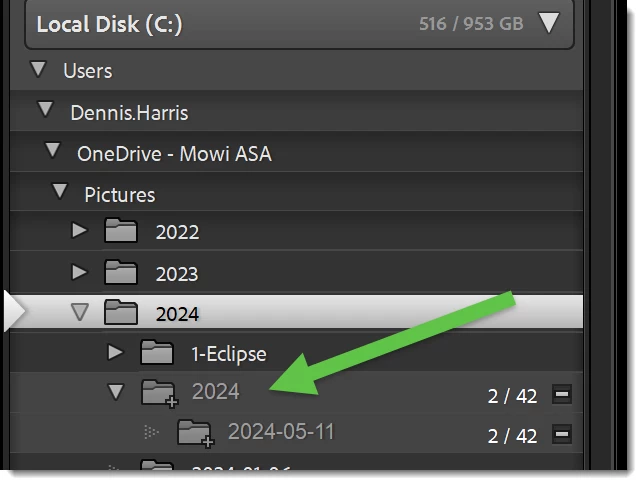
I am sure i broke it some how 😞 As you can see it adds a 2024 foldr under 2024.  Where cn I change this?


This topic has been closed for replies.
Correct answer richardplondon

There are two main aspects to this: the destination folder you choose; options for how images are to be organised directly within this destination. You can also opt have a new subfolder made, and used as the destination.


The options are: into one folder (just put all the images together, directly inside the chosen destination folder); reflecting the subfolders found in the source e.g. if a camera card has got various image folders present; and what's happening here: as dated subfolders.


Often import settings are set to automatically make YYYY subfolders as needed, and inside each one further MM and DD folders, to reflect the capture dates of all the photos.


In that case, you should not select e.g. "2024" as your destination. You should select the folder level above that. Now you can keep for many years using this exact same destination as a constant, and the import will all by itself take care of year, month, day... thus it will make a new 2025 automatically when needed, in due course.

2 replies

richardplondonCommunity ExpertCorrect answer
Community Expert
May 12, 2024

There are two main aspects to this: the destination folder you choose; options for how images are to be organised directly within this destination. You can also opt have a new subfolder made, and used as the destination.


The options are: into one folder (just put all the images together, directly inside the chosen destination folder); reflecting the subfolders found in the source e.g. if a camera card has got various image folders present; and what's happening here: as dated subfolders.


Often import settings are set to automatically make YYYY subfolders as needed, and inside each one further MM and DD folders, to reflect the capture dates of all the photos.


In that case, you should not select e.g. "2024" as your destination. You should select the folder level above that. Now you can keep for many years using this exact same destination as a constant, and the import will all by itself take care of year, month, day... thus it will make a new 2025 automatically when needed, in due course.

Known Participant
May 12, 2024

So basiclly a PICNIC problem

Problem in chair not in computer LOL  Thanks this fised it.

Rob_Cullen
Community Expert
Community Expert
May 11, 2024

When you Import- Select (highlight) your {PICTURES} folder in the Destination panel.

Any of the Date Templates that contain a forward slash [/] will automatically find the correct year within the selected {Parent} folder (Be that {Pictures} or {Photos} or {Whatever}.)


Regards. My System: Windows-11, Lightroom-Classic 15.3, Photoshop 27.5, ACR 18.3, Lightroom 9.3, Lr-iOS 10.4.0, Bridge 16.0.3 .
