Participant
January 14, 2025
Answered

LrC missing advanced paper settings in print module

  • January 14, 2025
  • 1 reply
  • 87 views

I am running LrC on an Apple Macbook M1 (Sequoia 15.2) and print images from an Epson SC P800. In the past, printing on matte paper required fine-tuning the platen gaps and paper thickness settings from the print dialogues in order to avoid smudging issues with the printer. I will admit that this printer choice was a mistake but replacing the printer isn't really an option at this point. 

Is the lack of advanced paper controls an Apple software issue or an Adobe issue? Do any workarounds exist to access paper controls in PS or a third party software? 

Correct answer Conrad_C

They should all be there, if the full (not AirPrint) printer driver software was installed correctly, and if one understands where Apple moved the advanced options in the recently redesigned macOS Print dialog box. 


To make sure the full (not AirPrint) Epson printer driver is installed, download it directly from the Epson web site; then, when adding the printer using macOS System Settings / Printers & Scanners, do not select any option that says AirPrint because it has fewer, basic options. For more background, see this Macworld article:

https://www.macworld.com/article/224167/the-trick-to-finding-the-right-printer-driver-for-your-mac.html


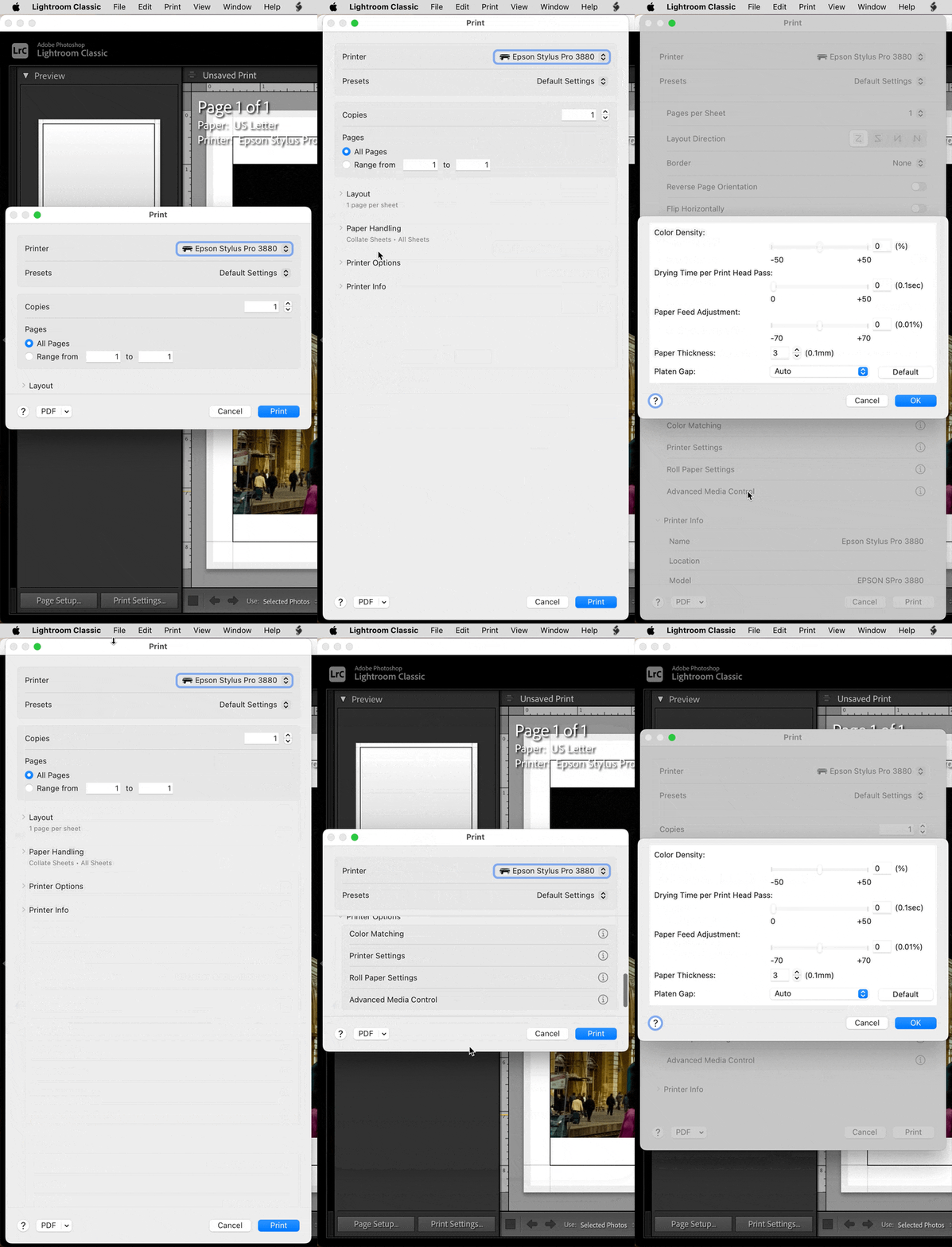
If you aren’t familiar with the way Apple redesigned the Print dialog box, the former fiddly pop-up menus are now a more convenient single stack of expandable panels in a resizable Print dialog box. The platen gap and paper thickness options might be under Advanced Printer Control as shown in the demo below. At least that’s where they are for my Epson 3880. The demo below was recorded in macOS 15.2.


I don’t think any of the Epson options were removed. I think Apple simply converted the former pop-up menus into items in the new panel list. Also, if you’re wondering how I resize the Print dialog box out from the center, that’s just the long-time macOS shortcut where if you hold the Option key down while resizing a window, it resizes from the center.

 

1 reply

Conrad_C
Community Expert
Conrad_CCommunity ExpertCorrect answer
Community Expert
January 14, 2025

They should all be there, if the full (not AirPrint) printer driver software was installed correctly, and if one understands where Apple moved the advanced options in the recently redesigned macOS Print dialog box. 


To make sure the full (not AirPrint) Epson printer driver is installed, download it directly from the Epson web site; then, when adding the printer using macOS System Settings / Printers & Scanners, do not select any option that says AirPrint because it has fewer, basic options. For more background, see this Macworld article:

https://www.macworld.com/article/224167/the-trick-to-finding-the-right-printer-driver-for-your-mac.html


If you aren’t familiar with the way Apple redesigned the Print dialog box, the former fiddly pop-up menus are now a more convenient single stack of expandable panels in a resizable Print dialog box. The platen gap and paper thickness options might be under Advanced Printer Control as shown in the demo below. At least that’s where they are for my Epson 3880. The demo below was recorded in macOS 15.2.


I don’t think any of the Epson options were removed. I think Apple simply converted the former pop-up menus into items in the new panel list. Also, if you’re wondering how I resize the Print dialog box out from the center, that’s just the long-time macOS shortcut where if you hold the Option key down while resizing a window, it resizes from the center.