
Participating Frequently
February 21, 2025
Question

LRC not syncing with cloud

  • February 21, 2025
  • 1 reply
  • 1423 views

Over the past few months, I have been extremely frustrated with my cloud edits not syncing back to LRC.  Here's my basic workflow:


1.  Import photos to LRC on an external SSD (I store all photos on my external) and add those images to a collection to sync with the cloud.

2.  Once all previews are done and syncing is complete, I edit on my mobile devices (iPhone 13 Pro Max and iPad Pro 2020).  My edits will show as fully synced on either mobile device and show edits made on the other mobile device within minutes.

3.  When I return to my LRC on my desktop (my external SSD stays attached this entire time), the edits I have made via mobile do not sync back and update in LRC.  When I look at my sync status, it shows the green check.  I have tried pausing and restarting sync to see if it recognizes updates that need to be downloaded from the cloud.  I have tried the pause and restart both with the app open and pausing, rebooting LRC, and then restarting syncing.  Nothing works.  No updated edits are found by LRC and all LR/LRC apps show as fully synced.


The closest "fix" I have found is to delete the "sync" file stored with my catalog.  The big issue with this is I shouldn't need to do this every time I want edits to download back to LRC from the cloud and it still doesn't always work.  What I mean by that is sometimes when I go back to the photos I know I edited via mobile, it reverts back to the unedited version from LRC on my mobile device, overwriting the cloud edits.  I can often revert the edits back to what I had, but it requires going into each image, selecting a previously saved version from the cloud, and applying that saved version to the image, only to have those edits ignored by LRC.  This is not a feasible workflow, especially when editing weddings.


Please help!  I have already rebuilt my catalog from scratch in the past year as I had issues with v.13.3 until v.14.  I had to revert back to v13.2 for a long time because I was experiencing sync issues (and when I did revert back to v13.2, it was a newly rebuilt catalog to get sync to function correctly between LRC and mobile apps).  It worked great until v14 came out.


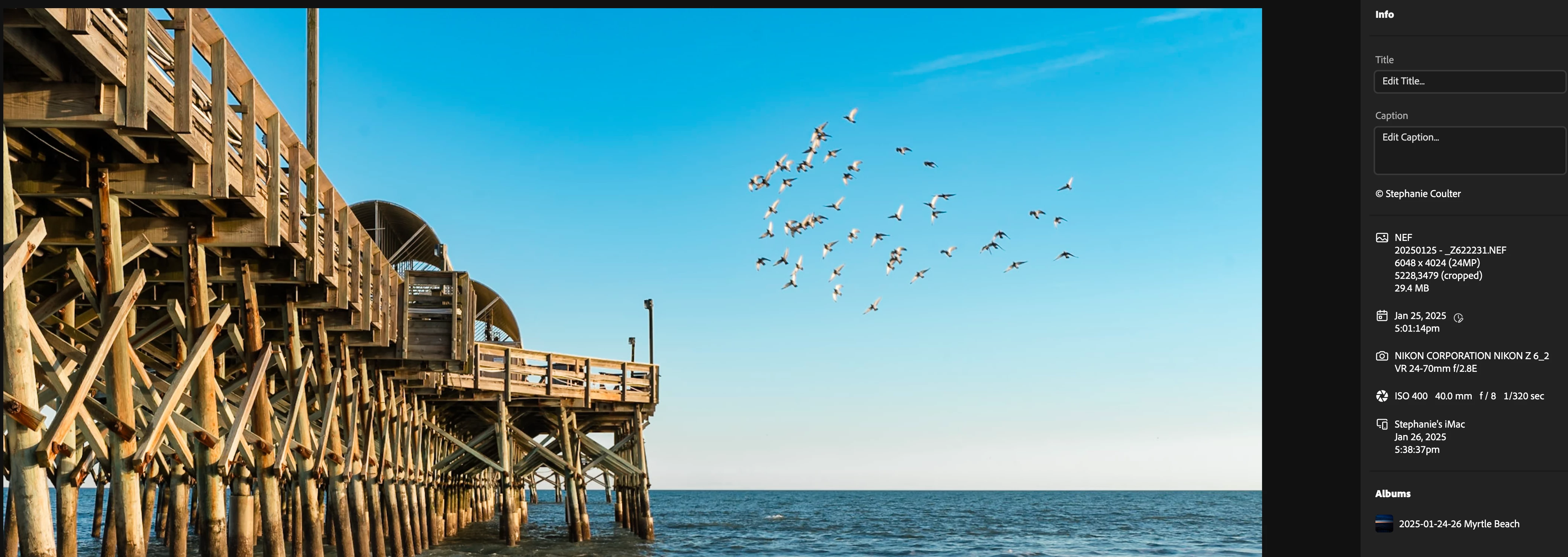
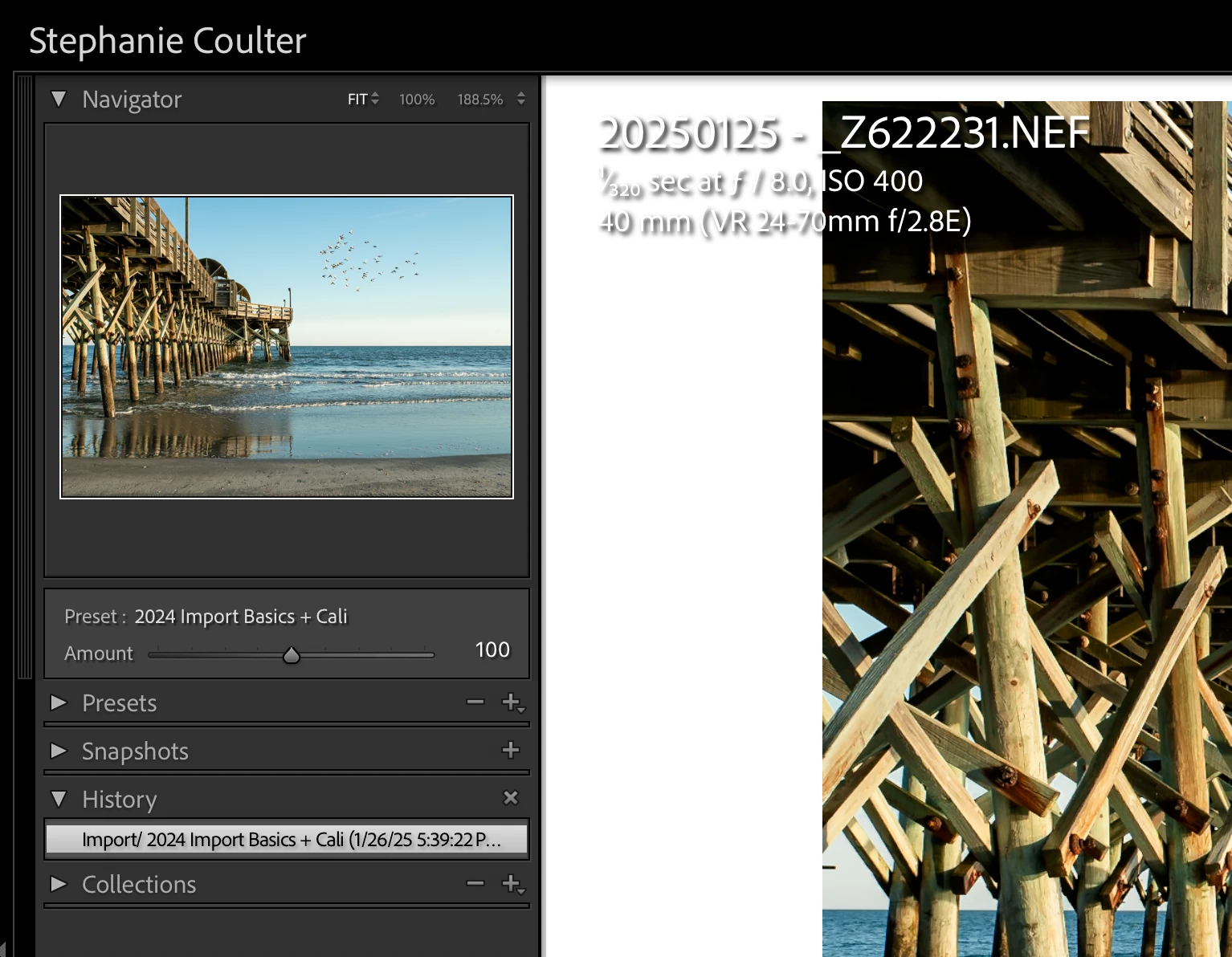
I'm including some screenshots from Feb 2, 2025.  The grid shot is from the web platform filtering by flagged images (those are the ones I choose to edit and most are edited in the grid you see).  The image with the pier and birds shows the edits made on mobile devices and synced with the cloud.  The final screenshot shows the same image in LRC not recognizing those edits while showing my catalog as fully synced.  All images were edited prior to Feb 2, 2025 with multiple attempts to get the edits to sync back to LRC from the cloud.



My tech specs are as follows: 

  • iMac 27" 2020 running OSX Sequoia 15.3.1
  • LRC v14.2
  • iPhone and iPad apps on most recent versions in App Store as of Feb 21, 2025

1 reply

smb29910Author
Participating Frequently
February 22, 2025

Over the past few months, I have been extremely frustrated with my cloud edits not syncing back to LRC.  Here's my basic workflow:


1.  Import photos to LRC on an external SSD (I store all photos on my external) and add those images to a collection to sync with the cloud.

2.  Once all previews are done and syncing is complete, I edit on my mobile devices (iPhone 13 Pro Max and iPad Pro 2020).  My edits will show as fully synced on either mobile device and show edits made on the other mobile device within minutes.

3.  When I return to my LRC on my desktop (my external SSD stays attached this entire time), the edits I have made via mobile do not sync back and update in LRC.  When I look at my sync status, it shows the green check.  I have tried pausing and restarting sync to see if it recognizes updates that need to be downloaded from the cloud.  I have tried the pause and restart both with the app open and pausing, rebooting LRC, and then restarting syncing.  Nothing works.  No updated edits are found by LRC and all LR/LRC apps show as fully synced.


The closest "fix" I have found is to delete the "sync" file stored with my catalog.  The big issue with this is I shouldn't need to do this every time I want edits to download back to LRC from the cloud and it still doesn't always work.  What I mean by that is sometimes when I go back to the photos I know I edited via mobile, it reverts back to the unedited version from LRC on my mobile device, overwriting the cloud edits.  I can often revert the edits back to what I had, but it requires going into each image, selecting a previously saved version from the cloud, and applying that saved version to the image, only to have those edits ignored by LRC.  This is not a feasible workflow, especially when editing weddings.


Please help!  I have already rebuilt my catalog from scratch in the past year as I had issues with v.13.3 until v.14.  I had to revert back to v13.2 for a long time because I was experiencing sync issues (and when I did revert back to v13.2, it was a newly rebuilt catalog to get sync to function correctly between LRC and mobile apps).  It worked great until v14 came out.


I'm including some screenshots from Feb 2, 2025.  The grid shot is from the web platform filtering by flagged images (those are the ones I choose to edit and most are edited in the grid you see).  The image with the pier and birds shows the edits made on mobile devices and synced with the cloud (web preview).  The final screenshot shows the same image in LRC not recognizing those edits while showing my catalog as fully synced.  All images were edited prior to Feb 2, 2025 with multiple attempts to get the edits to sync back to LRC from the cloud.  To this day, this particular collection is NOT pulling in edits from mobile devices and synced with the cloud into LRC.  Both mobile devices I use show the edits I've made, flags, etc, but not LRC.


My tech specs are as follows: 

  • iMac 27" 2020 running OSX Sequoia 15.3.1
  • LRC v14.2
  • iPhone and iPad apps on most recent versions in App Store as of Feb 21, 2025

** This is cross-posted in the "Bugs" forum **

smb29910Author
Participating Frequently
February 22, 2025

I'm getting very frustrated.  For months now, I have been unable to synchronize folders to show previously imported images that have disappeared from my catalog (folders are there, but show 0 images in them).  When I attempt to synchronize my folders one at a time, LRC often recognizes the missing images.  Most of the time, if I don't check "Show Import Dialog", it may only import a few images and claim the rest are corrupt or damaged.  When I check "Show Import Dialog" and click synchronize, the app hangs when reading the files, leading me to force quit on the app because it stops responding.  No amount of time waiting gets the app to be responsive.


Steps to recreate the issue:

  1.  Locate a folder in the list that shows 0 photos (or a lesser number than what is actually in the folder).
  2.  Right-Click --> Synchronize Folder
  3.  Once the app has found photos, verify "Show Import Dialog Before Importing" is checked (see screenshot).
  4.  Click Synchronize.  This is where it hangs while it pulls up the import dialog.

Back when v13.3 came out, I had issues with cloud syncing, so I reverted back to 13.2 with a new catalog and waited until v14 came out.  It was good for a bit, but I'm unable to edit a bunch of photos I had previously imported because they disappeared.  I have not found out how to get these photos visible and/or synced to a collection for editing on a mobile device (Apple).


Tech Specs:

iMac 27" 2020 5K 3.3 GHz 6-Core Intel Core i5, AMD Radeon Pro 5300 4 GB, 64 GB 2667 MHz DDR4

Mac OSX 15.3.1 (Sequoia)

LRC v14.2


[Moved from ‘Bugs’ to ‘Discussions’ by moderator, according to forum rules.]

Rikk Flohr_Photography
Community Manager
February 24, 2025

I researched your Adobe ID and found two crash reports. Both are very low-volume, meaning that few people have seen the same crash. in fact, one of them is unique to you alone. That tends to indicate a problem specific to your machine. 

Recommendations to start troubleshooting are to perform a clean reinstall and then to update your preferences. 

Clean Lightroom Install Procedure

Close Lightroom

Restart the computer

Use the Adobe Creative Cloud App to uninstall Lightroom

Restart the computer

Install Lightroom via the Creative Cloud App without launching any other programs.

Restart the computer

Launch Lightroom

Wait 5 minutes


A Preference File will survive a Lightroom uninstall/reinstall. Sometimes weird behavior is corrected/cured by resetting the preferences.

Reset Procedure:

1. Close Lightroom.

2. Hold down [Alt/Opt]+[Shift] while restarting Lightroom.

3. Overwrite the Preferences when prompted by the dialog.

4. Close Lightroom.

5. Restart Lightroom.

Does the behavior continue after resetting the preferences?


Rikk Flohr: Adobe Photography Org