Participant
November 2, 2021
Answered

LRC (V11) display problem

  • November 2, 2021
  • 1 reply
  • 476 views

Hello everyone
I have been using LRC for almost a year, and since the last update (V11) I have a display discrepancy between the main window and the navigation window. I have attached a screenshot of the previous version of the sky in the previous version to illustrate the problem. How to solve it? I have closed and opened LRC, turned off and on my computer (W10) nothing changes. I exported my photo, the sky is fine, so there is only a display problem...
Thank you for your advice.

Translated with www.DeepL.com/Translator (free version)

PS: I just attach the exported photo because   Impossible to attach a screenshot, only a photo ...

So I specify in the navigation window the sky is correct, in the main window it is like the import.
This topic has been closed for replies.
Correct answer Per Berntsen

Lightroom is not causing this.

But you might have a defective monitor profile, which is a Windows problem.

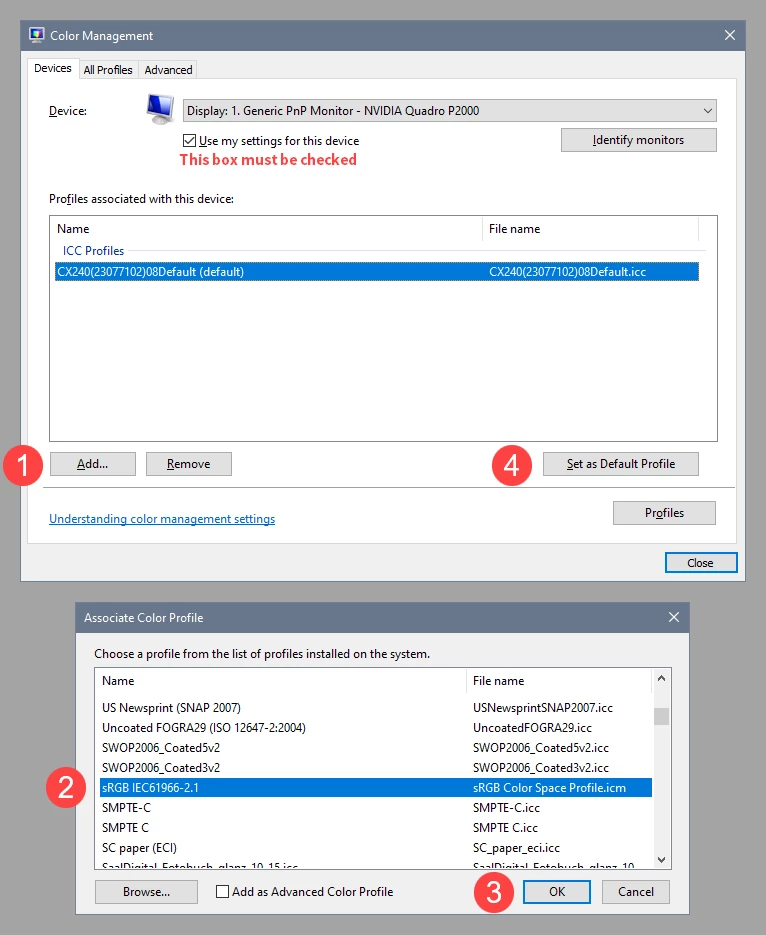
Try setting the monitor profile to sRGB (use Adobe RGB if you have a wide gamut monitor).

If that fixes the issue, it is recommended that you calibrate the monitor with a hardware calibrator.

This will also create and install a custom monitor profile, that contains an accurate description of your monitor's response.


With Lightroom closed, press the Windows key + R, type colorcpl in the box and press Enter.

Add the sRGB profile, then set it as default.


1 reply

Per Berntsen
Community Expert
Community Expert
November 2, 2021

You insert a screenshot the same way as you as inserted the photo, by clicking the Insert photo icon in the toolbar.

If that doesn't work for some reason, you can also attach an image by dragging and dropping into the box below the textbox where you type your reply.

But if there is a difference in colors between the Navigator and the main image, it is usually caused by a defective monitor profile.

Are you on Windows 10 or 11? There is apparently a bug in Windows 11 that breaks color management.

Lapuce69Author
Participant
November 2, 2021

Hello Per Berntsen
Here I made the screenshot as you can see the sky in the main window is white, before the version I worked the sky to imitate a sunset as you can see in the small navigation window. When I export the picture my image is faithful to my retouching so no worries on that side. I just wonder why the sky doesn't appear as it is in the main lrc window. I'm on w10 and I don't have any problems with colorimetry in windows explorer. Do you have an explanation for this problem? Is this a bug in version 11?
I'm looking forward to hearing from you.
CD

Translated with www.DeepL.com/Translator (free version)

Per Berntsen
Community Expert
Per BerntsenCommunity ExpertCorrect answer
Community Expert
November 2, 2021

Lightroom is not causing this.

But you might have a defective monitor profile, which is a Windows problem.

Try setting the monitor profile to sRGB (use Adobe RGB if you have a wide gamut monitor).

If that fixes the issue, it is recommended that you calibrate the monitor with a hardware calibrator.

This will also create and install a custom monitor profile, that contains an accurate description of your monitor's response.


With Lightroom closed, press the Windows key + R, type colorcpl in the box and press Enter.

Add the sRGB profile, then set it as default.