Known Participant
September 2, 2023
Answered

LRC with MAC

  • September 2, 2023
  • 2 replies
  • 835 views

hello

I just found that the opening bar of LRC differs from PS and LR.

In fact it olny shows the red and green dot on the upper left corner and the green does not allow to customize the window dimension.

could not find any solution to this, any advise please ?

thank you

eric

This topic has been closed for replies.
Correct answer Conrad_C

Yes, it is the case. Your screenshot even shows 'Exit Full Screen'! It may be in MacOS full screen however.


Johan is correct, watch the demo below: It starts out like your screen shot, where the middle button is inactive. By choosing Exit Full Screen, you can see that Lightroom Classic exits macOS Full Screen mode, and after that, all three buttons are available.
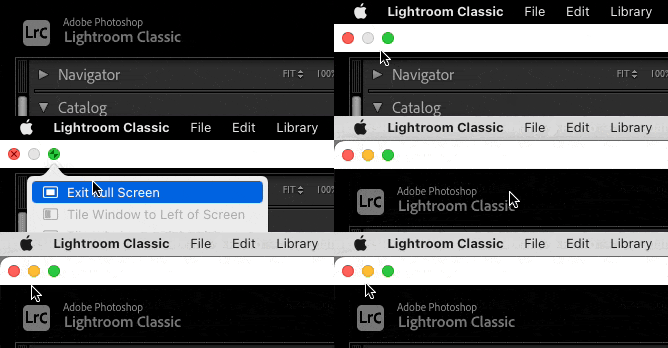


Why the yellow button is missing in macOS Full Screen mode: You cannot minimize a full screen window, so the minimize button (the middle yellow one) cannot be active. Exiting macOS Full Screen mode lets the yellow button be active again. This works the same way in all macOS applications, not just Lightroom Classic. In the screen shots for the other two applications you showed, Lightroom and Photoshop are not in macOS Full Screen mode, so all three window buttons are active. All of this works as expected.


The other important thing to keep in mind is that Lightroom Classic supports two different full screen modes: The standard macOS full screen mode, and its own. The full screen mode in Lightroom Classic has more features than the one in macOS, and is cross-platform, so it was kept. So it’s important to know which full screen mode you have entered:

  • The macOS full screen controls are the green window button, and also the command Window > Enter Full Screen/Exit Full Screen. 
  • The Lightroom Classic full screen controls are on the Window > Screen Mode submenu. 


Other notes, which are important if you try this with the other two applications you showed:

  • Photoshop still uses its original cross-platform full screen mode, not macOS Full Screen mode. So unlike apps that use macOS Full Screen mode, the green window button only maximizes the window, so to enter the Photoshop full screen mode you choose the command View > Screen Mode > Full Screen Mode (F). Unlike macOS Full Screen mode, in Photoshop full screen mode the menus are not revealed when you hold the pointer against the top edge of the screen. 
  • Lightroom uses only the macOS Full Screen mode, because it’s newer than Photoshop or Lightroom Classic. 

2 replies

Community Expert
September 2, 2023

Hold the option key while hovering over the gumdrops

JohanElzenga
Community Expert
Community Expert
September 2, 2023

You have set Lightroom Classic to full screen mode. Change it under the 'Window' menu.


-- Johan W. Elzenga
Known Participant
September 2, 2023

thank you for your kind reply


Unfortunately this is not the case


the green circle does not work properly and the yellow-orange one is missing


while this is not happening with PS and LR, only with LRC


another issue is that when reviewing a series of pictures, they all come at different zooming randomly, one very big, the following one at 100% and then 20% and so on


very strange


eric

Conrad_C
Community Expert
Conrad_CCommunity ExpertCorrect answer
Community Expert
September 2, 2023

Yes, it is the case. Your screenshot even shows 'Exit Full Screen'! It may be in MacOS full screen however.


Johan is correct, watch the demo below: It starts out like your screen shot, where the middle button is inactive. By choosing Exit Full Screen, you can see that Lightroom Classic exits macOS Full Screen mode, and after that, all three buttons are available.


Why the yellow button is missing in macOS Full Screen mode: You cannot minimize a full screen window, so the minimize button (the middle yellow one) cannot be active. Exiting macOS Full Screen mode lets the yellow button be active again. This works the same way in all macOS applications, not just Lightroom Classic. In the screen shots for the other two applications you showed, Lightroom and Photoshop are not in macOS Full Screen mode, so all three window buttons are active. All of this works as expected.


The other important thing to keep in mind is that Lightroom Classic supports two different full screen modes: The standard macOS full screen mode, and its own. The full screen mode in Lightroom Classic has more features than the one in macOS, and is cross-platform, so it was kept. So it’s important to know which full screen mode you have entered:

  • The macOS full screen controls are the green window button, and also the command Window > Enter Full Screen/Exit Full Screen. 
  • The Lightroom Classic full screen controls are on the Window > Screen Mode submenu. 


Other notes, which are important if you try this with the other two applications you showed:

  • Photoshop still uses its original cross-platform full screen mode, not macOS Full Screen mode. So unlike apps that use macOS Full Screen mode, the green window button only maximizes the window, so to enter the Photoshop full screen mode you choose the command View > Screen Mode > Full Screen Mode (F). Unlike macOS Full Screen mode, in Photoshop full screen mode the menus are not revealed when you hold the pointer against the top edge of the screen. 
  • Lightroom uses only the macOS Full Screen mode, because it’s newer than Photoshop or Lightroom Classic.
