


Inspiring
October 15, 2026
Question

Mac with Golden Gate 27.0.1 - on import with add, it is changing the hierarchy inside LrC to outside my normal hierarchy

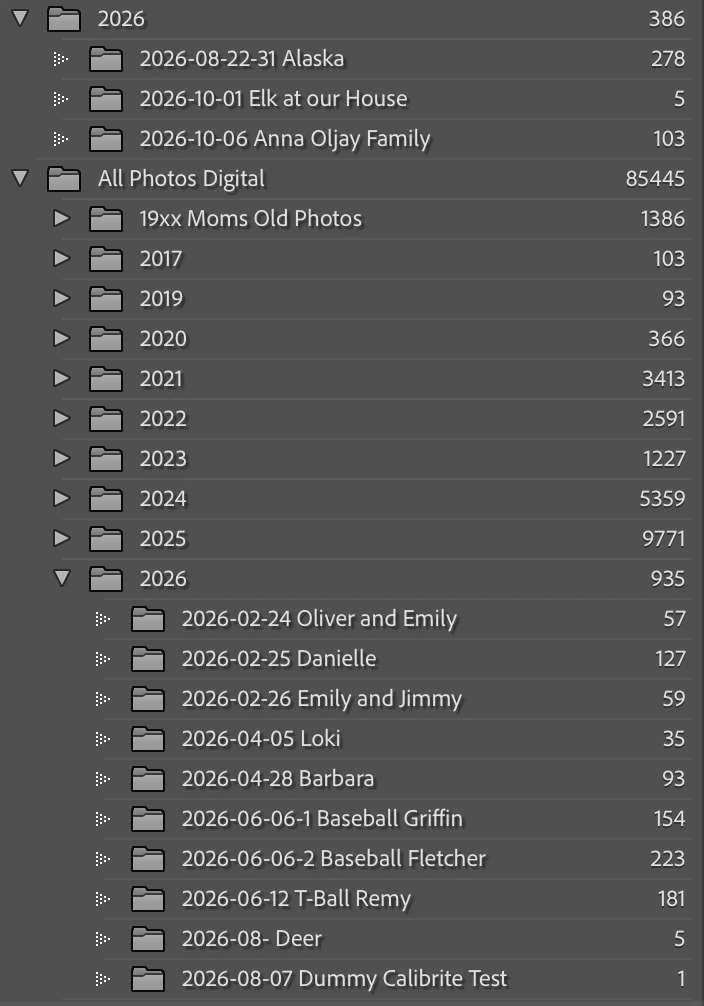
Note the original Hierarchy is under “All Photos Digital, by year…. since the new MacOS it started putting them above and in some cases put them in 2026 under “pictures” which I removed because I don’t want them there - it’s like it moved them instead of added them.  I have always used add and now it’s not working correctly since I upgraded to the new OS. Also, you should know I have the photos stored in DropBox and so are the backups.  The catalog is in:

 What can I do to make the 2026 folders on top, be under the 2026 folder under All Photos Digital? Confusing?  Thanks, Lorinda
 

    21 replies

    Community Expert
    October 16, 2026

    Perhaps try for the “2026” folder which contains these three separated image subfolders, choosing “Update Folder Location” in its context menu. Then in the file system browser, re-choose the 2026 that sits within “All Photos Digital”. 

    You can also troubleshoot this using “Show Parent Folder”. The aim being to expose the point of difference. Then you can get the Catalog to re-read file paths (as above) onto all the affected images. for example: you could use Show Parent to expose an “All Photos Digital” entry that sits above the 2026 for these three folders. And either that one, or the other one, could then be re-browsed as needed. 

    TLDR;

    If there had been a change in the meanwhile from say “All Digital Photos” to “All Photos Digital” - in the file system - all prior imported stuff would have shown as offline very obviously. But if a change is of capitalisation only - for example, this often happens in the username part of the overall filepath - the OS considers that only cosmetic, but the Catalog considers that substantive.

    So when the Catalog asks the file system “is filepath such-and-such currently present and available” - the file system will disregard capitalisation in deciding whether to respond yes or no. It does not care.

    But the Catalog does care: whenever it has two filepaths remembered which are differently capitalised anywhere (and this does not need to be in a part of the overall filepath that’s visible in the Catalog) it considers those to be two discrete locations.

    What you see in the Folders panel is a summary view taken from a whole lot of remembered filepaths per image - information coming only from the Catalog itself. It is not a window onto the actual file system.

    This is how the Catalog can still display the structure of folders that it remembers even while the storage drive concerned may be physically disconnected, or otherwise changed so that the remembered arrangement / the current actual arrangement now DISAGREE.

    Translate
    JohanElzenga
    Community Expert
    Community Expert
    October 16, 2026

    Simply using ‘Update Folder Location’ and choosing the appropriate folder will not work with the capitalization error. The official procedure to fix it wasn’t designed for no reason.

    Translate
    -- Johan W. Elzenga
    Community Expert
    October 18, 2026

    I felt Update Folder Location was a valid confirming test only.

    I agree, not the fix for this particular issue.

    There is an “absolute file path” entry that one can view in the Metadata panel. This has an arrow next to it which does the same as “Show in Finder” / whatever. But it also displays (probably part truncated) the file path that the Catalog currently remembers.

    Here is the ‘smoking gun’.

    As confirmation of the symptom: the folder containing this second image was shown separate from the folders arrangement containing the first.

    Our OS is over ‘helpful’ these days! With Windows it used to be the case that you could not rename a file or folder for case only, because then it would reject the requested name change as not a change - consistent with a case-blind approach. You had to first edit the name for spelling otherwise, then edit it back to the prior spelling but with the new capitalisation. At least that was consistent, with not permitting two differently capitalised (only) file or folder names to coexist.

    Translate
    JohanElzenga
    Community Expert
    Community Expert
    October 15, 2026

    What does the hierarchy look like in the MacOS Finder? If it is the same as in Lightroom, then you can move the folder(s) like ​@AxelMatt says. If it looks different (no folder outside the hierarchy), then you are the victim if the ‘capitalization error’. Here’s how to fix it: https://www.lightroomqueen.com/capitalization-catalog-error/

    Translate
    -- Johan W. Elzenga
    Inspiring
    October 16, 2026

    In MacOS Finder, all of the 2026 are already under the 2026 folder.  The names and capitalizations are already matching.  This is in Finder


    Translate
    Community Expert
    October 15, 2026

    Move the apporiate subfolders via drag-and-drop inside in Lightroom (!!!!) to the folder “All Photos Digital\2026”

    Don’t do that outside of Lightroom, for ex. in Finder.


    Translate
    My System: Intel i7-8700K - 64GB RAM - NVidia Geforce RTX 3060 - Windows 11 Pro 26H2 -- LR-Classic 15 - Photoshop 27 - Nik Collection 9 - PureRAW 6 - Topaz Photo AI
    Inspiring
    October 16, 2026

    Matt, when I try to do that it says there is already a folder there with that name. 

    Translate
    Community Expert
    October 16, 2026

    ​@Lorinda30199924tmno I’m not really familiar with MacOS, but I know MacOS 27 is relatively new released and it’s possible there are some incompatibilities between Lightroom and the new MacOS.

    As far as I know Lightroom hasn’t officially certified or listed as supported on macOS Golden Gate yet. Official updates and full guidance typically arriving around Adobe MAX.

    Lightroom and macOS 27 Golden Gate Compatibility | The Lightroom Queen

    Try the Folders panel a right-click to the parent folder of “All Photos Digital” and “2026”, then select Update Folder Location.


    Translate
    My System: Intel i7-8700K - 64GB RAM - NVidia Geforce RTX 3060 - Windows 11 Pro 26H2 -- LR-Classic 15 - Photoshop 27 - Nik Collection 9 - PureRAW 6 - Topaz Photo AI