raymondp40975087
Inspiring
August 6, 2020
Answered

Make LR recognize external drive.

  • August 6, 2020
  • 5 replies
  • 30222 views

Just got a new computer (Macbook), loaded up LR Classic. I keep and edit photos on an external SSD. Plugged in the drive. LR doesn't recognize the drive. How do I make LR recognize/find the drive? Help appreciated with this.

Correct answer raymondp40975087

After that, in the Lightroom Preferences, check that Lightroom is either set to use the correct catalog, or to use the most recent catalog. Otherwise it may keep falling back to the wrong catalog.
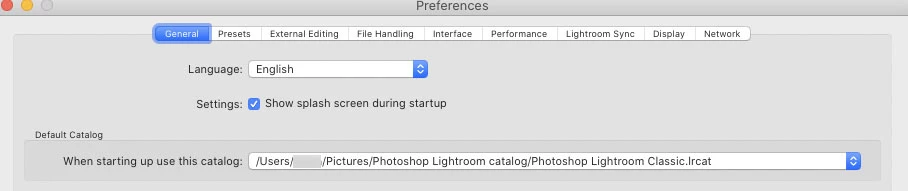


That did it, Johan! I can't thank you enough. I had to navigate to the preferred catalogue.

One more question: In that folder, there are 3 catalogues -- Lightroom Catalog.ircat, Lightroom Catalog-2.ircat, Lightroom Catalog-2-2.ircat (as well as some others, including something called Lightroom Catalog-2-2.ircat.lock). I didn't make any of these files myself .... Anyway, I chose to link Lightroom Catalog-2-2.ircat, since it seemed to be the one that worked.


Are there any other things I should do as far as deletions (scary thought) or any other "clean up" actions?


Thanks again to all involved in helping out. Now I can hit the road.

Cheers,

Ray

5 replies

GoldingD
Legend
August 7, 2020

Perhaps I overlooked, but one thing not mentioned above.


If MACOS Catalina, consider the following


Outside of LrC, in the MACOS bring up System Preferences, select Security and Privacy, select the Privacy tab, scroll down to Files and Folders, for Lightroom Classic, and while you are at it, for Photoshop, make sure all media types are checked, tyicaly Removable Volumes is not checked if the  user error.


raymondp40975087
Inspiring
August 7, 2020

Thanks. Yes, that's taken care of. My Privacy/files and folders looks a bit different, maybe because I gave those apps full disk access, so when I got to Files and Folders the apps are there but there's nothing to check. It just says "Full Disk Access" below the app title.


Assuming this is correct.


Still can't access all my photos through LR. 😞

JohanElzenga
Community Expert
Community Expert
August 6, 2020

OK, an update because I initially missed the fact that you want to keep using both computers. You need to move the catalog folder from the old Mac to the SSD. The default location of the catalog folder is your Pictures folder. Once you moved the catalog folder to the SSD, you need to tell Lightroom (just once) where the new location of the catalog is. The easiest way to do that is to double click the catalog file inside that folder. That's the file with the .lrcat extension. You need to do this only once, but you need to do this for each computer. From that moment onwards Lightroom will start with the catalog on the SSD, so all the edits you made on one computer will be available on the other computer too. Just make sure you connect the SSD before you start Lightroom.

-- Johan W. Elzenga
JohanElzenga
Community Expert
Community Expert
August 6, 2020

I get the feeling that you created a new catalog, and so Lightroom does not see any photos you previous had. You should copy your old catalog to the new computer and use that. Read this: 

https://www.lightroomqueen.com/how-move-lightroom-to-new-computer/

-- Johan W. Elzenga
raymondp40975087
Inspiring
August 6, 2020

I don't want to move photos to the new computer; I want to use the same external SSD to store/edit on both machines. I have all my photos on external drive.


JohanElzenga
Community Expert
Community Expert
August 6, 2020

Read the link. It is not about moving photos to a new computer, it is about moving (or copying) Lightroom to another computer. That is exactly what you are trying to do.

-- Johan W. Elzenga
JohanElzenga
Community Expert
Community Expert
August 6, 2020

Lightroom is a catalog app, not a browser. It will not show any drives that do not contain any photos that are imported. So in order to let Lightroom 'recognise' a drive, you simply need to import at least one photo from that drive.

-- Johan W. Elzenga
raymondp40975087
Inspiring
August 6, 2020

Thank you. I imported one file and now see my "Lightroom Masters" under folders and that one file. How do I get it to see the rest of my folders/files?

JohanElzenga
Community Expert
Community Expert
August 6, 2020

I repeat: Lightroom is not a browser. It will only see those folders that contain imported images.

-- Johan W. Elzenga
gary_sc
Community Expert
Community Expert
August 6, 2020

Hi Raymond,


In the images below I'm showing Adobe Bridge but the same issue is for Lightroom. 


Go to your System Preferences and select Security and Privacy (found in the top section). Now click on the Privacy setting (last tab). Now click on the lock on the bottom left and provide your Administrator code. Now select the Full Disk Access option and click on the "+" symbol. This will bring up the standard Mac Open window and let you add any application you want or need to have full access. Look for Bridge, select it, it will now appear in that window and make sure it's checked. Next go to the Files and Folders option and do the same thing as above (although there's nothing to check, just add. Close everything down and see if that makes it all work.


Please let me know if this doesn't work or if it does work! ;>)


raymondp40975087
Inspiring
August 6, 2020

Thanks for this, Garry. Sorry to say I still see nothing in the Folders or any drive to click on. I have everything set up (some time ago) on my main office computer (iMac) and it works fine. I'm also guessing I'd need to sync the catalogue somehow? But I assumed (wrongly?) that LR would just see whatever drives were available on the new MacBook. Nothing at all shows up in the left panel.


Incidentally, I found I could import new photos and it would show those, but not anything else.


gary_sc
Community Expert
Community Expert
August 6, 2020

Oh, wait a minute. I just re-read your message and realized another question: are your images already ON this drive or not. 


When you startup LR, it cannot see a folder on a drive that it doesn't know about. See this video from Terry White. I do not think this is your specific issue but it should give you some ideas.


https://www.youtube.com/watch?v=_9B0lq6GJZc