Inspiring
June 11, 2020
Answered

Mask off an area and lighten the rest of the picture.

  • June 11, 2020
  • 8 replies
  • 7279 views

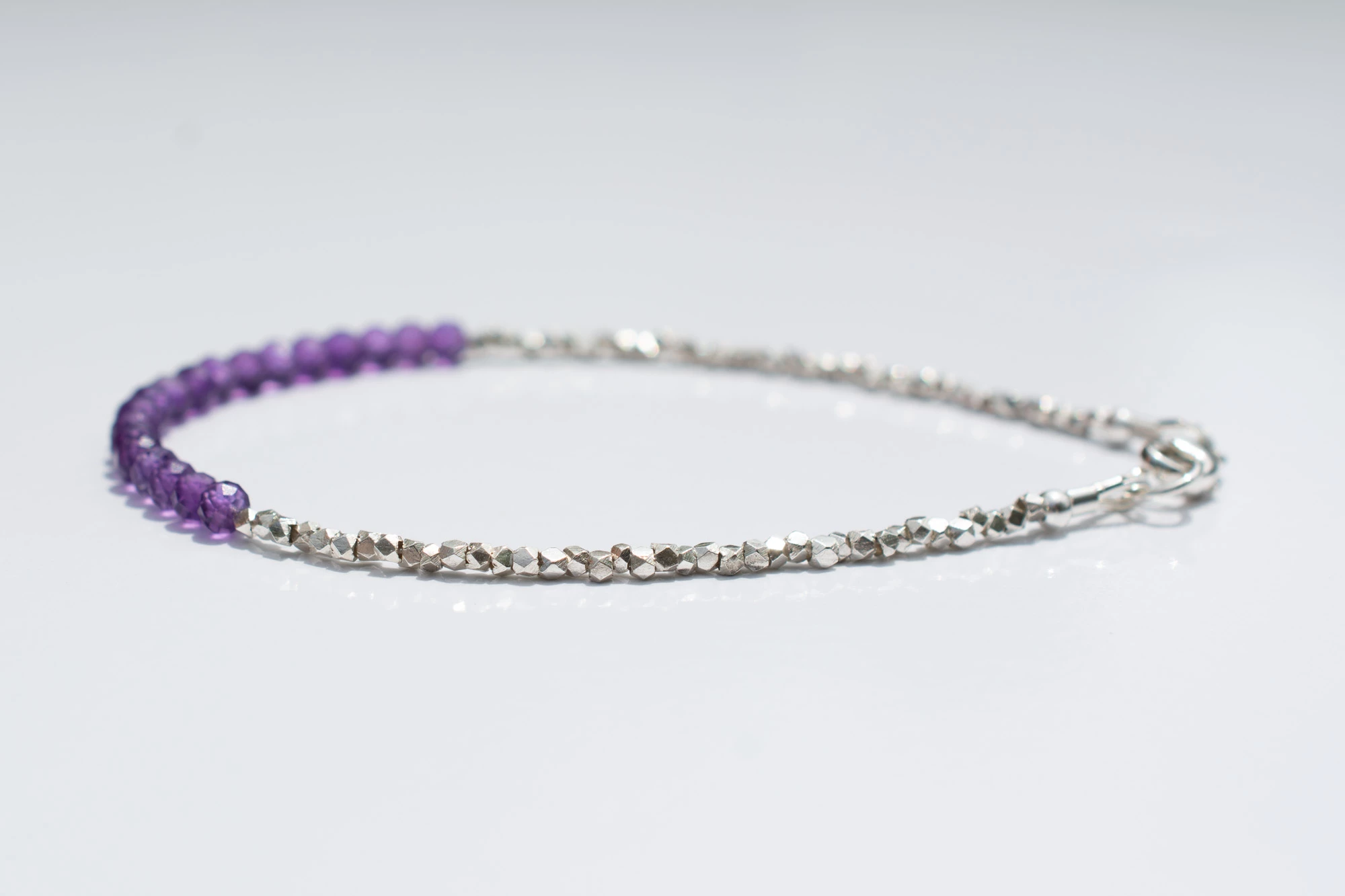
Is there a way to mask of an area and lighten the rest of the picture. For example, mask the bracelet and make everything in the picture light. But not lighten the bracelet. I am trying to make the background white/lighter while keeping the bracelet color the way they are. I have tried using the mask and painting around the bracelet but it always comes out looking fake.
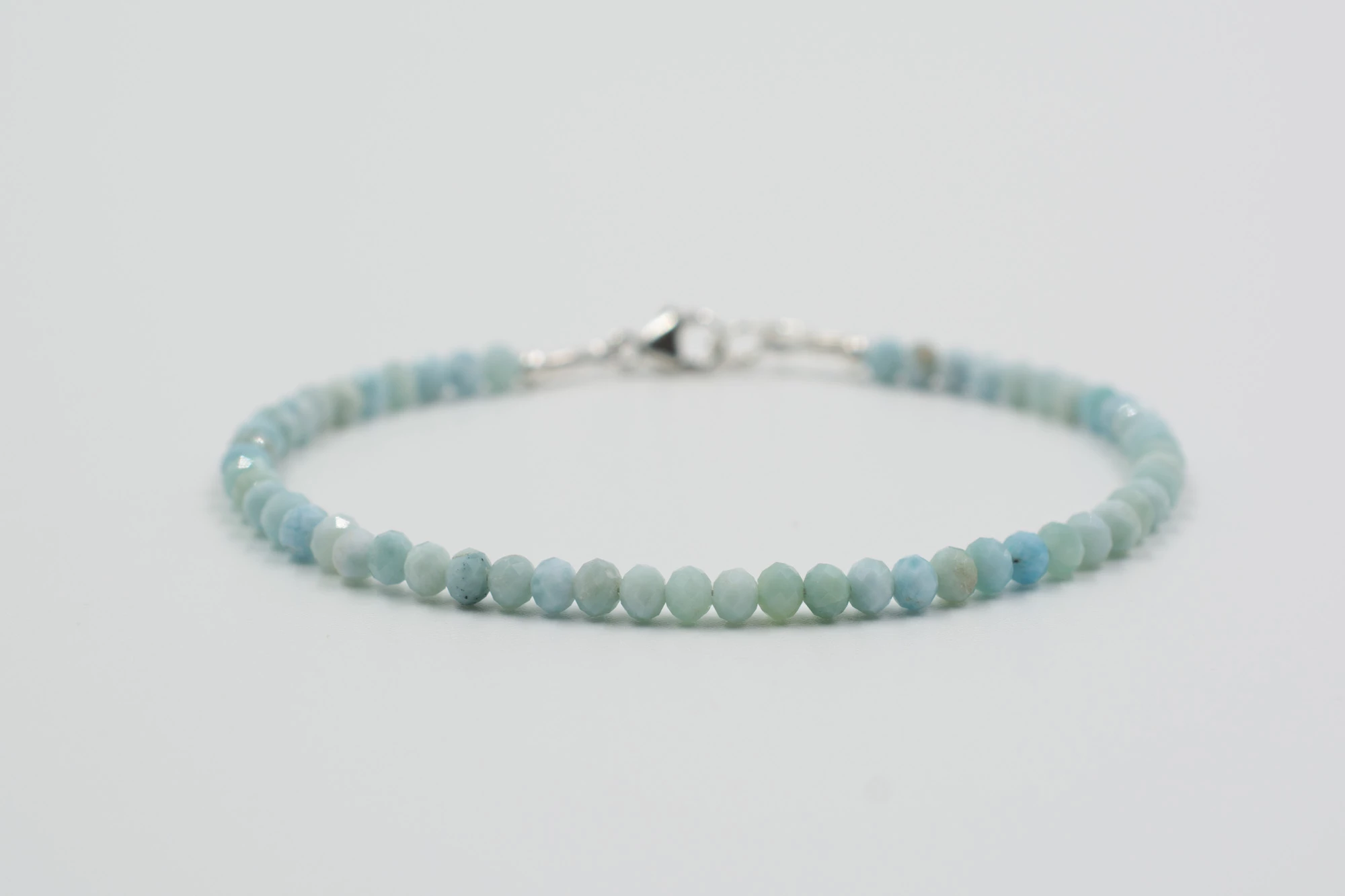
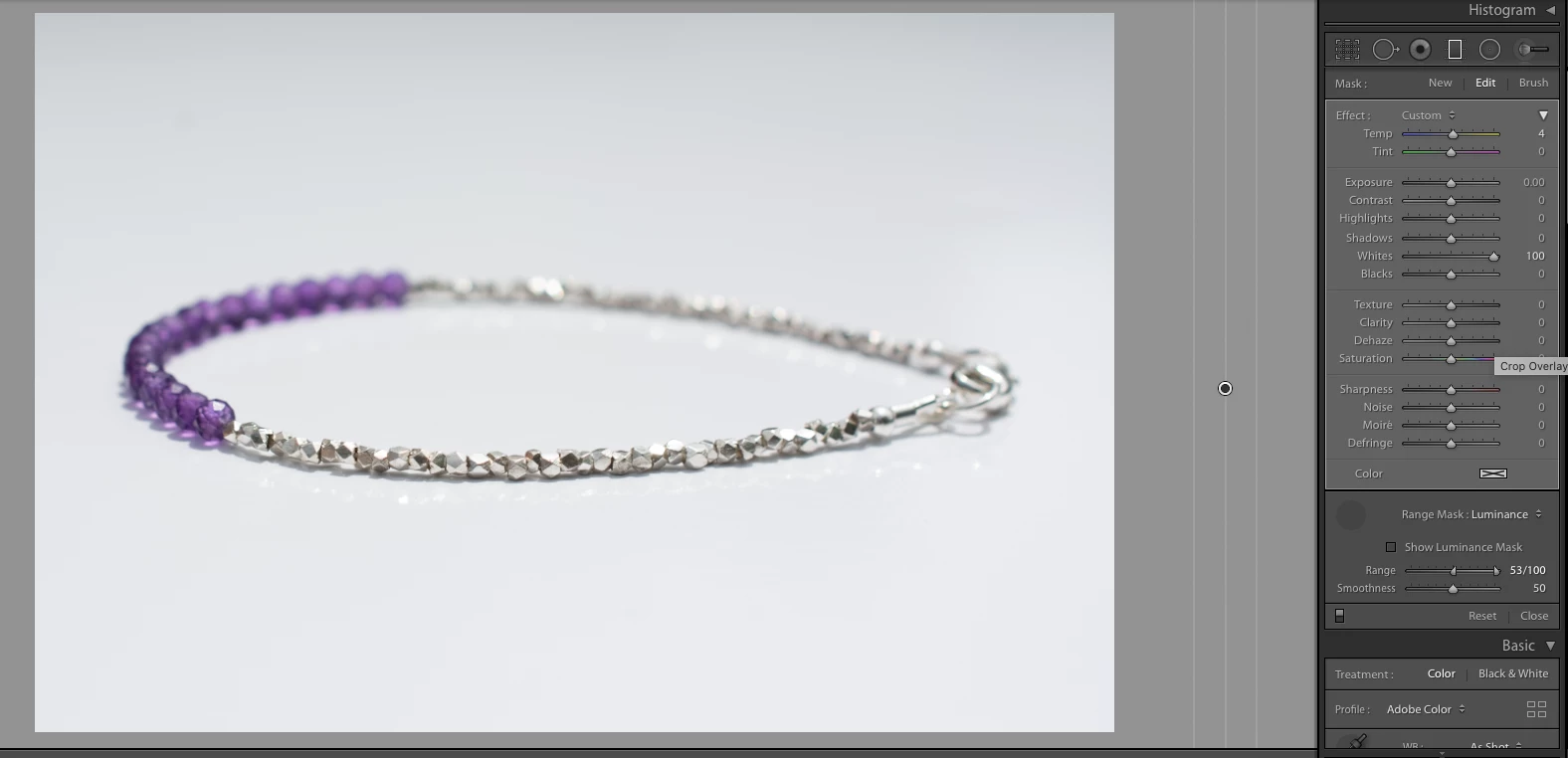


Correct answer kate2kate

The first is a screen shot. The second is the picture. 

8 replies

Todd Shaner
Legend
June 17, 2020

The 2nd picture you posted has light falloff probably from using a camera mounted flash. You can correct this by using a Graduated filter that is applied as actually intended to correct it. Adding a Luminace Mask helps preserve the detail in the bracelet. In the below example the Graduated filter placement and settings used help to make the lighting more uniform. It's not a huge difference, but looks pretty good to me!


The white paper background inflates the camera's metering, which leads to underesposure. As suggested in the future try using an in-camera exposure compenstaion of about +1.0 EV when shooting with a white background. Also look at other lighting techniques. Do a Google serarch on 'jewelry photography lighting.' There are lots of low cost lighting solutions.


Todd Shaner
Legend
June 16, 2020

Please post a screenshot as below showing your settings and the image file.


kate2kateAuthorCorrect answer
Inspiring
June 16, 2020

The first is a screen shot. The second is the picture. 

Rob_Cullen
Community Expert
Community Expert
June 17, 2020

Your biggest problem is that there are tones of luminance in the jewellery (esp. specular highlights) that are the same as the background.

It gets very difficult to use any type of masking to isolate the item from the background. The Gradient method I demonstrated in a video is very useful in some situations, but it has difficulty with your last images posted.

If your background is a pure white you might get a better start to editing if you expose in camera to render the background as 'white' in the image, then you will not need major adjustments in Lr. (or any at all!). In fact- in Lr, even just an increase of the global Exposure slider will, I think, achieve what you want. (Turn on the clipping indicators [J] to assist.).


Regards. My System: Windows-11, Lightroom-Classic 15.0, Photoshop 27.0, ACR 18.0, Lightroom 9.0, Lr-iOS 10.4.0, Bridge 16.0 .
Todd Shaner
Legend
June 13, 2020

WobertC thanks for creating the video. Just to avoid any confusion I used the Luminace mask, which is more suitable for brightening just the white background, but everything in your video applies.

kate2kateAuthor
Inspiring
June 13, 2020

Thank you for the help.

Rob_Cullen
Community Expert
Community Expert
June 12, 2020

I have a very short video that shows the Gradient Tool working with Range Mask 'Color'-

https://www.dropbox.com/s/fp0nq2n27739jzr/Range%20Mask%20Trick.mp4?dl=0


Regards. My System: Windows-11, Lightroom-Classic 15.0, Photoshop 27.0, ACR 18.0, Lightroom 9.0, Lr-iOS 10.4.0, Bridge 16.0 .
kate2kateAuthor
Inspiring
June 13, 2020

Thank you. The video was great. Nice and easy.

Todd Shaner
Legend
June 12, 2020

When I select the Graduated filter my screen looks different than your. The range mask is off and greyed out. How do I turn that on? And what is step 2 doing please?


After clicking on the Graduated Filter (Step 1) hover the cursor over the right side of the canvas. Next (Step 2) hold down the left mouse button and drag the cursor slightly to the right. If necessary straighten or move the Graduated filter so that the three lines are not touching the canvas as in my screenshot. This will apply the Graduated filter uniformally across the whole image. I suggest watching the video at the link I provided if you are still having trouble. Thank you.


https://www.youtube.com/watch?v=SFuHYJvBXIQ

Todd Shaner
Legend
June 11, 2020

https://www.youtube.com/watch?v=SFuHYJvBXIQ


Real simple using a Graduated Filter dragged off the canvas so it's applied to the whole image using a Luminance Range Mask. Follow steps 1-5.


kate2kateAuthor
Inspiring
June 12, 2020

Thank you! I will try this.

99jon
Genius
June 11, 2020

If you have Classic then it's possible to use color range masking.

kate2kateAuthor
Inspiring
June 11, 2020

I will have to look up color range masking. I am a newbie and I am not sure what it is. If you happen to know a good tutorial that would be great.

Curt Wrigley
Inspiring
June 11, 2020

Lightroom classic has much better masking tools (auto mask in particular)

On your image i tried doing it with light settings.   I increased whites, and highlights/contract to get close perhaps.

kate2kateAuthor
Inspiring
June 11, 2020

So you painted around the bracelet using the mask, but you didn't use full white. I just want to make sure I understand. Thank you for the help.