
Rick Spaulding -
Legend
October 14, 2024
Question

MAX: Easily eliminate distractions with Lightroom Classic Generative Remove powered by Adobe Firefly

  • October 14, 2024
  • 36 replies
  • 6213 views


Hi Everyone!


Try out Generative Remove, powered by Adobe Firefly's generative AI! With just a brush mask, you can easily remove distractions or unwanted objects from your photos. Adobe Firefly will automatically remove the object and seamlessly blend the fill with the rest of the image.


-------------------------------------------------------------------------------------------------------------------------------------------------

Give it a try and share your Before & After images—or just the After—and show us the magic you've created in the comments below.

 

Try it in Lightroom Classic

Generative Remove


Step 1

In the Develop module select the Remove tool by pressing Q or clicking the eraser icon beneath the histogram making sure the Mode is set to Remove. 

Step 2

Select "Use generative AI" and use the slider to adjust your brush size.



Step 3

Use the brush to paint over the object you want to remove making the selection slightly larger than the object.



Step 4

Use the Add or Subtract buttons to complete your selections (don't forget the shadows) then click Remove.
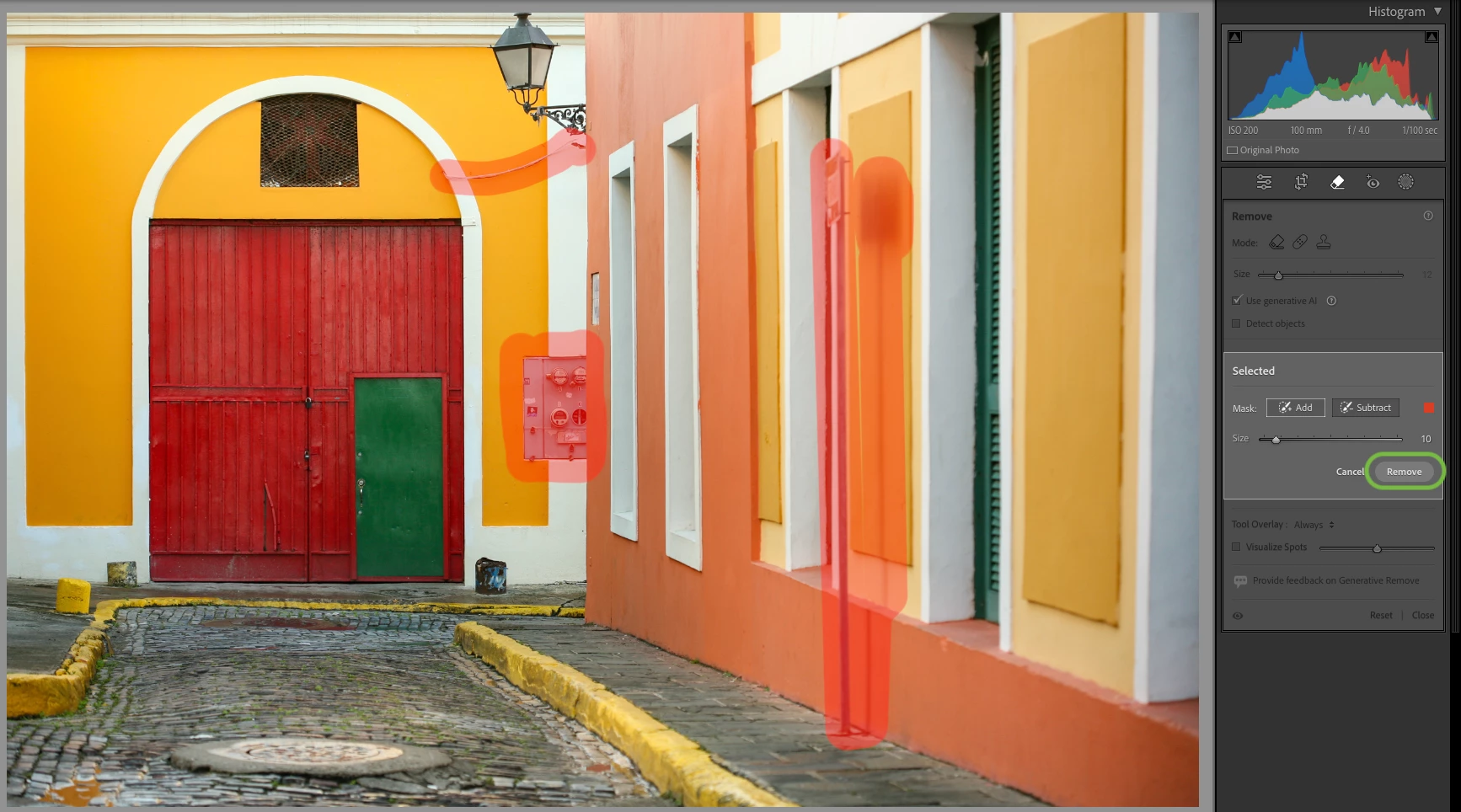
 

Step 5

Using Adobe Firefly, Lightoom Classic removes the objects creating three different versions to choose from. You can cycle through the versions in the Selected panel, change the Opacity, Generate three new variations, or delete them and try again.

 

Step 6

You can also use Detect object to easily select an object by simply making a squiggle over it.

 

Step 7

 Lightroom automatically detects the object for easy removal.



Tip: Learn more about Generative Remove


If this was helpful, please click the  Upvote icon in the top left corner of this post. Your feedback helps us improve the experience. Thank you!

Submit your creation? Click 'Reply' below to post.

Click 'Follow' below to bookmark this post for easy reference.

36 replies

Inspiring
August 13, 2025

Generative AI removal is amazing, when it works. As a boudoir photographer the issue I run into the most is the Adobe Morality Police, and quite frankly you need to dial it back. As an example I was working a photograph of a woman in a thong, I was simply trying to use the Generative AI to remmove the chain mechanism from a window shade behind her. It was in two parts. The first part removed fine. The second part the stupid "review our guidelines" error messge popped up. If I'm not trying to manipulate anything within a perceived skin or people mask quite frankly you need to butt out and do your the job your advertising you can do with the software. I get you're trying to prevent deep fake pornography, manipulating images of minors, all the arguments, but if I'm not trying to use AI to manipulate something in what the computer is classifying as a person or subject mask then let the AI do what you advertise.

Participating Frequently
November 19, 2024

There are three tools at issue here

1. Lightroom replace
2. PS replace (new)
3. PS generative fill and crop

I have used all three of these ad naseum on thousands of images, and I can say beyond any doubt that tools 1 and 3 are rubbish, in terms of the actual output. It is terrible - blurry and devoid of detail. The new PS replace tool however is an absolute revelation, in my opinion the most significant advancement in the history of PS (I'm a daily user since V. 1). For PS generative crop expand, the original method generates completely unusable garbage, but if you simply expland the canvas to a solid color and then use the new replace tool, wow, just wow, it is incredible!!! A truly revloution in image editing. The Lightroom tools produce the same unusuable output (if you care at all about how an image looks at anything larger than seeing the entire image shrunk down onto a phone screen, or if your work will ever be printed) as the original PS tools. Only the new PS replace tool creates detailed, high resolution output.

creative explorer
Community Expert
Community Expert
November 12, 2024

Wholly molly...can't tell which is faster...Photoshop or Lightroom!


m
Community Expert
November 10, 2024

Picture of a Grey Seal at Horsey Beach in Norfolk England, tragically caught in a section of fishing net.

Here, the work was very precise: I used a brush the same size as the fishing net threads and selected them one by one to preserve the fur pattern.

Lightroom Classic did a great job!


Participating Frequently
November 8, 2024

Yes, but the actual quality of the new lightroom remove tool pales in comparison to the new remove tool in Photoshop. It's not even close. In my opinion the lightroom tool is not usable at all. Attached detail of typical output - Lightroom on top and PS bottom. Both using newest generation AI remove with the same selected area.

@mj
Community Expert
Community Expert
November 7, 2024

Grafitti be gone

EuanWilliamson
Community Expert
Community Expert
October 31, 2024

Best regards, Euan.
Community Expert
October 29, 2024


Before and After with a different mood.

@mj
Community Expert
Community Expert
October 30, 2024

Much better mood too!

carlosgarro
Community Expert
Community Expert
October 28, 2024

carlosgarro
Community Expert
Community Expert
October 28, 2024

Awesome! Here is my sample!