Answered
missing attributes panel at bottom
can't seem to find the shortcut to get my attributes panel back that used to reside bottom right.
i could hit color code or stars to bring up just those images.
whats the shortcut?
thanks

can't seem to find the shortcut to get my attributes panel back that used to reside bottom right.
i could hit color code or stars to bring up just those images.
whats the shortcut?
thanks
i clearly have something going on wrong with LRCC
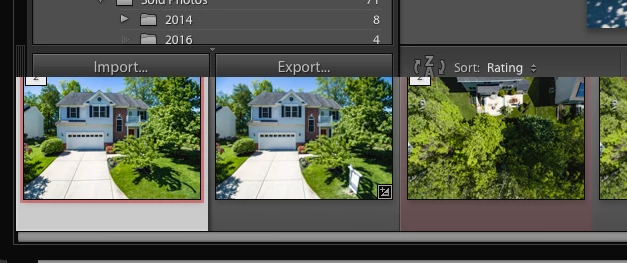
if you look at the screen shot below you can see how the filmstrip is tucked under the import export and the grouping number his hidden. the screen should look like the bottom image taken from my other mac. i've uninstalled and reinstalled with no fix.
any thoughts? thank you.

Try trashing the saved prefs.
Quit Lightroom
Hold down the two keys Optn(Alt)+Shift whilst launching Lightroom. Keep the two keys depressed for a couple of seconds and then release. You should see a prefs dialog.
Click the button “Reset preferences”
Re-boot your Mac.
Already have an account? Login
No account yet? Create an account
Enter your E-mail address. We'll send you an e-mail with instructions to reset your password.


 AdChoices