Participating Frequently
August 23, 2020
Answered

Missing Dehaze Button for Some File Types

  • August 23, 2020
  • 2 replies
  • 458 views

System:  Mac Mini (2018), Catalina 10.15.6
Lightroom Classic:  9.4 Release, Camera Raw 12.4

I was editing a Canon Raw Image of type .crw and wanted to dehaze it a bit.  I could not find the dehaze slider try as I might.  I saw reports of that problem in earlier versions but not in my Classic release.  
While editing a .jpg file, I noticed the dehaze slider was available.  Hmmmm.  I felt a bit silly for missing it and was glad that I didn't post about it.  
I went back to the .crw file and it wasn't there.  
A couple of questions.
Should the dehaze slider be available for all image types?  If not is there a rosetta stone of what file types it will work with and what ones it won't?
I will flag this as a bug but won't take offense if I am corrected.
Thanks,
Mike
This topic has been closed for replies.
Correct answer Rob_Cullen

One possibility-

When you develop a .CRW- is it an 'old' image? Taken some time ago.

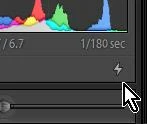
Look under the develop Histogram panel, and if you see a lightening bolt. the photo was edited in Lr with an 'old' Process Version, thus the Dehaze does not show.

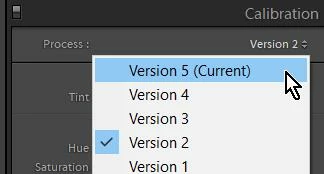
You can set the Process Version in the Calibration Panel, or click on the Lightning bolt to Update the Process Version to "Current v5".


2 replies

F. McLion
Community Expert
Community Expert
August 23, 2020

The "ominous warning" was a heads up that if you upgrade the process version and you already developed your photo, you may need to revisit and check the developing again since the new process may lead to a different rendering of the very same settings.

--- Got your issue resolved? Please label the response as 'Correct Answer' to help your fellow community members find a solution to similar problems. ---
Rob_Cullen
Community Expert
Rob_CullenCommunity ExpertCorrect answer
Community Expert
August 23, 2020

One possibility-

When you develop a .CRW- is it an 'old' image? Taken some time ago.

Look under the develop Histogram panel, and if you see a lightening bolt. the photo was edited in Lr with an 'old' Process Version, thus the Dehaze does not show.

You can set the Process Version in the Calibration Panel, or click on the Lightning bolt to Update the Process Version to "Current v5".


Regards. My System: Windows-11, Lightroom-Classic 15.3, Photoshop 27.5, ACR 18.3, Lightroom 9.3, Lr-iOS 10.4.0, Bridge 16.0.3 .
Mike5EF8Author
Participating Frequently
August 23, 2020
WobertC,

Bingo. The lighting bolt was just as you described it. I clicked same to receive an ominous warning. I went ahead and the dehaze slider was there.
Thanks so much.
Oh. The photo in question was taken in 2005.

Thanks,
Mike
Conrad_C
Community Expert
Community Expert
August 23, 2020

It’s less about when the photo was taken, and a lot more about which version of Lightroom was used to originally import it.


The processing engine in Lightroom has a Process Version. Older versions used older Process Versions, and those are not aware of what Dehaze is because it hadn’t been added to Lightroom yet. So if a Canon image was originally imported with a version of Lightroom that predated Dehaze, it is marked as being last edited using a Process Version that does not understand Dehaze. That’s why you have to update the Process Version to make it understand Dehaze, but changing the Process Version may alter the rendering slightly (usually not very much).


To say this from another angle: If you import a raw file of any age into the latest version of Lightroom, it will be processed using the latest Process Version. That is why I don’t think the problem was how old the file was, but how old the version of Lightroom was that last edited it.