
Known Participant
November 4, 2019
Answered

Missing DNG files. How to match smart previews to original raw files ?

  • November 4, 2019
  • 2 replies
  • 1457 views

Hello, in one of my lightroom catalog, I am missing all the original dng files (not sure what happened ?). 

All my photos had been edited in Lightroom Classic, spent days on them and I do not want  to redo everything. I have about 5000 files in this catalog.

Good news, I sill have the smart previews and the original raw files.


Is there a way I can re-import the original raw files and associate them with the smart previews in the catalog so I do not have to re-edit them all over again?


Many thanks in advance for your help.
This topic has been closed for replies.
Correct answer 99jon

Yes it should be possible. If the originals are proprietary raw files you may wish to use the stand alone DNG converter. Keep the original file naming format. Then use separate source and destination folders. Move the DNG’s from the destination folder into your original folder. The message under the histogram should then change from smart preview to original photo & smart preview.


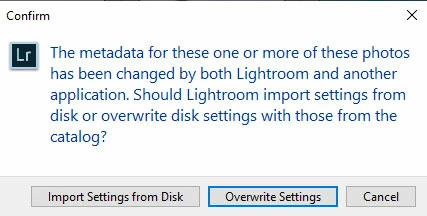
You will probably get a metadata conflict but simply select all and click the metadata overlay to update by overwriting with the catalog settings – see image below. All your slider values stored in the catalog should then be preserved. I suggest testing it to begin with, perhaps using a folder with a small batch of photos.


2 replies

99jon
99jonCorrect answer
Legend
November 4, 2019

Yes it should be possible. If the originals are proprietary raw files you may wish to use the stand alone DNG converter. Keep the original file naming format. Then use separate source and destination folders. Move the DNG’s from the destination folder into your original folder. The message under the histogram should then change from smart preview to original photo & smart preview.


You will probably get a metadata conflict but simply select all and click the metadata overlay to update by overwriting with the catalog settings – see image below. All your slider values stored in the catalog should then be preserved. I suggest testing it to begin with, perhaps using a folder with a small batch of photos.


rhodo78Author
Known Participant
November 4, 2019

A big thank you @99jon, it worked and thank you for adding the part regarding metada overlay. I really appreciate

Rob_Cullen
Community Expert
Community Expert
November 4, 2019

You may get a "get out of jail" card with a little effort- only taking some 'time'- if lucky!

If your catalog referenced the DNG versions of your photos, you could -

1) Use the (free-standing) Adobe DNG Converter program to create new DNGs from the original raw camera files.

*Do NOT 'Import'  by [Copy as DNG]

2) Place these DNGs in exactly the same location that Lightroom thinks they should be (as shown in the Lr Folder panel).

The DNGs will also need the same Filenames as referenced in the Catalog. Maintaining the same Folder structure will be your major hurdle.

Your catalog will be back to where it was- DNGs referenced.


Recovering from the Smart Previews would be an absolute last resort, as they would require a new catalog Import with all edits lost. As would creating JPGs from the Catalog Previews (by available plugins)

Regards. My System: Windows-11, Lightroom-Classic 15.3, Photoshop 27.5, ACR 18.3, Lightroom 9.3, Lr-iOS 10.4.0, Bridge 16.0.3 .
rhodo78Author
Known Participant
November 4, 2019

Many thanks @WobertC, it worked!!!!