
alanterra
Inspiring
April 11, 2019
Answered

Move photos to new folder on different disk, is there an easy way to do this?

  • April 11, 2019
  • 2 replies
  • 1442 views

I want to move photos to a new folder on a different disk, located deep down in that disk's folder structure. Since Lightroom won't work with Apple's Open/Save dialog for me to point it to a place to move photos, and Lightroom won't add an empty folder to the left side bar, I can see only two ways to do this.

1) Start at the top of the disk and work my way down "creating" folders, making sure that I use the exact name that that the folder already has. (Lightroom uses the existing folder if the name matches, otherwise creates a new folder).

2) Put a single photo in the folder I want to move to and then import that folder, in order to get the folder into the side bar, then delete that photo, then move the photos into the now-empty folder.

I use Lightroom to manage metadata that isn't written into the file (flagged status, custom metadata), so I can't move the files in the Finder and then import them, as I will lose all the data that isn't saved in the files.

Both 1 and 2 seem unnecessarily complicated, but I can't think of a third way to accomplish my goal.

(Lightroom Classic 8.2 for Macintosh)
    This topic has been closed for replies.
    Correct answer Bob Somrak

    alanterra  wrote

    Lightroom won't add a new empty folder,

    Lightroom will allow you to add a new empty folder or even a non-empty or empty existing folder to the left side bar the Folder panel.

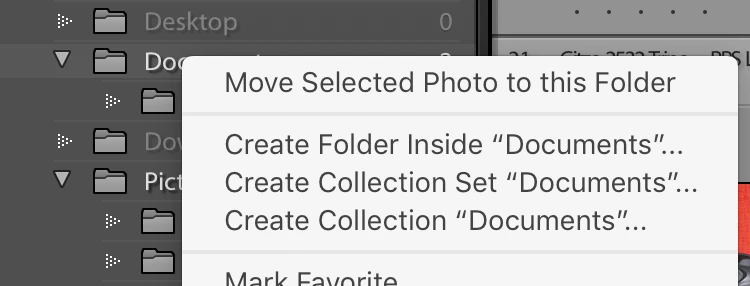
    Right click a folder and choose "Create Folder inside. ......."

    Type the name of the folder you want to create.

    If it is a NEW folder it will be created on your drive.  If it is an existing folder it will be added to the folder panel but will be empty.

    2 replies

    Bob Somrak
    Bob SomrakCorrect answer
    Legend
    April 11, 2019

    alanterra  wrote

    Lightroom won't add a new empty folder,

    Lightroom will allow you to add a new empty folder or even a non-empty or empty existing folder to the left side bar the Folder panel.

    Right click a folder and choose "Create Folder inside. ......."

    Type the name of the folder you want to create.

    If it is a NEW folder it will be created on your drive.  If it is an existing folder it will be added to the folder panel but will be empty.

    M4 Pro Mac Mini. 48GB
    dj_paige
    Legend
    April 11, 2019

    Please read "Part 2 — Updating Folder Location" in this document:

    http://www.computer-darkroom.com/lr2_find_folder/find-folder.htm

    Simplest thing to do is to keep folder names and folder hierarchies and file names identical on the new drive.

    IMPORTANT NOTE:

    Do not import.

    This is so important, I am going to say it three more times in capital letters.

    DO NOT IMPORT.

    DO NOT IMPORT.

    DO NOT IMPORT.

    DO NOT IMPORT.

    DO NOT IMPORT.

    alanterra
    alanterraAuthor
    Inspiring
    April 11, 2019

    That's 5.

    Yes, moving all the files and folders to the new disk, keeping their hierarchy intact, trashing the photos on the old disk, and then relinking the top folder using Lightroom's find missing folder is the third and probably best solution, if you want to move all the photos in a particular hierarchy. If you just want to move some, you are again doing convoluted operations that would be easy if the program respected Apple's conventions for indicating where to move things.

    Thx

    dj_paige
    Legend
    April 11, 2019

    alanterra  wrote

    If you just want to move some, you are again doing convoluted operations that would be easy if the program respected Apple's conventions for indicating where to move things.

    No convoluted operations that I can see. You copy the FOLDERS to the desired location, then in Lightroom (this is tedious, but not convoluted), one folder at a time reconnect using the Update Folder Location in the document I linked to.