Participant
November 17, 2025
Answered

Moving files in the folders panel in lightroom

  • November 17, 2025
  • 4 replies
  • 149 views

I want to use the Folders Panel in Lightroom to move photo files from one location in the windows file system to another.  I know I must use the Folders panel in Lightroom, rather than Windows Explorer or Lightroom catalog will lose track of where the files have gone.  Normally I use 2 instances of Windows Explorer to move files.  One instance is for source, the other for destination.  I cannot use this technique in Lightroom.  And the Folders panel is really too small to expose two locations in the hierarchical file system to make effective use of drag and drop.  There must be a better way to use this but I don't see how.


Tom

Correct answer johnrellis

[This post contains formatting and embedded images that don't appear in email. View the post in your Web browser.]


@thomehm: "the Folders panel is really too small to expose two locations in the hierarchical file system to make effective use of drag and drop. "


To make drag-and-drop easier:


1. Go to All Photographs, a folder, or a collection and select the photos you want to move.


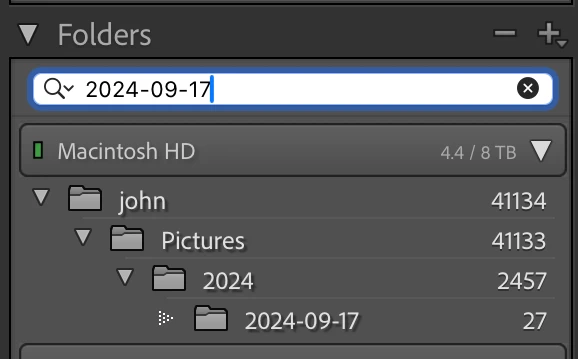
2. In the Folders panel Filter Folders box, type enough of the destination folder name that uniquely identifies it, e.g.


3. Now drag the selected photos to the desired folder.


4 replies

Conrad_C
Community Expert
Community Expert
November 17, 2025

I agree it would be nice if Lightroom Classic allowed multiple source viewers, the way you can in the Windows and Mac desktops, and in Adobe Bridge.


But until that happens, I like johnrellis’s idea to use the filter field, and there are ways to take that further.


For example, it would be nice if the filter field displayed more than one folder so that you wouldn’t have to re-enter each folder’s name just to switch the one being viewed. One way to do that is to have the same text in both folder names so that if you enter that common text in the filter field, it restricts the list to just the folders containing that text. Of course it isn’t always practical to mess with the names of folders. Fortunately, Adobe upgraded the filter field so that it can use metadata other than file/folder names, and that leads to some more flexible ideas.


In the picture below, the same color label has been applied to folders that need to be used together. By applying the Color Labels filter, only the folders with the selected label are left visible. Color labels are easy to reassign or remove as your needs change.


If this involves folders that you’ll always need to use frequently, you can mark them as Favorites. Then, instead of having to assign color labels, just use the Favorite Folders filter in that same filter menu so that the Folders panel only shows those, freeing the limited color label colors for other things.


When you’re done, to make all list items visible again set the filter field back to All.


johnrellis
johnrellisCorrect answer
Legend
November 17, 2025

[This post contains formatting and embedded images that don't appear in email. View the post in your Web browser.]


@thomehm: "the Folders panel is really too small to expose two locations in the hierarchical file system to make effective use of drag and drop. "


To make drag-and-drop easier:


1. Go to All Photographs, a folder, or a collection and select the photos you want to move.


2. In the Folders panel Filter Folders box, type enough of the destination folder name that uniquely identifies it, e.g.


3. Now drag the selected photos to the desired folder.


thomehmAuthor
Participant
November 18, 2025

Yes, I think that the use of the filter folders box would work best.  I am going to try that and I will mark this entry as the Correct Answer.  Thank you to everyone who contributed to the conversation.

Known Participant
November 17, 2025

I do not recommend but you can move files outside lightroom. 

As side effects, lightroom catalog lost linkage to image master files.

You need every time relink by clicking [!] box in grid view and specify target master image file.

dj_paige
Legend
November 17, 2025

@remov_b4_flight wrote:

I do not recommend but you can move files outside lightroom. 

As side effects, lightroom catalog lost linkage to image master files.

You need every time relink by clicking [!] box in grid view and specify target master image file.


Other people do recommend moving folders/photos outside of Lightroom Classic. And its a lot easier than you describe, @remov_b4_flight , and doing this outside or LrC and then reconnecting is both faster and safer. No need to click on exclamation point icons.


For example, @9767695 recommends it in Part 2 of this document, which also has complete explanation, with screen captures.

Community Expert
November 17, 2025

I'm not sure what you mean by "2 instances of Windows Explorer".   


I use dragging and dropping of folders in LrC regularly.  It works well enough that I not tempted to try another way.    Even though the panel is small, it moves as you move your mouse.  Can you make a couple of  test folders and try it? 


Consider watching this 3 minute video:  https://www.youtube.com/watch?v=yl5oH_shX08


If you really want to use Explorer,  there are tools in LrC to update the catalog after you move the files.   I can look for specific instructions if you can't find them.   

thomehmAuthor
Participant
November 17, 2025

By two instances of Windows Explorer I mean, I have Windows Explorer open, and then I right click on the Explorer Icon and select File Explorer.  Then I can drill down into the source location in one instance of Explorer.  Then, in the second Windows Explorer, I find the destination location.  I have gotten used to filling the top half of a monitor screen with Explorer source and the other with a Windows Explorer destination.  I have gotten so used to this configuration, over a couple of decades, that I don't see how I could live without it.  Well, now I have to in Lightroom.  My crutch has been taken from me.