Participant
April 5, 2024
Answered

Multiple Catalogs slowing MAC

  • April 5, 2024
  • 3 replies
  • 284 views

My wife uses LRc on our MAc Mini and the Mac's storage is almost full now even though she removes the phtos when sh finsihes a project.  There are endless Lightroom files stored on the mac however.  Can I remove these, what is she doing wrong that is creating all of these?  See attached Finder Screen shot

Correct answer Conrad_C

Going by the posted screen shot, she might not be doing anything “wrong” necessarily, maybe just needs to better understand how some options affect file size.


Lightroom Classic storage usage is about a lot more than just the photos. You’re already realizing that in finding a number of apparent duplicates of the same catalog name. The context of the window screen shot was cropped out, but because there are duplicate filenames in that list and that isn’t possible in a normal folder window, I’m going to assume those are search results. If my assumption is correct, then the duplicates you are seeing are probably automatically created backups of the catalog file. The other evidence supporting that is the filenames end in .zip.


The automatic catalog backups are not inherently a problem, but it is a problem that Lightroom Classic doesn’t auto-cull them. So they build up over time, using more and more storage space. There are a lot of users who do not realize that is happening.


Lightroom Classic creates those backups if the backup feature is enabled, and it will store them in the folder the feature is set to. So you want to look at those settings. In Lightroom Classic, choose Lightroom Classic > Catalog Settings, look at the Back Up Catalog option, and find out what it is set to and where the backups are (by default, they’re in the same folder as the catalog, but that can be changed at backup time). After you find the backups folder, you can look through it and see how much space the folder is using.
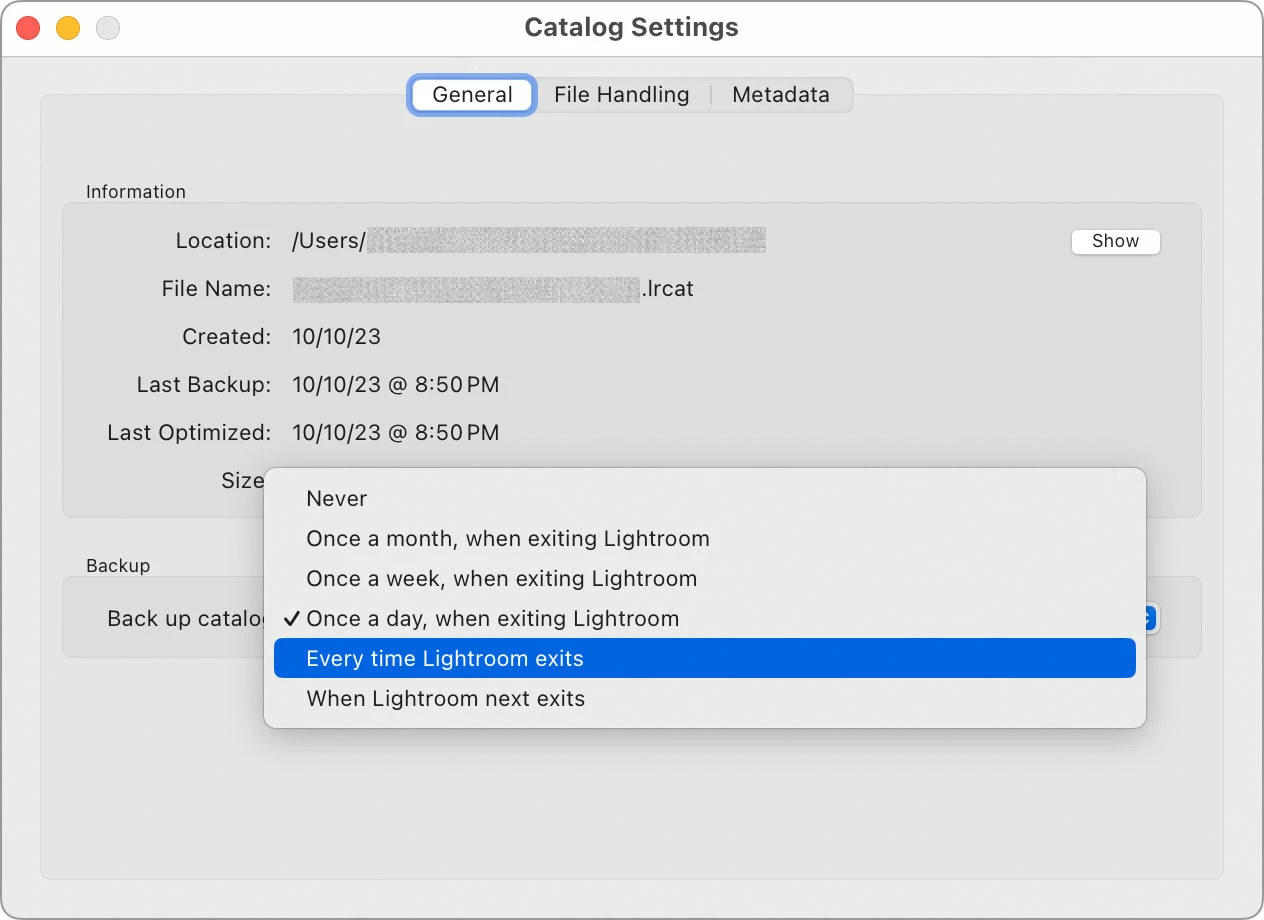


What you do next depends on what she wants.


If she wants those automatic backups to continue, then do two things: Set up the feature so that it’s backing up at the time interval she wants (keeping in mind that a more frequent interval causes backups to build up faster), and then she should remember to go back in there every so often and manually* delete old backups before the backups folder gets too large.


If she doesn’t want or need those backups to happen, just set Back Up Catalog to Never. This is a reasonable option if she already maintains a consistent backup routine so that the files on her Mac are regularly getting backed up another way, such as with Apple Time Machine.


The file names ending with -v11.zip and -v12.zip are catalog backups in a format used by older versions of Lightroom Classic. If she is happily using the current version 13 and has backups of that catalog, then it’s safe to remove any catalog backups made by older versions.


Another possible cause of Lightroom Classic file bloat is the Previews file, which is in the same folder as a catalog and has a filename that ends in …Previews.lrdata . If that file eventually grows to become several gigabytes (GB, not MB), it is safe to trash it because it’s just a performance cache that gets rebuilt automatically.


*I use the automatic catalog backup feature, but I also use a Mac folder-watching application called Hazel (paid software) that I set up so that when I plug in my large external volume, Hazel automatically scoops up any catalog backups in that folder on my Mac and moves them off to that much larger external storage, and once in a while I cull those. That helps keep space available on the internal storage of my Mac.

3 replies

Conrad_C
Community Expert
Conrad_CCommunity ExpertCorrect answer
Community Expert
April 5, 2024

Going by the posted screen shot, she might not be doing anything “wrong” necessarily, maybe just needs to better understand how some options affect file size.


Lightroom Classic storage usage is about a lot more than just the photos. You’re already realizing that in finding a number of apparent duplicates of the same catalog name. The context of the window screen shot was cropped out, but because there are duplicate filenames in that list and that isn’t possible in a normal folder window, I’m going to assume those are search results. If my assumption is correct, then the duplicates you are seeing are probably automatically created backups of the catalog file. The other evidence supporting that is the filenames end in .zip.


The automatic catalog backups are not inherently a problem, but it is a problem that Lightroom Classic doesn’t auto-cull them. So they build up over time, using more and more storage space. There are a lot of users who do not realize that is happening.


Lightroom Classic creates those backups if the backup feature is enabled, and it will store them in the folder the feature is set to. So you want to look at those settings. In Lightroom Classic, choose Lightroom Classic > Catalog Settings, look at the Back Up Catalog option, and find out what it is set to and where the backups are (by default, they’re in the same folder as the catalog, but that can be changed at backup time). After you find the backups folder, you can look through it and see how much space the folder is using.


What you do next depends on what she wants.


If she wants those automatic backups to continue, then do two things: Set up the feature so that it’s backing up at the time interval she wants (keeping in mind that a more frequent interval causes backups to build up faster), and then she should remember to go back in there every so often and manually* delete old backups before the backups folder gets too large.


If she doesn’t want or need those backups to happen, just set Back Up Catalog to Never. This is a reasonable option if she already maintains a consistent backup routine so that the files on her Mac are regularly getting backed up another way, such as with Apple Time Machine.


The file names ending with -v11.zip and -v12.zip are catalog backups in a format used by older versions of Lightroom Classic. If she is happily using the current version 13 and has backups of that catalog, then it’s safe to remove any catalog backups made by older versions.


Another possible cause of Lightroom Classic file bloat is the Previews file, which is in the same folder as a catalog and has a filename that ends in …Previews.lrdata . If that file eventually grows to become several gigabytes (GB, not MB), it is safe to trash it because it’s just a performance cache that gets rebuilt automatically.


*I use the automatic catalog backup feature, but I also use a Mac folder-watching application called Hazel (paid software) that I set up so that when I plug in my large external volume, Hazel automatically scoops up any catalog backups in that folder on my Mac and moves them off to that much larger external storage, and once in a while I cull those. That helps keep space available on the internal storage of my Mac.

D Fosse
Community Expert
Community Expert
April 5, 2024

First of all, there are video files and TIFFs there. They should go to main photo storage wherever that is. Like dj, I'm a bit concerned when you say "remove" photos when finished. Does that mean deleted, as in gone forever, or do you have any additional storage?


The catalog-related files and folders could do with a cleanup - but this isn't what's filling up the drive.


All in all, it sounds like it's time for some thorough housecleaning. If the drive is really full, you will soon have much bigger problems than Lightroom. You should never allow a drive to fill up beyond 60-70%, and if you ask me even that's stretching it.

dj_paige
Legend
April 5, 2024

Your title talks about catalogs, but the rest of your message seems to talk about photos. It's not clear.


Photos should not go on the MAC internal hard disk, but should go on an external HD, straight out of the camera. Then your internal HD should not run out of space, and photos don't have to be "removed".


Best to use one catalog for all photos, rather than many.