Participant
June 12, 2026
Question

Need help restoring folders

  • June 12, 2026
  • 3 replies
  • 7 views

I need help fixing a problem I cause moving photos from one folder to another.


I had two folders, Lightroom Photos and Guy’s Lightroom photos. They seem redundant so I dragged the photos, in Lightroom, from the Guy’s Lightroom Photos folder into the Lightroom Photos Folder and then I remove the empty Guy’s Lightroom Folder.  Now, when I open the catalog and go the Lightroom Photos folder, all the photos are there but the chronological file system is gone. I have one big group of 14,000+ photos.  When they were in the Guy’s Lightroom Folder the were saved under Year/Month/Day/Capture Time.  I’ve lost that.  Is there a way to created that structure to where I moved the photos in the Lightroom Photos folder?  I’m completely confounded by this situation.
    3 replies

    GCR49Author
    Participant
    June 12, 2026

    DJ and Gary….thanks for your thoughtful input and for taking the time to giving me some suggestions.  However, I may have messed up only to force myself into a better arrangement.  I’ve worked with Lightroom since version 2 many years ago and built date folders and subfolders and have become a prisoner to trying to guess where certain pictures are…especially if I hadn’t used keywords. As I think through this I’m going to go to more of a text based folder and subfolder system. Something like Italy/Rome/Florence/Venice with subfolders as needed. It’ll be a much better system than trying to guess where something might be based upon when I shot it.  I also have an Excire Foto Plugin that can help create meaningful folders. So, it’ll require some work but in the end I’ll have what will probably be a better system than what I lost.  Thank you all for your suggestions and taking your time to offer them.


    gary_sc
    Community Expert
    Community Expert
    June 12, 2026

    I’m strongly with you on that. The bulk of my photography is on trips. So, if there’s a place or region I go to often, I’ll have a master folder of that, and then sub-folders of the separate trips, and sub-sub folders of the places with the dates as kinda seen here:

    Then, with keywording, any specific location can be found quickly as well. I like to think that LRC gives me a photo diary of each trip, a ph-diary, if you will.

    Whatever you come up with, now’s a great time to think it through and come up with what’s best for your brain.

    GCR49Author
    Participant
    June 12, 2026

    I couldn’t agree more.  I’ve been fumbling with an imperfect system simply because its what I started with and didn’t change.  This kind of forces the issue. It’ll be a good time to clean house and get organized in a better way.  The initial panic of “what do I do now” actually has turned into an opportunity to make things better.  Thanks for the photo of your organization.  I hadn’t thought about using dates with the location folders.  I was just going to throw the same subjects into the same folder.  Your way offers additional structure.  Should be easy enough because most of the subject matter was shot in the same place at roughly the same time.

    dj_paige
    Legend
    June 12, 2026

    They seem redundant so I dragged the photos … 


    When you drag the PHOTOS, all folder information is lost. Had you dragged the FOLDERS, I think you would get the desired results.


    Go back to a backup of everything before this happened, and then you can try it again dragging folders in LrC instead of photos.

    gary_sc
    Community Expert
    Community Expert
    June 12, 2026

    Bingo, that’s how the problem started. Good catch

    gary_sc
    Community Expert
    Community Expert
    June 12, 2026

    Hi, ​@GCR49, it sounds like you did the right method (doing all this folder moving within Lightroom Classic as opposed to doing this in the Finder or Explorer). That “should” have prevented the loss of subfolders. But why it didn’t, I do not know. I’d have to be looking over your shoulders to get a better idea. 

    One way to fix this and get back to what you want might be a bit tedious but it is doable. 

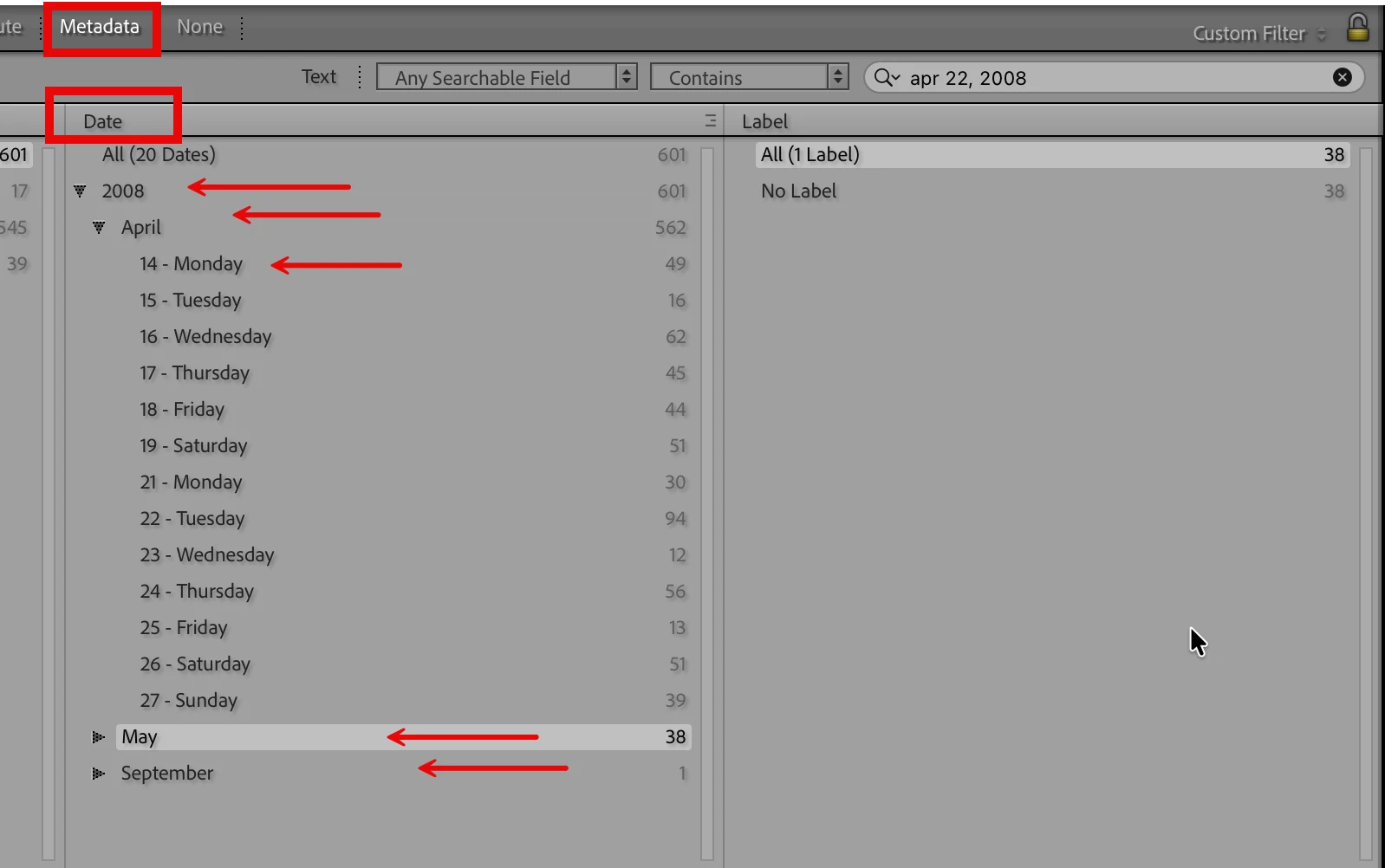
    In the Library mode, click on the Grid view of your images. Now, go up to the top of the window, and click on the top option of “Metadata.”

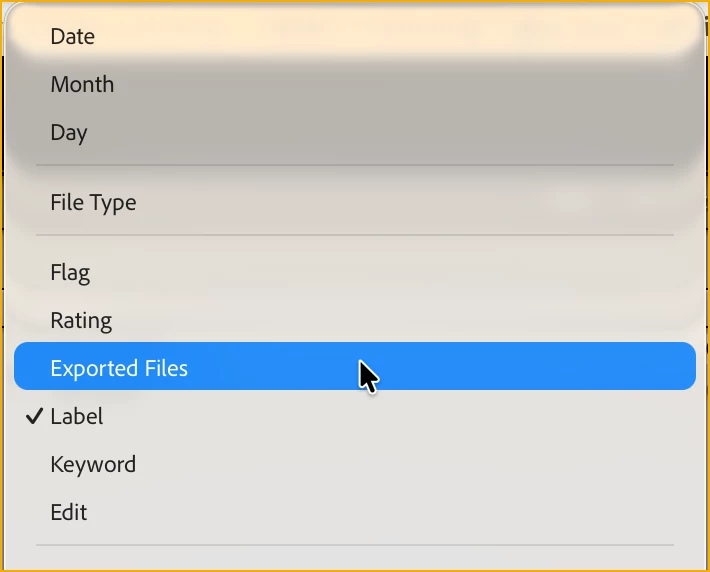
    Next, look for a column of “Date.” If you do not see the “Date” name, click on that first word of the column and you’ll see all of the options, on the very top is “Date.”

    Next, you can click on the “tipping arrows” to show all of the options you wish to grab.

    Now, you do not say how you have your subfolders and subsubfolders, but lets say it’s Year, and Month. Click on the Year you want, and all of that year will be selected from amongst all of your images in that folder. Now, click in that selection on any image and then press Command/Control-a, so all of the “found” images are selected.

    Next, right-click on the primary folder, and on the very top is the option to make a new subfolder

    And lastly, in the popup window, give that folder a name, be SURE that the check box for including selected image is checked, and then click OK. 

    Within that folder, you can continue to subdivide into more subfolders or whatever you want.

    Yes, it will be a bit tedious, but it will also go faster than you think.

    Good luck!

    GCR49Author
    Participant
    June 12, 2026

    Gary, your idea fits well into the alternative system I’ll create to replace what I had.  It’ll be better in the long run.  Good opportunity to take a look at everything that’s in there and do some long overdue culling.