


Participant
May 11, 2026
Answered

New GPU but more unstable performance.

  • May 11, 2026
  • 2 replies
  • 57 views

I upgraded from a Nvida 1070 to a 5070 Ti 16GB. In some ways I see a significant improvment in performance like AI Denoise and exporting, and third party plugins. But it hangs on images taking moments to render previews.  This did not happen with my six year old GPU.  Troubleshooting with AI alluded to Pipeline rendering issues. I disabled Acceleration and the problem went away but this is not a solution. I spend a thousand dollars on this GPU to speed up my workflow. 

PS, I have studio drivers installed.  I’m considering swapping them out to see if that fixes the problem. 
 

Device name   
Processor    AMD Ryzen 9 9950X3D 16-Core Processor (4.30 GHz)
Installed RAM    48.0 GB (47.1 GB usable)
Graphics card    NVIDIA GeForce RTX 5070 Ti (16 GB)
AMD Radeon(TM) Graphics (486 MB)
Storage    3.09 TB of 5.00 TB used
System type    64-bit operating system, x64-based processor
Pen and touch    Pen support
 

    Correct answer AxelMatt

    Please check if you've buildin a CPU with an integrated graphics processor and if it's enabled. This internal GPU can sometimes caused several issues. Adobe recommends disabling second GPUs

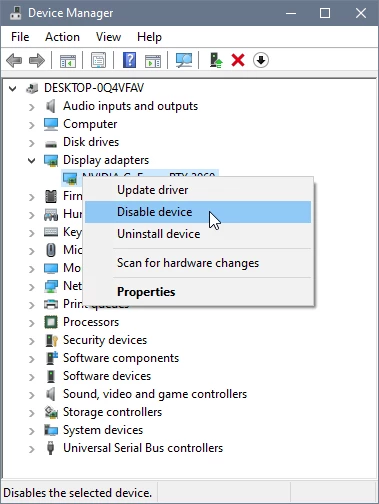
    Open the Windows Device Manager, right-click the card's name and choose Disable.  

    See also step 5 and 6 in the linked document: https://helpx.adobe.com/lightroom-classic/kb/troubleshoot-gpu.html#solution-4 

    Check also if you have installed the latest Studio Version for your graphic card.

    2 replies

    dj_paige
    Legend
    May 11, 2026

    Make sure you have the latest Studio driver for this GPU.

    Participating Frequently
    May 11, 2026

    Thanks yes I have the latest drivers.   My in cpu GPU was confusing the system. Probably jumping rendering pipelines between them.  

    AxelMattCommunity ExpertCorrect answer
    Community Expert
    May 11, 2026

    Please check if you've buildin a CPU with an integrated graphics processor and if it's enabled. This internal GPU can sometimes caused several issues. Adobe recommends disabling second GPUs

    Open the Windows Device Manager, right-click the card's name and choose Disable.  

    See also step 5 and 6 in the linked document: https://helpx.adobe.com/lightroom-classic/kb/troubleshoot-gpu.html#solution-4 

    Check also if you have installed the latest Studio Version for your graphic card.

    My System: Intel i7-8700K - 64GB RAM - NVidia Geforce RTX 3060 - Windows 11 Pro 25H2 -- LR-Classic 15 - Photoshop 27 - Nik Collection 9 - PureRAW 6 - Topaz Photo AI
    Participating Frequently
    May 11, 2026

    Thanks it’s too soon to tell but everything seems to be running smoother and faster.  I also disabled the integrated GPU in bios to be safe.