


lukasb79690852
Participating Frequently
October 28, 2024
Answered

P: Content Credentials-signed images will create an XMP file for JPEG images

I recently come across the following Issue:


I have a bunch of jpg files I have post-processed in Photoshop that I want to add geo locations to using the Lightroom Classic map module. After adding the locations I mark all images and do right click - metadata - save metadata to file. For some jpg files the data is written into the jpg file (desired behavior and how I know it from LR Classic for the past 6 years), while for others LR creates a seperate xml file (same location same name as the jpg) containing all metadata including the location.


Since this is a recent thing for me I suspected LR 14 to be the issue so I downgraded back to 13 but the issue persists.

I already cleared out my complete LR catalog and only importet a hand full of jpg files to test but the issues persists.

The issue can be reproduced, it is always the same jpgs causing the issue.

When I open one of the not functioning jpg files in Photoshop and save it again in a new location the issue persists. When I open it, create a new document of the same dimensions, mark all in the original, copy across to the new document and then save the new document as jpg I can then add gps locations to the new jpg in LR as expected.

I can also copy the gps data from a working jpg to one of the ones LR refuses to add gps data to using exiftools so the jpg file does not seem to be inherently broken in some way.

There is no different between the jpg files LR can write to and the ones where it insists on writing a xml file. They were taken using the same camera and have gone through the same workflow.


Any help would be appreciated since as of right now I am resorting to using a dummy image I assign the desired location to in LR and then use command line + exiftools to copy the gps tag across to the non functioning jpg which is extremely cumbersome.

johnrellis
johnrellisCorrect answer
Legend
October 28, 2024

It appears this behavior is caused by the addition of Content Credentials to the JPEG, which are added to the JUMBF metadata section.


In the past, when LR didn't know how to update an industry-standard file format, LR would write a .xmp sidecar instead. For example, when LR first added support for HEIC, it wrote .xmp sidecars; a later version of LR wrote directly into the HEIC file. Similarly, LR still creates .xmp sidecars for AVIFs, even though that format supports updatable metadata. (Actually, when LR first added support for AVIF, it would corrupt the files if you did Save Metadata To File, so instead of fixing the bug Adobe changed LR to write .xmp sidecars instead.)


So perhaps LR doesn't yet understand how to update files containing JUMBF sections, and the developers decided to expediently create .xmp sidecars instead?


To reproduce this behavior in LR 14.0.1 / Mac OS 14.6.1


1. Import the attached file working.jpg.


2. Observe that Metadata > Save Metadata To File writes to the file directly.


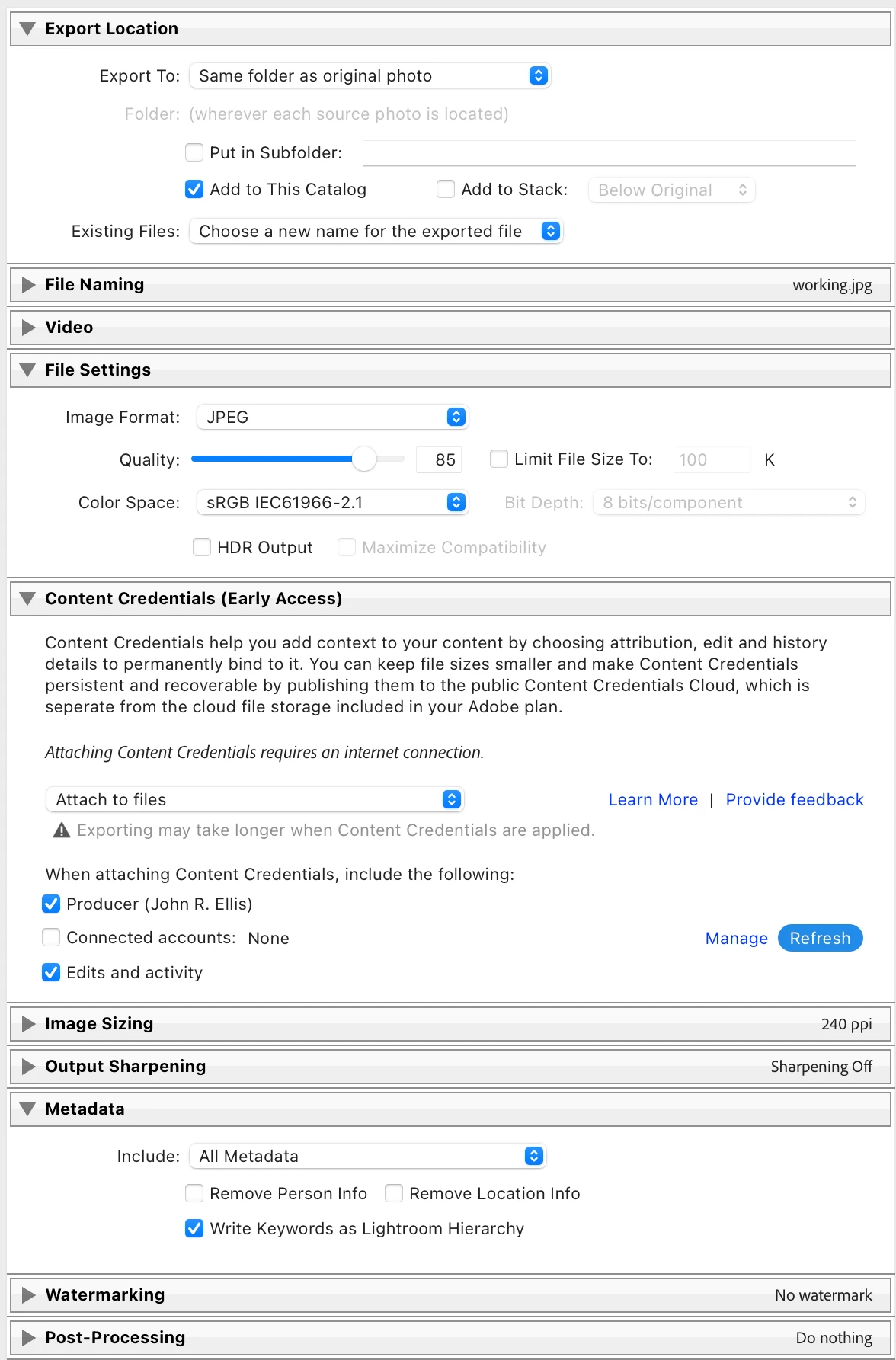
3. Export working.jpg back into the catalog with these Export options:


4. Select the exported/imported working-2.jpg and do Metadata > Save Metadata To File. Observe that a .xmp sidecar has been created for it.


61 replies

johnrellis
Legend
October 21, 2026
johnrellis
Legend
October 21, 2026

Oh, this is almost certainly as-designed. ​@Rikk Flohr-Retired confirmed that when a JPEG contains content credentials, LR will write metadata to a .xmp sidecar to avoid invalidating the signed credentials:

https://community.adobe.com/questions-675/p-content-credentials-signed-images-will-create-an-xmp-file-for-jpeg-images-979293?postid=4015507#post4015507


The DNG in the catalog attached here also contains content credentials, so the same rule applies: The metadata is written to the .xmp sidecar instead of inside the DNG.

Translate
johnrellis
Legend
October 21, 2026

The Save Metadata To File command creates a .xmp sidecar for a DNG created by LR’s Photo Merge > Panorama, rather than writing the metadata into the DNG as it should.


To reproduce on LR 15.6 / Mac OS 26.6.2:


1. Open the attached catalog.


2. Select the one photo and do Metadata > Save Metadata To File.


3. Right-click the photo and do Show In Finder. Observe that there is a .xmp sidecar file created for the .dng (incorrect), instead of writing the metadata into the .dng as normally happens.

Translate
Known Participant
October 15, 2026

I have the same problem: all my JPG files come from the same phone Pixel 8 Pro, and some are locked and get XMP sidecars (not wanted). Some are not locked and get the metadata saved inside the JPG (as i did for many years and would like to continue). 

I use Lightroom Classic on Windows 11 Pro. I do not fully understand the instructions above. I you could explain in easier words, that would be so nice. 

What i would love to avoid confusion and clutter is one of these: 

  • phone does not even create content credentials in JPG files (but seemingly no option for this in my phone)
  • Lightroom Classic for Windows ignores the content credentials and writes metadata straight into the JPGs, as before
  • content credentials can be removed during import into Lightroom

I do not see that one of these procedures is possible though. If i export not as “original”, but as “JPG”, there is a new rendering, right, which i would like to avoid (not to mention the extra steps and confusion created by an unwanted and newish software behaviour). 

Translate
Inspiring
September 3, 2025


 I am unable to save tags to photos I have taken on my new Pixel 10 pro. I download the photos onto my Pc, but when trying to save tags using Lightroom Classic, the tags are not saved. I had no problems with photos from a Pixel 9 pro.


However, looking at the "Properties" tab on Windows, for each photo, the tags are being saved for the DNG file, but not for the corresponding JPEG file?


Does anyone know why and what I have to do to get over this problem? Is it a Lightroom issue or a Google issue?
Translate
johnrellis
Legend
September 3, 2025

Attach one of the problem JPEGs here and we can see in detail what might be going wrong.

Translate
Inspiring
September 4, 2025

I cannot save tags to this JPG


Translate
johnrellis
johnrellisCorrect answer
Legend
October 28, 2024

It appears this behavior is caused by the addition of Content Credentials to the JPEG, which are added to the JUMBF metadata section.


In the past, when LR didn't know how to update an industry-standard file format, LR would write a .xmp sidecar instead. For example, when LR first added support for HEIC, it wrote .xmp sidecars; a later version of LR wrote directly into the HEIC file. Similarly, LR still creates .xmp sidecars for AVIFs, even though that format supports updatable metadata. (Actually, when LR first added support for AVIF, it would corrupt the files if you did Save Metadata To File, so instead of fixing the bug Adobe changed LR to write .xmp sidecars instead.)


So perhaps LR doesn't yet understand how to update files containing JUMBF sections, and the developers decided to expediently create .xmp sidecars instead?


To reproduce this behavior in LR 14.0.1 / Mac OS 14.6.1


1. Import the attached file working.jpg.


2. Observe that Metadata > Save Metadata To File writes to the file directly.


3. Export working.jpg back into the catalog with these Export options:


4. Select the exported/imported working-2.jpg and do Metadata > Save Metadata To File. Observe that a .xmp sidecar has been created for it.


Translate
johnrellis
Legend
October 28, 2024

@Rikk Flohr: Photography, LR 14.0.1 creates .xmp sidecars for JPEGs with content credentials. Please verify this is as-designed or submit a bug, thanks.

Translate
Rikk Flohr-Retired
Adobe Employee
October 29, 2024

As-designed

In case of already signed JPEGs, metadata and develop settings are written to sidecar XMPS so as not to invalidate the CAI signature.


Translate
Rikk Flohr: Adobe Photography Org
lukasb79690852
Participating Frequently
October 28, 2024

After posting I have tested this on a completely different Laptop and again the issue persistes for the same jpg files.

I have attached two sample files:.

working.jpg - LR Classic writes the metadata into the file as expected

not_working.job - LR Classic creates a seperate not_working.xml and writes the metadata into that

Translate
JohanElzenga
Community Expert
Community Expert
October 28, 2024

Most likely the image is locked, so Lightroom can't write to it.


Translate
-- Johan W. Elzenga
lukasb79690852
Participating Frequently
October 28, 2024

Thanks for your reply, could you elaborate on how to unlock a file? I checked and I found no way to lock or unluck a file anywhere. Under file properties in Windows the files are not marked as read-only.

Translate