

dsantanapr
Participant
January 27, 2026
Answered

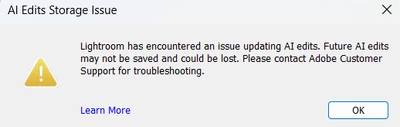
P: Error Message: AI Edits Storage Error

  • January 27, 2026
  • 12 replies
  • 1283 views

I’m getting the “AI Edits Storage Error” in Lightroom Classic, and I’ve already followed all the steps listed on Adobe’s help page, but the issue is still happening.

Here’s what I’ve tried so far:

  • Confirmed there is enough free disk space

  • Restarted Lightroom and my Mac

  • Ensured only one instance of Lightroom is open

  • Gave Lightroom Classic Full Disk Access and Files & Folders permissions in macOS

  • Verified my user account has Read & Write permissions

  • Checked that the catalog and .lrcat-data folder are accessible

  • Not using any cleanup tools or cloud sync on the catalog while Lightroom is open

Despite all this, the error continues to appear and AI edits fail to save properly.
    This topic has been closed for replies.
    Correct answer Rikk Flohr_Photography

    When you receive this error, contacting support is your best course of action. The failure you are seeing is not new to version 15.1, but it formerly had no dialog to display when it occurred. The Error Message was added in LrC version 15.1 to guide you toward a workable solution.


    If you encounter this new dialog, you should:
     

    1.  Review this document: https://helpx.adobe.com/lightroom-classic/kb/ai-edits-storage-error.html to make sure you are not affected by the items listed there.
    2. Contact Adobe Support, as they have an lrcat-data recovery tool that can fix your corrupt file.

      You would do this if you don't want to take the extreme option of removing your lrcat-data file and rebuilding it from scratch, as has been mentioned in this thread. This method works, but it can result in unexpected results when AI data has been recalculated.  


    Please note that the understood causes of corruption in this file are external. It is essential to review this KB document to ensure you don't have future corruption. 


    Thank you for your patience. 

    To contact Adobe Customer Care, as instructed in the error message, go to https://helpx.adobe.com/contact/what-contact-options.html. Scroll to the bottom and click on the “Start Now” live chat link in the lower right of this page. Typing “Agent” into the chat text field will bypass the initial chatbot.


    Rikk Flohr: Adobe Photography Org

    12 replies

    tigerlily2_3
    Participant
    January 28, 2026

    When opening Lightroom Classic, the following message appears, "Lightroom encountered an issue updating AI edits. Future AI edits may not be saved and could be lost.” What steps do I need to make to correct this?

    Rikk Flohr_Photography
    Community Manager
    January 27, 2026

    When you receive this error, contacting support is your best course of action. The failure you are seeing is not new to version 15.1, but it formerly had no dialog to display when it occurred. The Error Message was added in LrC version 15.1 to guide you toward a workable solution.


    If you encounter this new dialog, you should:
     

    1.  Review this document: https://helpx.adobe.com/lightroom-classic/kb/ai-edits-storage-error.html to make sure you are not affected by the items listed there.
    2. Contact Adobe Support, as they have an lrcat-data recovery tool that can fix your corrupt file.

      You would do this if you don't want to take the extreme option of removing your lrcat-data file and rebuilding it from scratch, as has been mentioned in this thread. This method works, but it can result in unexpected results when AI data has been recalculated.  


    Please note that the understood causes of corruption in this file are external. It is essential to review this KB document to ensure you don't have future corruption. 


    Thank you for your patience. 

    To contact Adobe Customer Care, as instructed in the error message, go to https://helpx.adobe.com/contact/what-contact-options.html. Scroll to the bottom and click on the “Start Now” live chat link in the lower right of this page. Typing “Agent” into the chat text field will bypass the initial chatbot.


    Rikk Flohr: Adobe Photography Org

    Rikk Flohr: Adobe Photography Org