

hyund39164868
Participant
April 1, 2024
Answered

P: (GPU) Develop/Edit view & Export artifacts after 14.4.1 Update (AMD-only) (affects Cr, LrC & LrD)

  • April 1, 2024
  • 139 replies
  • 100178 views

Hi,


Since just now, I've been experiencing a weird bug / crash in Lightroom Classic (on a Mac), where ALL my photos suddenly are fully covered in artefacts in the Develop module.
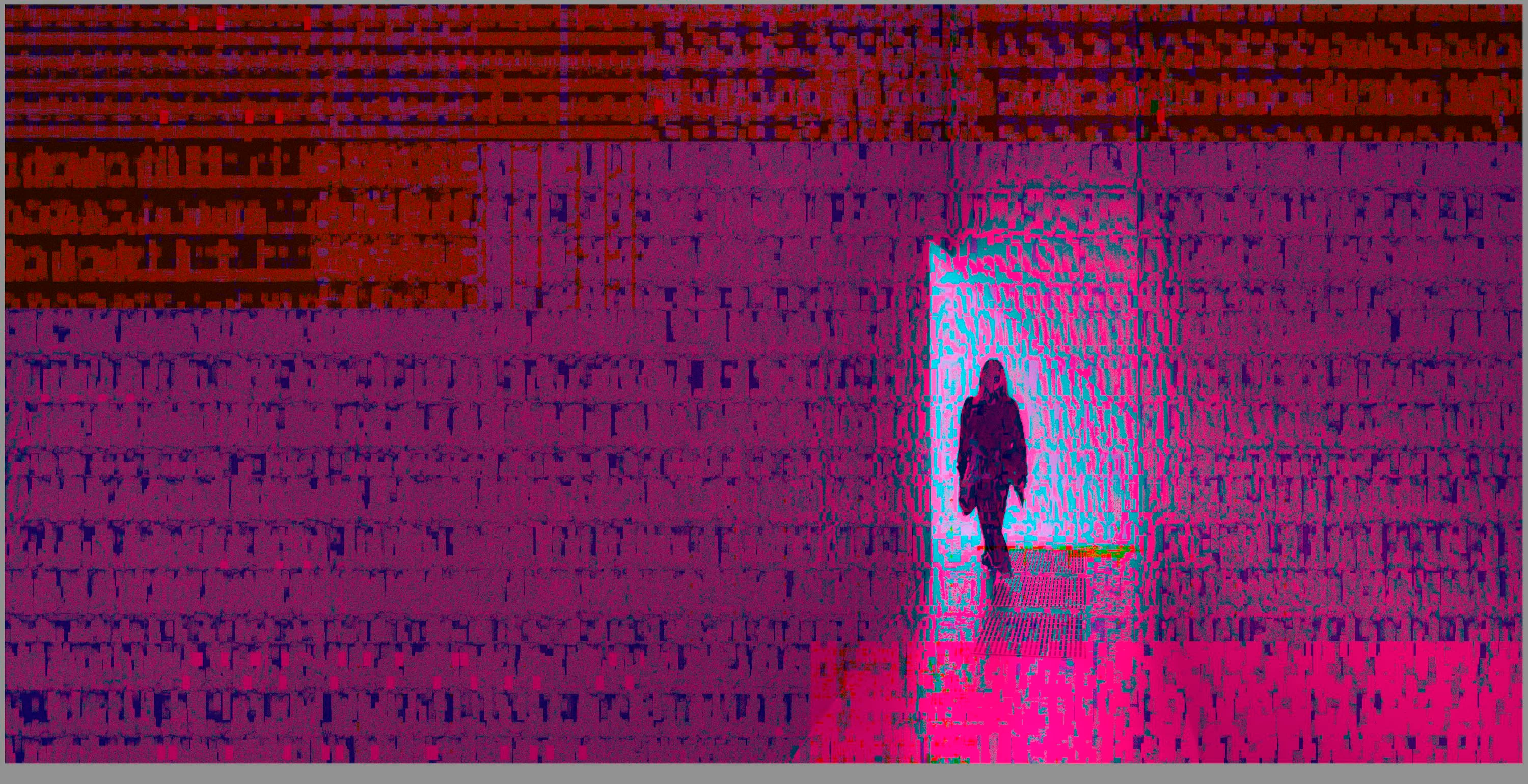
 

(Screengrab from the Develop module in Lightroom Classic)


When I check the linked RAW + JPEG source files in Finder, they all seem ok (they don't look corrupted, nor show any artefacts here), meaning the issue is within Lightroom.
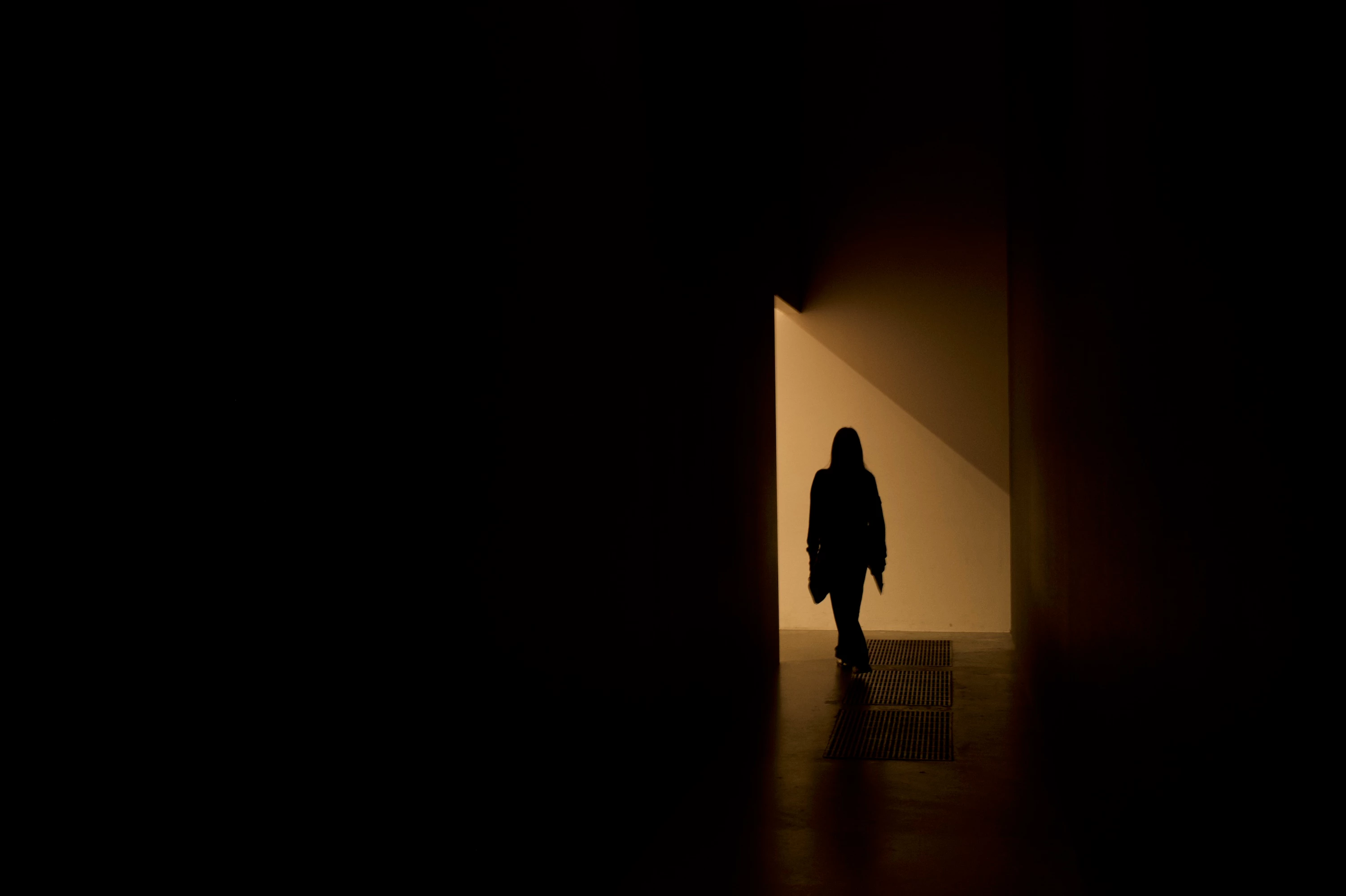
 

(Screengrab from the RAW source file in Finder)


When I export images out of Lightroom (with any setting, edited or even not edited), the artefacts are also present on the export files.
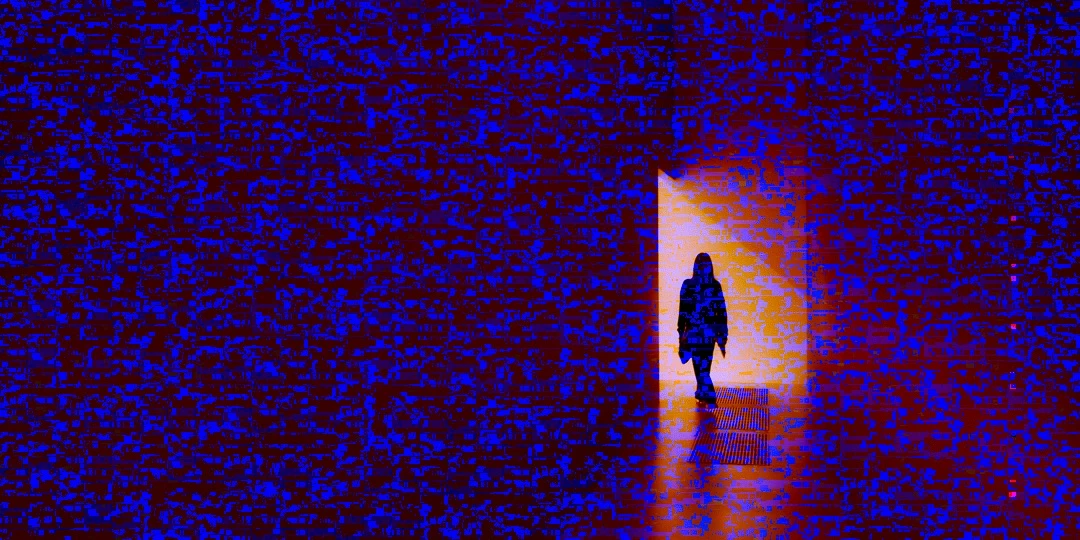
 

(Screengrab from the exported JPG image)


This problem started occuring soon after I applied the new AI noise reduction feature on just ONE (1) photo. 


I already tried:


  • Closing and re-opening Lightroom
  • Shutting down (fully), and restarting the computer after 1 minute
  • Switching the GPU accelrator setting in Lightroom on/off


MY SPECS

  • Lightroom Classic 13.0.1 - Build (202310121438-d2af310c)
  • Macbook Pro 16" - 2019
  • 2,3Ghz 8-core Intel Core i9
  • AMD Radeon Pro 5500M 8GB 
  • 32GB 2667MHz DDR4 memory
  • OS Sonoma 14.4.1


Any help would be greatly appreciated, because this makes the whole software unusable....

Thank you!

139 replies

Participant
April 27, 2024

I uploaded a new set of photos on Lightroom today and all the photos uploaded with this weird matrix-looking glitch. I thought it was an issue with the memory card. But I went through old photos and they all have it as well. I reuploaded the photos, I also uninstalled the app but that didn't fix the issue either. The app is the latest version and it is on my macbook pro. Any help would be great!

hyund39164868
Participant
April 29, 2024

This should help:

  • Go to "preferences" -> "Performance", and under "Camera RAW Cache settings": "Purge cache"
  • Also, under "Performance": set "Use Graphics Processor" to "Custom" instead of "Auto", and then: only "Use GPU for display", and not "Use GPU for image processing".
  • Upgrade to the latest version, if not already
  • Restart Lightroom
Participating Frequently
April 27, 2024

Hi, I am having problem with my Lightroom Classic in Develop mode. This is what I am seeing when the file is in Develop mode, but okay in General. Please help me how to solve this issue! TIA! 

(Am using Mac)


[moved from bugs to discussions according to the community rules - Mod.]

F. McLion
Community Expert
Community Expert
April 27, 2024

Please try if it helps to deactivate the GPU acceleration.

Also, please post the system information found in the help menu.

And, let us know the source of the image (camera, file format - raw, jpg ...)


--- Got your issue resolved? Please label the response as 'Correct Answer' to help your fellow community members find a solution to similar problems. ---
Participating Frequently
April 27, 2024

Hi, here is the system info. 


Lightroom Classic version: 13.2 [ 202402141005-bf1aeb84 ]
License: Creative Cloud
Language setting: en-US
Operating system: Mac OS 14
Version: 14.4.1 [23E224]
Application architecture: x64
Logical processor count: 16
Processor speed: 2.4GHz
SqLite Version: 3.36.0
Built-in memory: 65,536.0 MB
Dedicated GPU memory used by Lightroom: 1,228.6MB / 8,176.0MB (15%)
Real memory available to Lightroom: 65,536.0 MB
Real memory used by Lightroom: 11,055.6 MB (16.8%)
Virtual memory used by Lightroom: 50,737.9 MB
Memory cache size: 4,943.1MB
Internal Camera Raw version: 16.2 [ 1763 ]
Maximum thread count used by Camera Raw: 5
Camera Raw SIMD optimization: SSE2,AVX,AVX2
Camera Raw virtual memory: 1285MB / 32767MB (3%)
Camera Raw real memory: 1289MB / 65536MB (1%)

Cache1:
Preview1- RAM:41.0MB, VRAM:9.0MB, DSC_2062.NEF
Preview2- RAM:41.0MB, VRAM:9.0MB, DSC_2063.NEF
Preview3- RAM:171.0MB, VRAM:320.0MB, DSC_2064.NEF
NT- RAM:253.0MB, VRAM:338.0MB, Combined:591.0MB

Cache2:
final1- RAM:189.0MB, VRAM:0.0MB, DSC_2064.NEF
final2- RAM:189.0MB, VRAM:0.0MB, DSC_2063.NEF
final3- RAM:189.0MB, VRAM:0.0MB, DSC_2058.NEF
T- RAM:567.0MB, VRAM:0.0MB, Combined:567.0MB

Cache3:
m:4,943.1MB, n:191.9MB

U-main: 366.0MB

Standard Preview Size: 2560 pixels
Displays: 1) 2560x1440

Graphics Processor Info:
Metal: AMD Radeon Pro 5500M
Init State: GPU for Export supported by default
User Preference: Auto

Application folder: /Applications/Adobe Lightroom Classic
Library Path: /Users/sohfongang/Desktop/AFP2_APRIL_LRCat/AFP2_APRIL_LRCat.lrcat
Settings Folder: /Users/sohfongang/Library/Application Support/Adobe/Lightroom

Installed Plugins:
1) AdobeStock
2) Aperture/iPhoto Importer Plug-in
3) Flickr
4) HDR Efex Pro 2
5) Nikon Tether Plugin
6) Pixieset
7) ProSelect Album Builder

Config.lua flags: None


Legend
April 26, 2024

Reports are coming in about this happening in camera RAW as well. I've had it happen on a 2019 MBP in ACR, fixed by restarting the computer. I suspect running low on RAM/VRAM but I don't know.

https://community.adobe.com/t5/camera-raw-discussions/corrupt-acr-previews-on-intel-macs/m-p/14579022

hyund39164868
Participant
April 26, 2024

Okay, so in the meantime I updated to LR 13.2. This didn't fully seem to solve the problem, altough the problem occured only on random times instead of all the time.

But, I've been trying some more things as well, and I think I found a solution now (@caseyd49971034 😞

  • Go to "preferences" -> "Performance", and under "Camera RAW Cache settings": "Purge cache"
  • Also, under "Performance": set "Use Graphics Processor" to "Custom" instead of "Auto", and then: only "Use GPU for display", and not "Use GPU for image processing".
  • This, in combination with the upgrade to LR 13.2 seems to solve the issue for me.... (for now)


@johnrellis: Btw, this is the complete system info from LR:

Lightroom Classic version: 13.2 [ 202402141005-bf1aeb84 ]
License: Creative Cloud
Language setting: en
Operating system: Mac OS 14
Version: 14.4.1 [23E224]
Application architecture: x64
Logical processor count: 16
Processor speed: 2,3GHz
SqLite Version: 3.36.0
Built-in memory: 32.768,0 MB
Dedicated GPU memory used by Lightroom: 688,7MB / 8.176,0MB (8%)
Real memory available to Lightroom: 32.768,0 MB
Real memory used by Lightroom: 916,5 MB (2,7%)
Virtual memory used by Lightroom: 49.931,6 MB
Memory cache size: 216,2MB
Internal Camera Raw version: 16.2 [ 1763 ]
Maximum thread count used by Camera Raw: 5
Camera Raw SIMD optimization: SSE2,AVX,AVX2
Camera Raw virtual memory: 22MB / 16383MB (0%)
Camera Raw real memory: 24MB / 32768MB (0%)

Cache1:
Preview1- RAM:22,0MB, VRAM:0,0MB, DSCF8811.RAF
NT- RAM:22,0MB, VRAM:0,0MB, Combined:22,0MB

Cache2:
T- RAM:0,0MB, VRAM:0,0MB, Combined:0,0MB

Cache3:
m:216,2MB, n:37,6MB

U-main: 88,0MB

Standard Preview Size: 6016 pixels
Displays: 1) 6016x3384

Graphics Processor Info:
Metal: AMD Radeon Pro 5500M
Init State: GPU for Export supported by default
User Preference: GPU for Display Enabled

Application folder: /Applications/Adobe Lightroom Classic
Library Path: /Users/hyundegrande/Pictures/Lightroom/lightroom classic_HDG01-v13.lrcat
Settings Folder: /Users/hyundegrande/Library/Application Support/Adobe/Lightroom

Installed Plugins:
1) AdobeStock
2) Aperture/iPhoto Importer Plug-in
3) Flickr
4) Nikon Tether Plugin

Participating Frequently
April 26, 2024

Recently, when working on photos in Develop mode, the image display does not work anymore and the photos look like abstract art. The photos show correctly in the Library. Closing and restarting LC does not solve it and I have to restart my MacBook Pro. I am running Senoma 14.4.1 and LC and the OS are up to date. 


Here a screenshot of how it appears. Any ideas of what causes it?


dj_paige
Legend
April 26, 2024

Try turning off the Graphics acceleration in LrC: PReferences->Performance->set Use Graphics Processor to OFF


If that works, you may have an old or malfunctioning GPU, or the driver could be bad.


Please tell us what make and model your GPU is.

Participant
April 26, 2024

Issue: 

There are artifacts on all Raw files in the Lightroom viewer and exported photos (See pictures below)


Lighroom version Number : 7.2

OS: Mac OS 14.4.1


The Issue just apeared a few days ago, so i wouldnt know how to replicate it. I already closed and opened Lightroom many times and did a full un- and reinstall.


Thank you for any help!


Community Expert
April 27, 2024

What mac are you on and did you recently update the OS? There have been reports on similar artefacts after updating to Mac OS 14.4.1 on older intel Macs with ATI GPUs.

Participant
April 26, 2024

Mine is now doing this  same thing. Wondering if you found a fix? Mine is already updated to latest version. I'm stumped. 

johnrellis
Legend
April 26, 2024

@caseyd49971034, please do the LR menu command Help > System Info and copy/paste the entire contents here so we can see exactly which versions of hardware and software LR thinks you're running and important LR options that are set.

Jay@TeamPurple
Known Participant
April 24, 2024

As of a few months ago, my coworkers and I started having problems on our Intel-chip Macs where -- when editing raw-format images in Adobe Camera Raw (ACR) -- the image preview displays in a corrupted manner making it very hard to apply edits and preview edits in real time (see screen shot).  This is not happening when using ACR on my new M3-chip MacBook Pro.  The actual raw files are not corrupted and open just fine and the edits applied in ACR are showing up as applied when the files are opened in Photoshop or exported from ACR to other formats. 

It's only the working preview image that is displaying as corrupted and this happens with DNG files and with native camera files (CR2, NEF, etc.) and only when using ACR on Macs with Intel-chips like the Core i9. 

I've tried cycling through the different video card options (OpenGL and the like) to see if turning things on/off would resolve the problem on those Macs.  I've also tried changing my memory allocation and scratch disk settings.  No joy.

The initial view of the selected images is fine.  The corrupted preview image happens only after non-exposure changes are made (for example, using the scaling/crop tool or the tools for correcting parallax).  This seems to be a bug with ACR where it wasn't tested adequately on with non M-series Macs.

Is anyone else running into this?    

Legend
April 24, 2024

This does happen now and then. Does restarting the computer fix it? I suspect that you are running out of either RAM or VRAM on the video card. You might also get white previews in ACR and failure to properly enhance images.

Jay@TeamPurple
Known Participant
April 24, 2024

I'm only seeing this on our Intel Macs and only in the last month or so after one of the ACR updates was pushed out.  We have 64 GB of RAM on most of those Intel Macs.  Restarting doesn't help.  Closing everything but Photoshop and Bridge doesn't help.  Changing memory allocation and video driver settings doesn't improve the situation. 

Not having any problems with my M3 chip Mac, so it seems as if the developers have made some change to ACR that doesn't play well with the Intel-based Macs.  We are not in a position to replace multiple Intel-based Macs for several years, so this is a serious problem for us.  

johnrellis
Legend
April 19, 2024

"Lightroom Classic 13.0.1"


Update to the latest version of LR, 13.2 by doing the menu command Help > Updates.


Participant
April 1, 2024

Anyone experience this? Never happened to me in all my years using Lightroom but after updating a few apps in CC this morning this has now been happening. 

dj_paige
Legend
April 1, 2024

Either a corrupted file or a bad/corrupt video driver.