November 30, 2025
Question

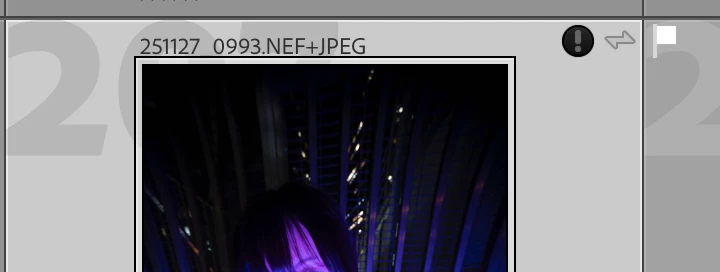
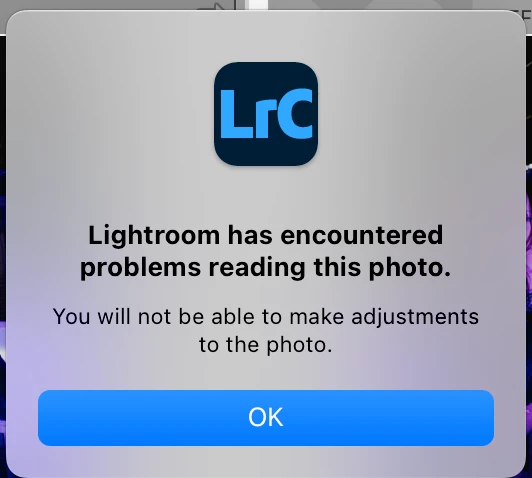
P: Lightroom has encountered problems reading this photo. After upgrade to v15

  • November 30, 2025
  • 20 replies
  • 6112 views

I got this error after upgrade to LrC 15.0. Update 15.0.1 not fix this issue.


"Lightroom has encountered problems reading this photo. You will not be able to make adjustments to this photo."


My photos file are OK, restart LrC will able to edit again, but it will happen again sometimes after I sync the photo setting form one photo to another one.


OS is macOS 15.7.2.
This topic has been closed for replies.

20 replies

masonreed
Participating Frequently
July 14, 2026

This sounds like a Lightroom Classic 15.x bug rather than a problem with your photos. Since restarting fixes it temporarily and it happens after syncing settings, I'd report it to Adobe with the exact steps to reproduce. In the meantime, try disabling GPU acceleration to see if it reduces the issue.

ricky_9785
Participant
July 15, 2026

I just test, disable the GPU acceleration, the issue happen again after I sync setting to multiple photo.

Disable GPU acceleration doesn’t help in my case.

Participant
July 13, 2026

I can reproduce this consistently, and for me the trigger is Lens Blur — not Denoise, not the XMP sidecar, and not corrupt files.

@saitejagopi2894  — this should answer your Q2 and Q3 from December.

LrC 15.4.1 [202606201310-b9f148a4], Camera Raw 18.4, macOS, Apple Silicon. Catalog ~400k photos on an external Thunderbolt drive.

What happened

18 photos from a photo session suddenly showed the black "!" badge and "Lightroom has encountered problems reading this photo. You will not be able to make adjustments to the photo." All 18 had been edited. Not one untouched photo in the same folder was affected. The same 18 photos had exported perfectly two days earlier.

Proving the files are fine

I copied one of the affected RAWs out of Finder, re-imported the pristine copy into the catalog — no error. Then I pasted the develop settings from the broken photo onto that clean copy, and the error appeared immediately on the clean file.

Then I rolled the broken photo's History back to before that editing session, copied those settings, pasted them onto another clean copy — no error.

So the fault travels with the develop settings. Not the file, not the sidecar, not the catalog. That's the whole ballgame, and it means re-importing was never going to be a real fix.

Isolating which edit

I opened the History panel on 12 of the affected photos and listed everything done since the last clean export. Two entries appear in 12 out of 12:

  • Preset: Bubble (or Circle Swirl / Bubble Swirl) — the Lens Blur adaptive presets
  • Preset Amount

Masks appear in only 8 of 12. Four of the affected photos have no masks at all — just Lens Blur presets and basic sliders. Crop appears in 2 of 12. Denoise: not used on any of them. Lens Blur is the only universal factor.

The common pattern is that I applied a Lens Blur preset, switched to a different bokeh style, went back, and then dragged the Preset Amount slider — i.e. re-running the Sensei depth map several times on the same image.

The fix

I unchecked Apply in the Lens Blur panel on all 18 photos and restarted Lightroom. The error is gone on all 18. Every other edit survived — sliders, masks, crops, history, collections, flags.

For anyone else hitting this: copy settings from a photo with Lens Blur off, Check None, tick only Lens Blur, and paste onto the affected photos. It strips the bad state in one batch operation without destroying anything. Please don't re-import — as @dj_paige rightly says above, you'll lose collection membership, history, virtual copies and possibly edits, and it isn't necessary.

My guess at the cause: stale or inconsistent Lens Blur depth-map state persisted into the develop settings, probably from re-applying/switching Lens Blur presets on an image that already has one. Possibly the same family as the known issue "AI Edit Status > Update must be invoked twice for Lens Blur on top of Subject Mask."

ricky_9785
Participant
July 14, 2026

Thanks for your inputs.


I don’t use lens blur feature, but still occasionally randomly experience this issue.


i can’t simulate the problem, it is random. Sometimes happened a few times in hours, sometimes no issue for a week…

 I apply AI mask to most of my edits, I think this related to AI mask and sync settings across photos. I suspect the error related to AI and Adobe cloud, local issue should not so random.

I sync same set of photos through collection with iPad LR, which never got this issue. 


ricky_9785
Participant
May 31, 2026

Hi Adobe 


I am the user report this issue in this thread.

In Dec 2025, @rikkr mentioned the issue has been patched.


However, today 31 May 2026, the issue still exist usually happen after I upgraded to the latest version 15.3.1 on Mac.


Adobe mentioned in this thread the bug has been patched, but it still happen right after I sync photo settings with AI mask.
 

Would Adobe address this bug?

Thanks!


Ricky

Sameer K
Community Manager
Community Manager
June 8, 2026

Hey, ​@ricky_9785. Welcome to the Lightroom Community! We haven't received a significant number of new reports that would prompt an investigation. Please provide more information about what you're experiencing. 


To help us better understand the issue, share sample images, a video of your workflow, and the system information from the Help menu in Lightroom Classic. Additionally, please include a set of clear, repeatable steps that trigger the problem.


Thank you!
Sameer K

January 25, 2026

Thank you this looks to have solved my issues as well, appreciate the quick response and fix.

January 21, 2026

Awesome, all fixed with new update! Thanks you very much @Rikk Flohr: Photography and Adobe Team. Appreciate the quick support! 

Rikk Flohr_Photography
Community Manager
January 21, 2026

Greetings all, 


A new update for the Adobe Photography products has been released.  The 15.1.1 (January) update contains an update regarding this issue. 

If you do not see the update in your Creative Cloud Application, you can refresh it by pressing  [Ctrl/Cmd]+[Alt/Opt]+[ R ].

Note: It may take up to 24 hours for your update to be available in your Creative Cloud app.


Thank you for being so patient. 

Rikk Flohr: Adobe Photography Org
January 19, 2026

@edie_3788 I'm not so sure about the denoise theory as I have many other photos in my library that I've used the new denoise tool on that are unaffected and continue to edit fine. Let's wait to hear what @CMass finds but I have a feeling it may be a bug in the newest update to LR Classic that is causing some preview issue with certain files (which would explain why everyone's RAW files are fine and can be opened in their finders). This is of course a supposition, and hopefully Adobe can give us some clarity soon on what's going on. 

January 18, 2026

I am experiencing the same issue described.  I think it is the photos I've used denoise on.  The one commonality that I'm certain on is that it is photos that show the little sparkle icon in filmstrip that says "Photo has been enhanced".
This is extremely annoying as I can't edit or export these photos.  Please fix this ASAP as it seems like a critical issue in the functionality of the product.

@CMass @saitejagopi2894 please provide a workaround and an estimated ETA on the investigation / solution.

January 14, 2026

I am also getting this issue on a random assortment of photos with the "?" logo appearing in the top right on images. My RAWs are all fine and can be found and opened in the Finder, so it's a LR issue. Sounds like it is this bug that Adobe is trying to sort out but please let me know if it is something else. I have already trashed my preview folder so that cache is clear and 98% of my photos are working fine aside from six. I have the latest version 15.1 of LR Classic. Thanks and see screenshot below: 


Screenshot 2026-01-13 at 5.43.40 PM.png

MassC
Legend
January 13, 2026

The team is investigating. Please follow this thread for updates.