reandt
Participant
May 12, 2020
Answered

Particular image renders differently when opened in other programs

  • May 12, 2020
  • 1 reply
  • 698 views

I have edited a particular image in Lightroom Classic and then increased canvas size in Photoshop to add a border  (this is part of my regular workflow).

However for the first time ever I have an image that after saving or exporting renders/displays/appears completely different when opened with anything else, Paint, Irfanview, Photo etc.

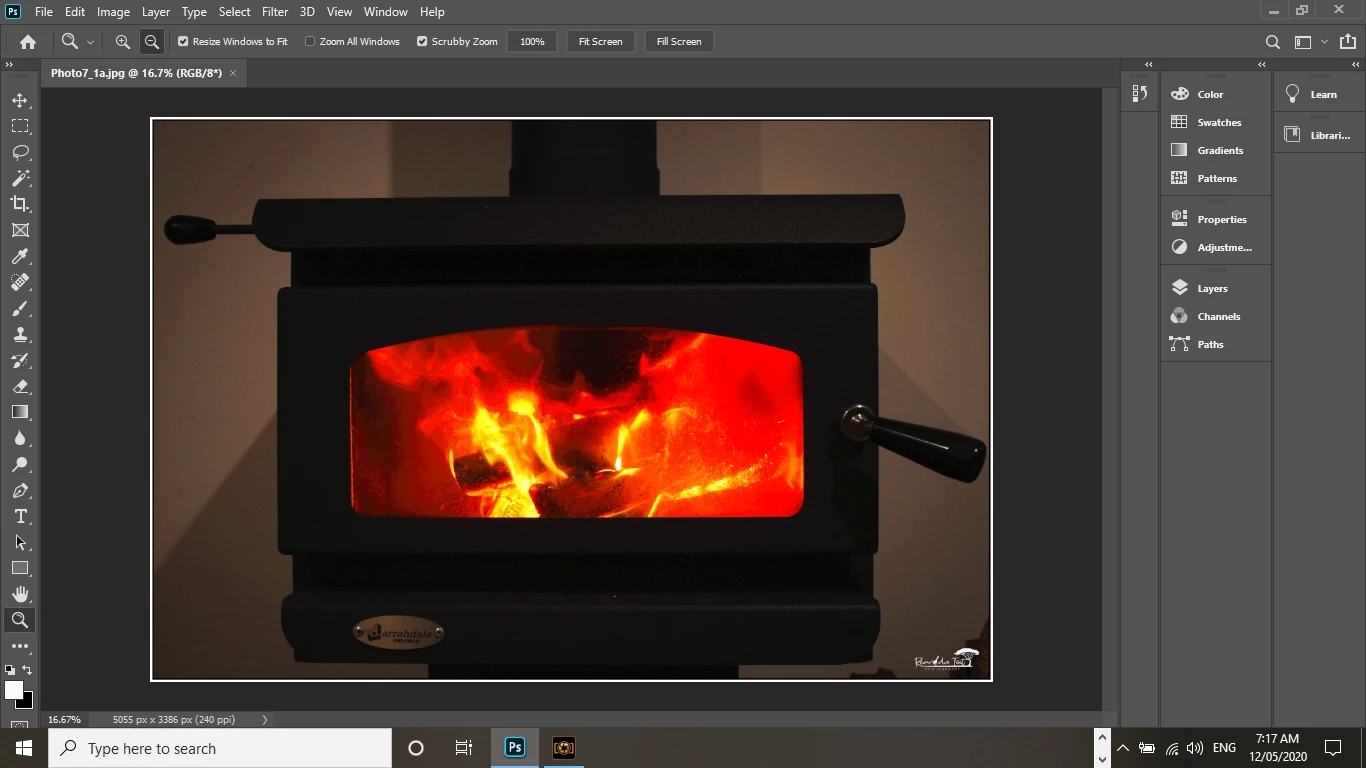
I am absolutely at a loss to understand what causes this and I enclose screenshots of the image in Photoshop and in Irfanview to illustrate the point. I have simply clicked "Save" in Photoshop as I always do.

Any thoughts would be appreciated.

This topic has been closed for replies.
Correct answer Per Berntsen

It seems that you have a wide gamut monitor, and are viewing images in applications without color management. 

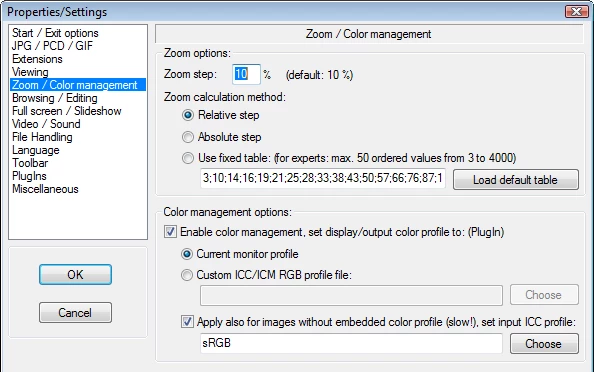
With a wide gamut monitor, you have to use only color managed applications to view your work, otherwise colors will be wrong.  You can enable color management in Irfanview by going to Options > Properties/Settings > Zoom/Color Management, and set it up like below, then restart the application.

Paint and Photos are not color managed, so forget about them.


It also seems that you are saving files with the ProPhoto profile embedded, which is not recommended. ProPhoto is intended for editing, and you should never save out anything with this profile embedded.

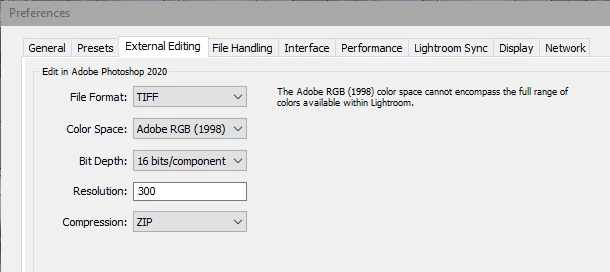
The default profile for external editing in Lightroom is unfortunately ProPhoto, I suggest that you go to Edit > Preferences > External editing, and change it to Adobe RGB, which is a much better choice, and also roughly matches the color gamut of your monitor.


If you are posting images on the internet, or sending to friends, use the sRGB profile.

In Photoshop, use Export or Save for web, and check the boxes for Convert to sRGB and Embed profile.

In Lightroom, simply export with the sRGB profile.


1 reply

Per Berntsen
Community Expert
Per BerntsenCommunity ExpertCorrect answer
Community Expert
May 12, 2020

It seems that you have a wide gamut monitor, and are viewing images in applications without color management. 

With a wide gamut monitor, you have to use only color managed applications to view your work, otherwise colors will be wrong.  You can enable color management in Irfanview by going to Options > Properties/Settings > Zoom/Color Management, and set it up like below, then restart the application.

Paint and Photos are not color managed, so forget about them.


It also seems that you are saving files with the ProPhoto profile embedded, which is not recommended. ProPhoto is intended for editing, and you should never save out anything with this profile embedded.

The default profile for external editing in Lightroom is unfortunately ProPhoto, I suggest that you go to Edit > Preferences > External editing, and change it to Adobe RGB, which is a much better choice, and also roughly matches the color gamut of your monitor.


If you are posting images on the internet, or sending to friends, use the sRGB profile.

In Photoshop, use Export or Save for web, and check the boxes for Convert to sRGB and Embed profile.

In Lightroom, simply export with the sRGB profile.


reandt
reandtAuthor
Participant
May 12, 2020

Thank you so much Per,

That was really helpful and your excellent and detailed answer has solved my problem.