
corinne1975
Inspiring
August 23, 2022
Answered

Permission issues - can't import photos

  • August 23, 2022
  • 2 replies
  • 415 views

I am trying to import NEF files to Lightroom CC (for the first time on a new iMac M1 2021).

I get this message:
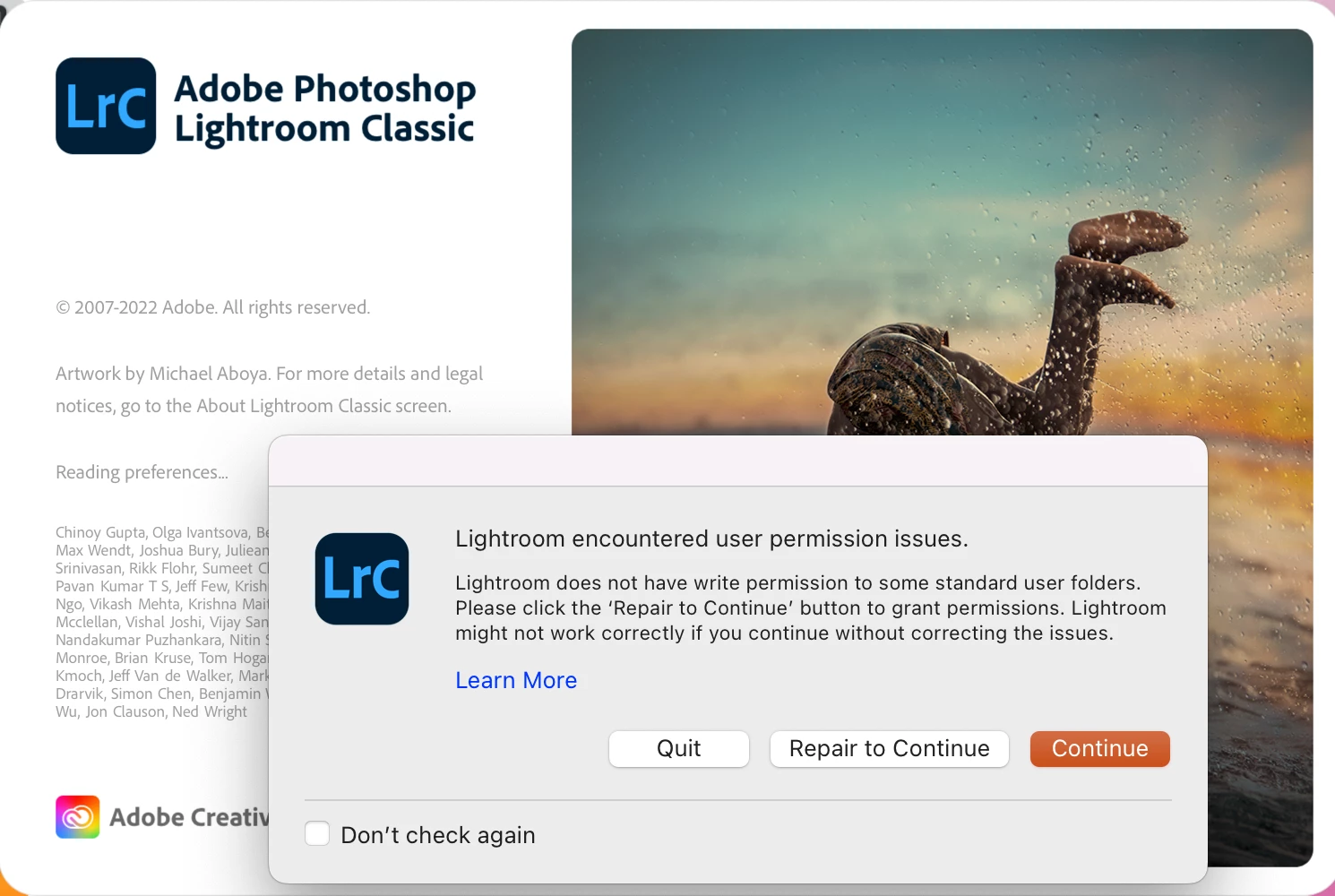
 I click "Repair to Continue" and get this:
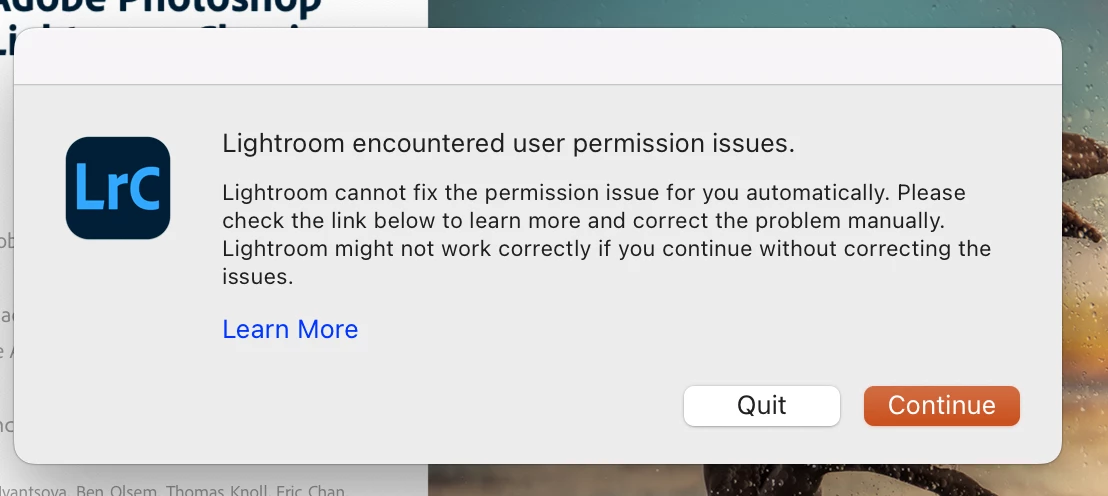
 I clicked on Learn More and did as instructed (I think I did anyway, I had R&W permissions, and changed "everyone" to R&W:

Manually change folder permissions

Manually change the permissions on the following folders and on all the items in these folders to Read & Write, so that Adobe applications are able to write to these folders when opened or during use:

  • /Users/[user name]/Library/Preferences/
  • /Users/[user name]/Library/Application Support/Adobe/
  • /Users/[user name]/Library/Caches/Adobe/
  • /Users/[user name]/Documents/Adobe/


I am still getting an error message.

Lightroom CC was downloaded today (August 23, 2022) so it's the latest version. Also using the latest version of Monterey for MacOS if that helps. 

Any ideas what's going on?

This topic has been closed for replies.
Correct answer corinne1975

Lightroom copies your image to a destination folder, that you define in the right panel of the import dialog. It looks like you have chosen a destination folder that is off limits to Lightroom.


I went in and changed the destination and now it's working. Thank you!! 

2 replies

DdeGannes
Community Expert
Community Expert
August 23, 2022
Regards, Denis: iMac 27” mid-2015, macOS 11.7.10 Big Sur; 2TB SSD, 24 GB Ram, GPU 2 GB; LrC 12.5,; Lr 6.5, PS 24.7,; ACR 15.5,; (also Laptop Win 11, ver 24H2, LrC 15.0.1, PS 27.0; ) Camera Oly OM-D E-M1.
corinne1975
Inspiring
August 24, 2022

Thank you - I tried this but it didn't work. Still got this:

JohanElzenga
Community Expert
Community Expert
August 24, 2022

Lightroom copies your image to a destination folder, that you define in the right panel of the import dialog. It looks like you have chosen a destination folder that is off limits to Lightroom.


-- Johan W. Elzenga
corinne1975
Inspiring
August 23, 2022

I also tried this to no avail:

Use a script to restore permissions

If the previous solution does not resolve the folder permission issue, try this easy-to-run, shell-script-based solution explained below. This shell-script automatically restores the ownership and read/write permission, and it removes Access Control List (ACL) from the set of Adobe user folders and its subfolders.

Get file
LightroomCorrectPermission.zip


To run the shell script, do the following:

  1. Download LightroomCorrectPermission.zip using the above link. By default, the file is downloaded to /Users/[user name]/Downloads/LightroomCorrectPermission.zip.
  2. Unzip the downloaded zip file to extract the LightroomCorrectPermission.sh shell script file.
  3. On your Mac desktop, type Terminal in the Spotlight search box and launch the Terminal app.
  4. From the Finder, drag the unzipped LightroomCorrectPermission.sh shell-script file (from step 2) onto the Terminal window. You see the following text in the terminal window:
    /Users/[username]/Downloads/LightroomCorrectPermission.sh
  5. Press Enter to run the shell script.
  6. When prompted, enter your Mac login credentials.
    Note: Ensure that you use the account with administrator privilege to log in.
  7. Launch Lightroom.


Just keep getting this: