Known Participant
August 21, 2026
Question

Permissions issues - LOTS of error messages

  • August 21, 2026
  • 7 replies
  • 65 views

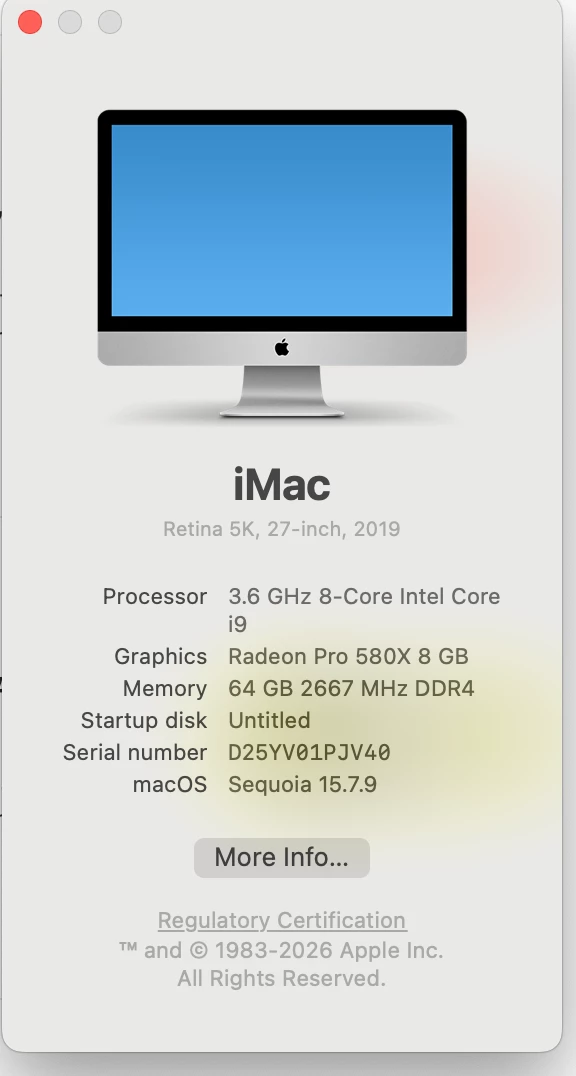
I just reinstalled LRC 15.5  on iMac 27” 2019:sequoia 15.7.9, 64GB RAM
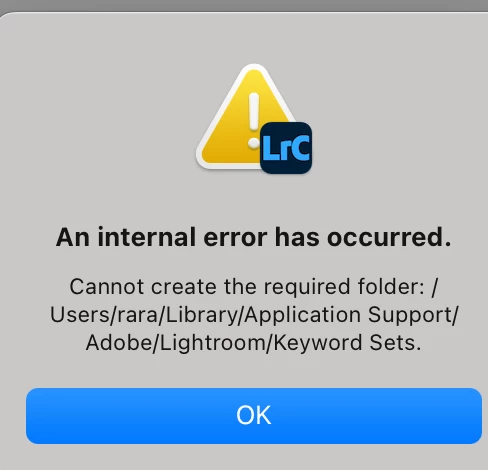
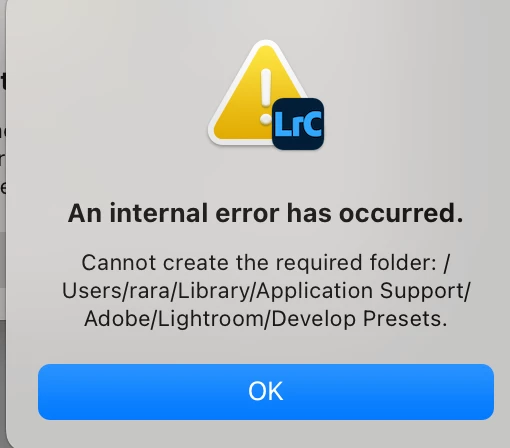
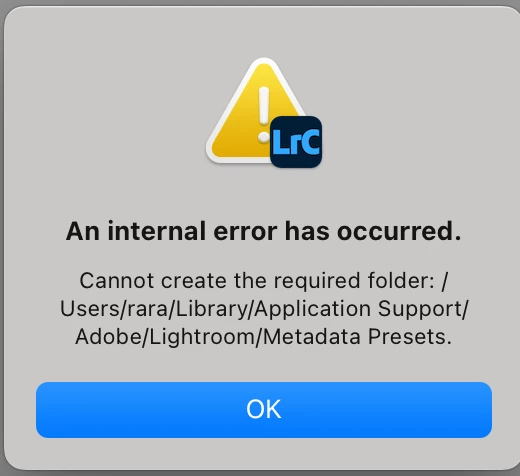
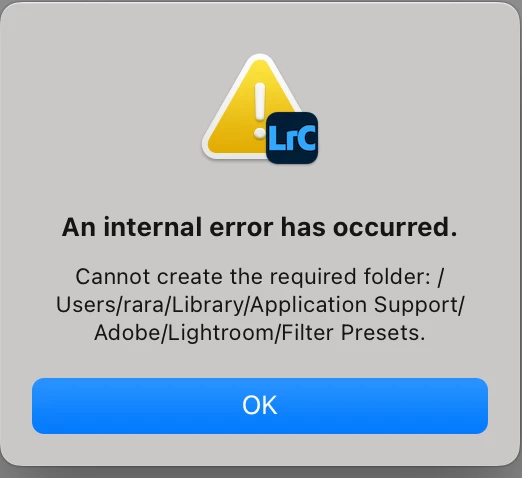
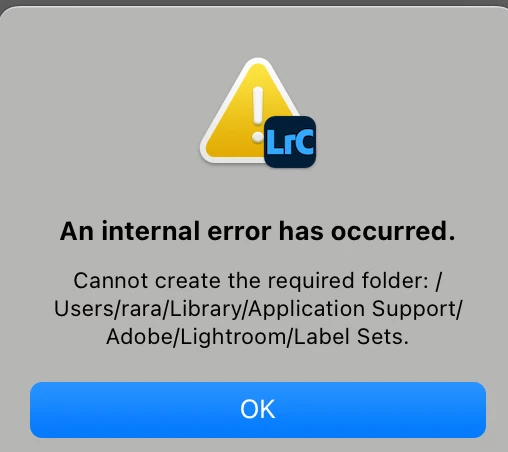
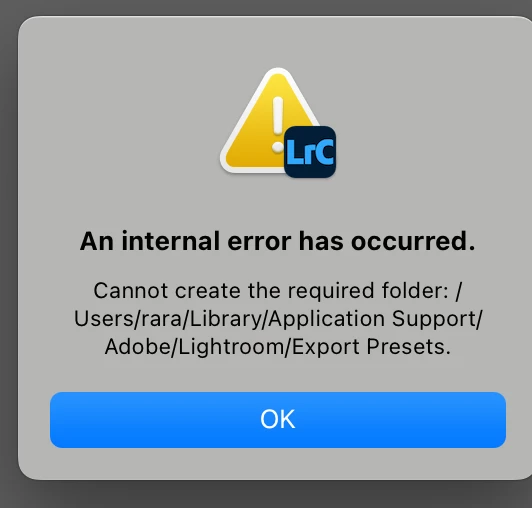
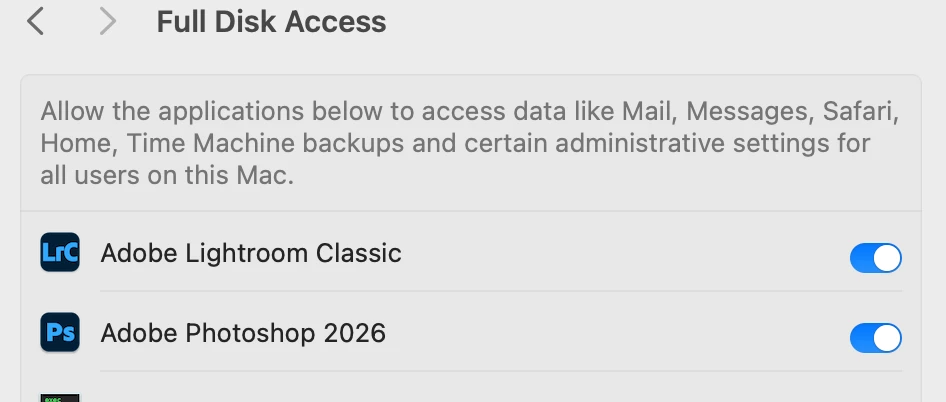
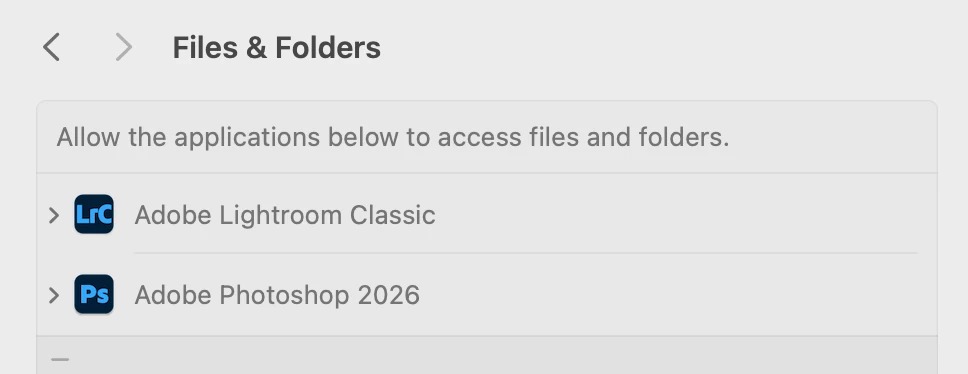
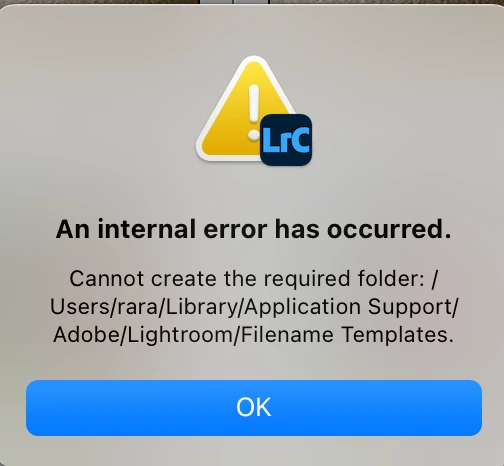
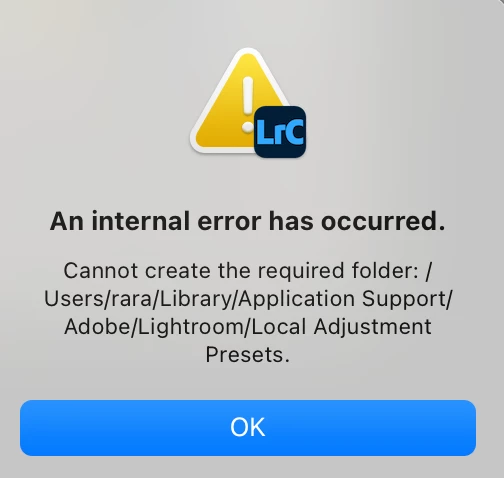
I get the permissions problem which is normally resolved by granting full disk access, but this message is followed by several others each specifying the folder to which it cannot write; this despite full disk access being granted. Ive tried restarting as well. I don't dare use it in case the back ups might be corrupted. It DOES open though.


Ive not had tis many messages before-whats going?


also when I try to access preferences I get another error message of the same ilk


    7 replies

    gary_sc
    Community Expert
    Community Expert
    August 21, 2026

    Hi, ​@Digital-Finger , Thank you for your detailed report. It helped. So, to help you, here are a series of steps to try to resolve the problem. Sadly, I do not know which of these might be best one. But I do encourage you to read through this and see which ones seem best for you to try.


    Under the rule of finger-pointing: if a lot of people are having a similar issue, the problem is probably in the software; if an extremely limited of people are having the problem, it's probably something with their system software and/or system. Right now, you are the only person to report this.

    Let's see if we can try a variety of things to see if we can resolve this.

    Easy try #1) Rebuild your LRCs Preferences: 

    https://www.youtube.com/shorts/Ux3niq2XqHA

    Now see if the problem continues to exist.

    If it does, then try #2: COMPLETELY uninstall (including any Preferences) and then reinstall Bridge.

    Now see if the problem continues to exist.

    {1) Restart into Safe Mode. I'm going to let you Google how to do that, as there are many videos and text for that. Since you are using an Intel chip, make sure you are using the correct instructions and not for the newer chips

    2), Also, look up how to start in "Repair mode." There are some basic maintenance things you can do in that; it’s worth trying those repair processes.]

    A bit more work: try #3). There are two very good Mac System maintenance applications; one is free, and the other has a minimal charge. FWIW, I've been paying the "paid" one for years because it got me out of a big jam years ago.

         The free: Onyx (http://www.onyxmac.com/)

         The one with the charge (but free trial): (https://www.northernsoftworks.com/. [Note: as the Mac system continues to advance, each time there's a new system name, there's a new name for this product. Thus, with the new Ventura system, this product is now called Ventura Cache Cleaner. It will work on older systems, but it is now updated for the new systems. As system updates are released, you may occasionally need to update this app. There is no charge for these updates — only when there is a new Mac OS with a new name is there ever an update charge.

    I've never done a back-to-back cross-check with these applications because once the problem is "fixed," it's not possible to see if the other one can fix it better/faster/slicker.

    Here are some specifics on using the Cache Cleaner

    *The name changes as the system changes, so it was once Big Sur Cache Cleaner, then Ventura, etc. 

    If you're willing to try one more thing, I'd like to suggest you try xx Cache Cleaner*. I've been using this for maybe 17-18 years (?) I was having a really bad issue with Acrobat. I tried this, and the problem went away. Recently, I was unable to type an "n" dash (used to place a slightly longer hyphen in between a range, such as I take "110 – 15 steps each hour "). I could type hyphens and "m" dashes (—), just not "n" dashes. Apple wanted me to do a whole reinstall of my system, something that I really didn't want to do.

    So, I started up VCC, ran it, and my "n" dashes came back. The good news is that XCC can be used for ten days before you have to pay for it, so if it doesn't work or you just do not want it. Nothing harmed but a tad of time. Personally, I do not run it all that often, maybe 2–3 times per year. I tend to run it when my computer is acting dumb and needs a dope slap. 

    Here's where to download it: (https://www.northernsoftworks.com)

    There are two, maybe two, tabs I typically use: Maintenance, Cache Cleaning, and sometimes I also do Optimize.

    Click on the Maintenance tab:

    BTW, if you do click Preferences, this can take a long time, especially if you have a large hard drive and lots of “stuff.” On my computer, it can take HOURS. So, plan on running this option when you have something else to do.

    I check everything there is (clicking on “All” in the upper right corner does the same thing) and click Run. You may or may not have to restart depending on what it finds and what it does.

    Then, if things are acting a bit “off,” I might do the Cache Cleaning thing. This is what sold it for me.


    I’ve done a Medium Cleaning and clicked all three options. There have been times I did a deep cleaning. I'd do the Medium before the Deep and see if that solves the problem. Depending on what it finds, it may or may not require a restart of the computer. 

    Lastly is the Optimize. I can’t say I’ve seen that much difference with this, but it doesn’t seem to hurt. Your mileage, as they say, may vary.

    There is a manual if you want to get a more knowledgeable background on what to click on.

    If this helps, please let me know. 

    I neither work for Adobe nor Northern Software. I do support both because they help me get my work done. 

    gary_sc
    Community Expert
    Community Expert
    August 21, 2026

    Wow, thank you for the detailed report. In response, I’m going to give you a long detailed series of things to try. There are many options here and so I suggest you read throught this and see if any applies better or worse for you. These all came from a compilation of suggestions to folks over the years. Usually, at least one of these do helps someone. 

    And, let me add, as I’m sure you know already, your Intel computer is about to not be helpful next year when OS 27 is released as it will not have Rosetta letting you use updated software. FWIW, I do not consider this an inside plan of software companies plotting to help the hardware companies and vise versa. Rather I consider this both software and hardware companies trying to keep things moving to provide the latest and greatest for their customers. There are two solutions: One is to keep using your current software until it can no longer support updated software, or two: Get a new computer.

    So, here are some suggestions on your issue:
     

    Under the rule of finger-pointing: if a lot of people are having a similar issue, the problem is probably in the software; if an extremely limited of people are having the problem, it's probably something with their system software and/or system. Right now, you are the only person to report this.


    Let's see if we can try a variety of things to see if we can resolve this.


    Easy try #1) Rebuild LRC's Preferences (here’s how to do that): 


    Now see if the problem continues to exist.


    If it does, then try #2: COMPLETELY uninstall (including any Preferences) and then reinstall LRCs.


    Now see if the problem continues to exist.


    {1) Restart into Safe Mode. I'm going to let you Google how to do that, as there are many videos and text for that. Since you are using an Intel chip, the process might be different for you versus a different chip or OS. So be sure you are looking at the relevant options.


    2), Also, look up how to start in "Repair mode." There are some basic maintenance things you can do in that; it’s worth trying those repair processes.]


    A bit more work: try #3). There are two very good Mac System maintenance applications; one is free, and the other has a minimal charge. FWIW, I've been paying the "paid" one for years because it got me out of a big jam years ago.

         The free: Onyx (http://www.onyxmac.com/)

         The one with the charge (but free trial): (https://www.northernsoftworks.com/) [Note: as the Mac system continues to advance, each time there's a new system name, there's a new name for this product. Eash one will work on older systems, but this is now updated for the new systems. As updates to the system are released, you may have to occasionally update this app. There is no charge for these updates — only when there is a new Mac OS with a new name is there ever an update charge.


    I've never done a back-to-back cross-check with these applications because once the problem is "fixed," it's not possible to see if the other one can fix it better/faster/slicker.


    FWIW, any time my system is doing something "not right," I run one or the other of these applications. 


    There are two, maybe two, tabs I typically use: Maintenance, Cache Cleaning, and sometimes I also do Optimize.


    Click on the Maintenance tab:

    Note: depending on the size of your hard drive and the number of “stuff” you have on it, Repairing Permissions can take a LONG time. For me it takes hours, so do this at a time when you’ll intentionally be away from the computer for a while.

    I check everything there is (clicking on “All” in the upper right corner does the same thing) and click Run. You may or may not have to restart depending on what it finds and what it does.


    Then, if things are acting a bit “off” I might do the Cache Cleaning thing. This is what sold it for me.


    I’ve done a Medium Cleaning and clicked all three options. There have been times I did a deep cleaning. I'd do the Medium before the Deep and see if that solves the problem. Depending on what it finds, it may or may not require a restart of the computer. 


    Lastly is the Optimize. I can’t say I’ve seen that much difference with this, but it doesn’t seem to hurt. Your mileage, as they say, may vary.

    There is a manual if you want to get a more knowledgeable background on what to click on.


    If this helps, please let me know. 


    I neither work for Adobe nor Northern Software. I do support both because they help me get my work done. 
    Known Participant
    August 21, 2026

    Thanks Gary I'll try those things. I accept it’s likely me, old computer and all that, aiming for a refresh this autumn

    appreciate the help mate
    Cheers

    Mac OS Sonoma, 64 GB RAM 27" 2019 iMac 3.6 GHz 8-Core Intel Core i9
    gary_sc
    Community Expert
    Community Expert
    August 23, 2026

    Hi, ​@Digital-Finger, any news?

    Known Participant
    August 21, 2026

    So I tried this: 

    Manually change folder permissions

    Manually change the permissions on the following folders and all the items in these folders to Read & Write so that Adobe applications can write to these folders when opened or during use:

    • /Users/[user name]/Library/Preferences/
    • /Users/[user name]/Library/Preferences/Adobe/ 
    • /Users/[user name]/Library/Preferences/Adobe/Lightroom/
    • /Users/[user name]/Library/Caches/Adobe/
    • /Users/[user name]/Library/Caches/Adobe/Lightroom/ 
    • /Users/[user name]/Library/Caches/Adobe Camera Raw 2/ 
    • /Users/[user name]/Library/Application Support/Adobe/
    • /Users/[user name]/Library/Application Support/Adobe/Lightroom/ 
    • /Users/[user name]/Library/Application Support/Adobe/CameraRaw/
    • /Users/[user name]/Library/Application Support/Adobe/OOBE/
    • /Users/[user name]/Library/Application Support/Adobe/Common/
    • /Users/[user name]/Documents/Adobe/
    • /Users/[user name]/Documents/LrClassicLogs/ 
    • /Users/[user name]/Library/Logs/Adobe/
      ------and it got rid of the smaller error messages but I still get the first giving the option to ‘repair permissions’ (not in the screenshots above )

      BUT what a FAFF!

      this never used to happen so what's changed?
    Mac OS Sonoma, 64 GB RAM 27" 2019 iMac 3.6 GHz 8-Core Intel Core i9