Participant
March 29, 2018
Answered

Phantom Right-click menu command?!!!!

  • March 29, 2018
  • 2 replies
  • 267 views

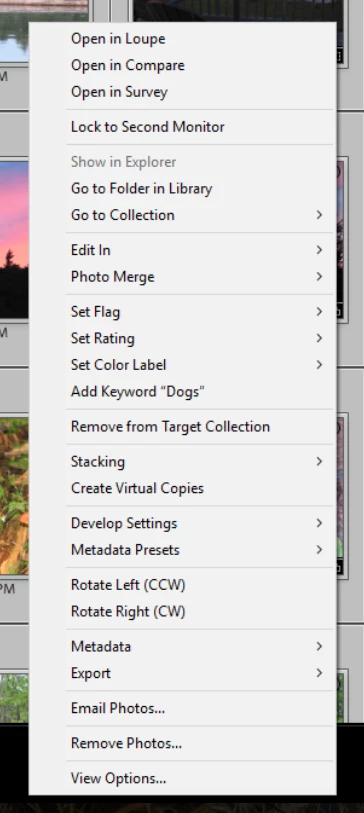
I am attaching a screenshot of my right click menu when using Grid view (two monitors).  The phantom command:  'Add Keyword "Dogs"' appeared several versions ago, when I first installed Lightroom--version 4 I think.  I have lived with it but I must have inadvertently added a custom command somehow.  Does anyone have any idea how to remove this?  (Or how to add/remove custom menu items generally)
    This topic has been closed for replies.
    Correct answer Conrad_C

    That Add Keyword command represents the last keyword or keywords loaded into it, in this case "Dogs". That means "Dogs" will be applied to images when you click them with the Painter tool, choose the Metadata > Toggle Keywords command, or press its keyboard shortcut.

    To customize what's loaded into the metadata shortcut and Painter tool, choose Metadata > Set Keyword Shortcut.

    2 replies

    Rob_Cullen
    Community Expert
    Community Expert
    March 29, 2018

    I have learnt that you can mark a Keyword in the Keyword List with two indicators.

    A  dot [.]  will force any new keywords to be added as a 'child' keyword within this 'parent' hierarchy.

    Useful to easily keep track of newly added keywords that can then be moved to an appropriate hierarchy at a time later.

    A plus sign [+]  marks this keyword as a quick shortcut that becomes available in the Right-click menu (as in the post by the OP) and can be applied to photos with the [Shift+K] keyboard shortcut. This quick shortcut can be toggled on/off by right-click on the keyword. ("Dogs" for the OP)

    Regards. My System: Windows-11, Lightroom-Classic 15.3, Photoshop 27.5, ACR 18.3, Lightroom 9.3, Lr-iOS 10.4.0, Bridge 16.0.3 .
    Conrad_C
    Community Expert
    Conrad_CCommunity ExpertCorrect answer
    Community Expert
    March 29, 2018

    That Add Keyword command represents the last keyword or keywords loaded into it, in this case "Dogs". That means "Dogs" will be applied to images when you click them with the Painter tool, choose the Metadata > Toggle Keywords command, or press its keyboard shortcut.

    To customize what's loaded into the metadata shortcut and Painter tool, choose Metadata > Set Keyword Shortcut.