Participant
November 10, 2016
Answered

Photo changes by going from Develop to Libary

  • November 10, 2016
  • 1 reply
  • 381 views

Question
Since a shortwhile I have wenn I goes with a photo in Lightroom from Develop to Libary that the photo changes. The photo becomes less sharp (it's looks like a soft layer that comes over the photo) and the photo turns warmer, the color temperture changes. When I do export the image the less sharpness remains and change of color is depending on which program / app (Windows 10) I use on the Pc to open the picture.

Knows someone what here is happening, what the problem could should be?

I have downloaded and integrated the Lightroom update (6.7), the problem is still there. A few weeks ago my pc is total refreshed (new Windows and harddrive) and Lightroom again installed, probably from that moment the problem is started, where I'm not sure about. In al the years use never had this problem.

Many thanks.
    This topic has been closed for replies.
    Correct answer Per Berntsen

    Different colors in Develop and Library is usually caused by a defective monitor profile.

    Windows 10 is known to install monitor manufacterers' monitor profiles, that are very often broken/low quality.

    Try setting the monitor profile to sRGB, if this fixes the issue, you should ideally calibrate your monitor with a hardware calibrator.

    Press the Windows key+R, enter colorcpl in the box, and hit Enter.

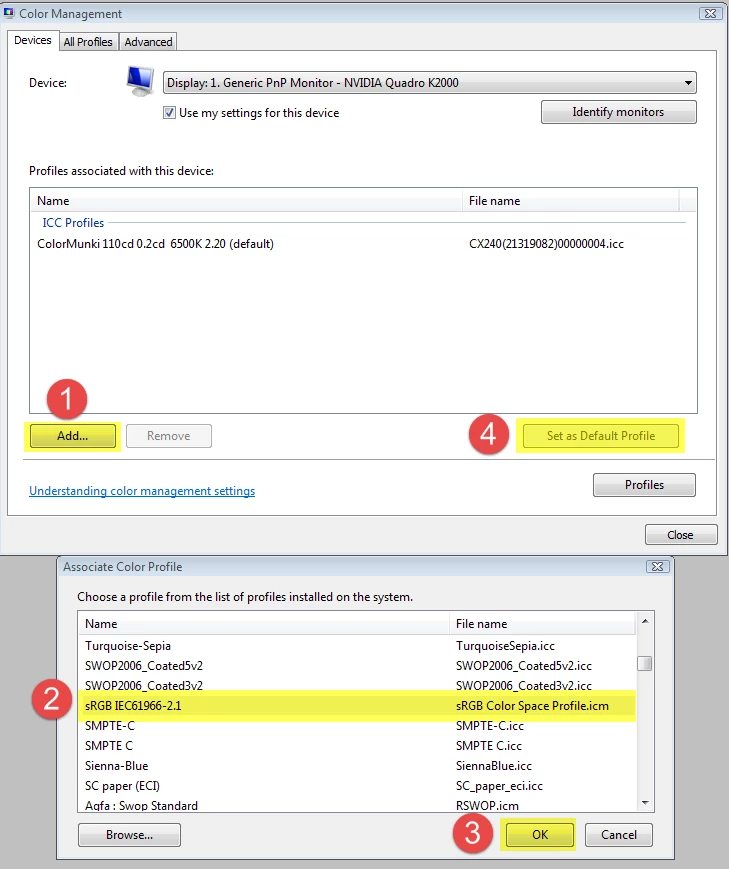
    Add the sRGB profile, then set it as Default profile. See screenshot (from Windows 7) below.

    Make sure that Use my settings for this device is checked.

    1 reply

    Per Berntsen
    Community Expert
    Per BerntsenCommunity ExpertCorrect answer
    Community Expert
    November 10, 2016

    Different colors in Develop and Library is usually caused by a defective monitor profile.

    Windows 10 is known to install monitor manufacterers' monitor profiles, that are very often broken/low quality.

    Try setting the monitor profile to sRGB, if this fixes the issue, you should ideally calibrate your monitor with a hardware calibrator.

    Press the Windows key+R, enter colorcpl in the box, and hit Enter.

    Add the sRGB profile, then set it as Default profile. See screenshot (from Windows 7) below.

    Make sure that Use my settings for this device is checked.

    Participant
    November 21, 2016

    Many Thanks Per. The problem is solved.