Inspiring
March 12, 2018
Answered

Photos not showing in library folders

  • March 12, 2018
  • 4 replies
  • 29662 views

Hey all,

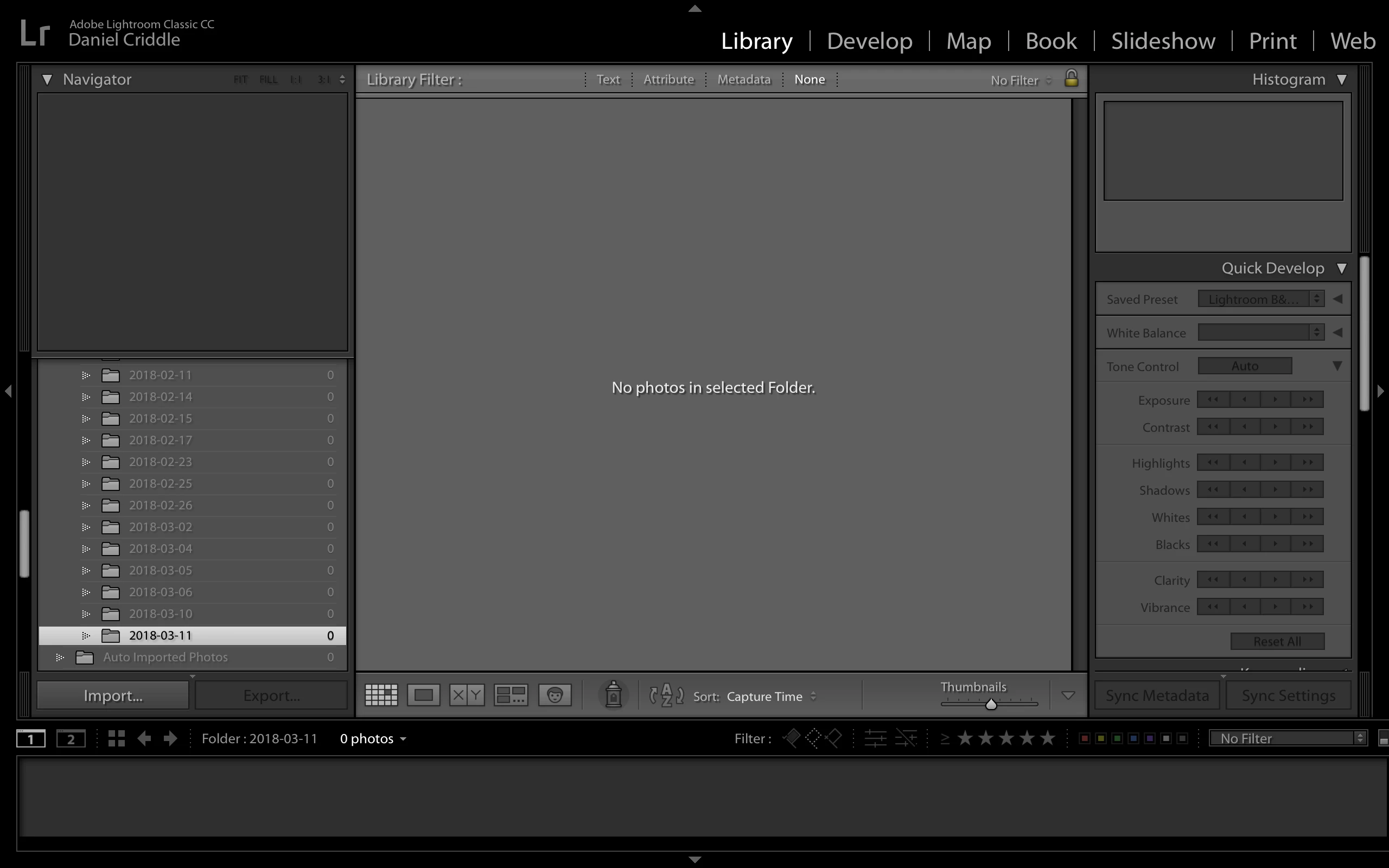
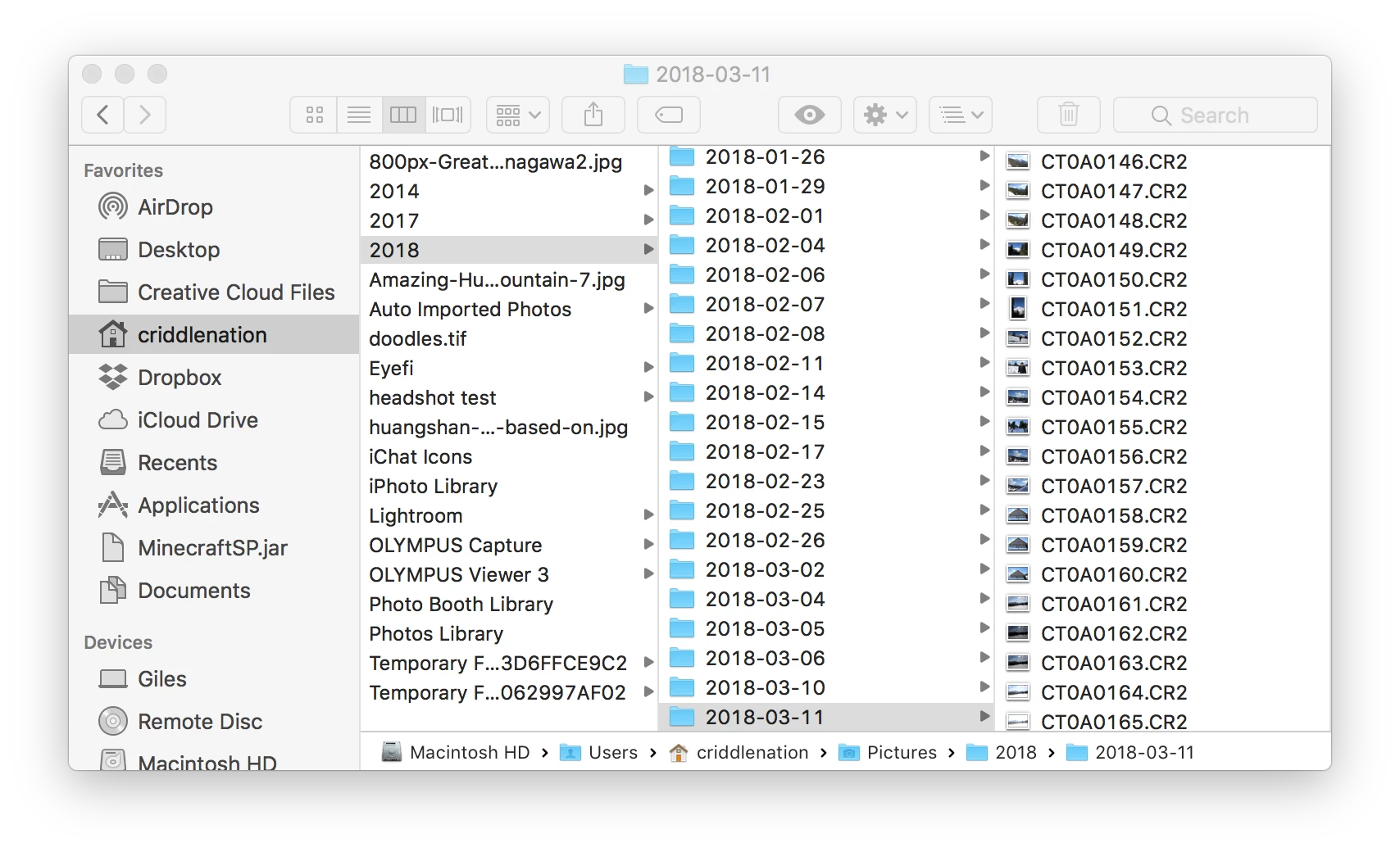
I'm using Lightroom CC classic on a Mac. I would consider myself a fairly adept Lightroom user and recently installed the Enfuse plugin to merge bracketed images. It was just the trial version and I left the default options in place but also selected "reimport files to lightroom" as well. The plugin seemed to run successfully and reimported the new file, however, all of my other folders dating back to 01/01/2018 are greyed out and have a zero indicating the number of files. I freaked out and quickly checked in my finder to see if the files were missing, but they were all in tact.

I have enabled photos in subfolders, library filters are not enabled, and I have made sure to unstack all images. I have tried re-imorting the files, but they all show up greyed out in the import box indicating that they have already been imported. I have tried some of the recommended options for similar problems by copying the content and trying to redirect the folder location, as well as simply pointing the directory somewhere else and then pointing it back to the correct folder. The photos still show up under "All Photographs" just not under the dated folder or any place else. I have been able to create an alternate catalogue from an older backup and import the missing files, but obviously, all the processing work on the re-imported files is lost.

Has anyone ever experienced something like this before? I suspect the images were double imported or something when I ran the Enfuse plugin, but don't know why it would have done it to all my images. I'm just baffled as to why Lightroom cannot recognize the files within the dated folder structure, what caused it, and how to resolve the issue.
    This topic has been closed for replies.
    Correct answer danielc0013

    The capitalisation problem is not something you do. It's something that can occur suddenly, for some unknown reason. It's not even certain what causes it, Lightroom, the OS (it happens on Mac as well as on Windows) or maybe a plugin (it started when you used the Enfuse plugin).

    You cannot see it in the Finder, because as I explained, the Finder does not see different folders. Only Lightroom does. In Lightroom you can detect it by hovering over a folder so the full path is shown. In your hierarchy, it could be that there is a 'PICTURES" folder, or it could be at the username level. Both possibilities occur, so check for that. Because you got the 'Internal Error' when you tried to reveal the parent folder of '2018', I suspect it will be your Pictures folder.


    Thanks for all the replies. Errors were given when trying to locate, update, hide or show parent files, so none of the trouble shooting steps for the capitalization error resolved the issue. However, I found this other recent thread and it seems like his issue was similar to mine. "no photos in selected folder" unique constraint failed  I fixed it by loading and re-optimizing an older catalog and then importing the missing photos and settings from the previous catalog. Pretty sure the lrcat file was corrupted. Just a reminder to back up your catalog regularly   .

    4 replies

    mikelmags
    Participating Frequently
    June 10, 2018

    happened to me too.. annoying, takes too long to import and you cannot see the files. importing gets stuck then when you to the folder on your files, all the photos were already imported

    elie_dinur
    Participating Frequently
    March 13, 2018

    @danielc0013

    Is this the way you have been importing images, by moving them during the import from the dated sub-folders to the "2018" parent folder?

    JohanElzenga
    Community Expert
    Community Expert
    March 13, 2018

    The 'Internal error' dialog that the OP gets when he tries 'Show Parent Folder' indicates there is more going on than just a mistake while importing. This error is consistent with the 'Capitalisation problem' I mentioned earlier.

    -- Johan W. Elzenga
    Inspiring
    March 13, 2018

    I'll take a look at those resources. Just to clarify, this is not something I've experienced before and was not caused by me importing files, nor do I experience errors importing new images. The error happened when I ran the Enfuse plugin, but I had also selected the option to "reimport files to lightroom" so it's possible I didn't configure something correctly and an importing error occurred during that process. It seems unlikely to be the "capitalization error" as I am using the default file hierarchy and only the default Mac parent files are capitalized. No files are capitalized within the Lightroom hierarchy i.e. Macintosh HD -> Users -> username -> Pictures -> 2018 -> 2018-01-01 etc.

    I'll go through the troubleshooting for that just in case.

    Legend
    March 12, 2018

    This typically happens when you have imported the photos accidentally using the COPY option rather than the ADD option. Thus, LR is looking in the folders where the COPY was placed, while you are looking in the folders where the original was placed.


    Re-importing the photos is simply not the answer. It is the wrong thing to do.

    To fix the problem, you need to follow ALL FOUR of these steps to locate the photos in Lightroom, in order. (Not one or two of the steps, not whatever steps you want to follow, but ALL FOUR).

    1.   In the Lightroom Library Module, on the left, under Catalog, click on All Photographs

    2.   Turn off all filters (Ctrl-L once or twice)

    3.   Turn off all stacking (Photo->Stacking->Expand All Stacks)

    4.   Search for at least one of these photos by file name using the Lightroom Filter Bar

    Once you find the photos, we can tell you how to fix the problem.

    Inspiring
    March 12, 2018

    Thanks for the reply. I've seen this recommendation on a related thread, and I am able to follow through step 4, but what do I do once I have located the images under All Photographs?

    ManiacJoe
    Inspiring
    March 12, 2018

    After you locate the image in "All Photographs"

    - right-click, go to folder in Library

    - right-click, show in Explorer/Finder

    These options will show you where Lightroom thinks the image should be.

    Just Shoot Me
    Legend
    March 12, 2018

    Close LR, Restart your Mac and then reopen LR.

    Are you sure you have the correct catalog open?