


Known Participant
February 22, 2026
Question

Photos ruined after generating Standard Previews

  • February 22, 2026
  • 2 replies
  • 51 views

I wanted to create previews to speed up Lightoom loading images in Library and now all my pictures are ruined by some smudges that were applied to the images. Se attached screen shot. I did not do anything. It happened after generating previews. What happened and how do I restore my original images?

Viewing a single image I see this in the history. I repeat, I did not do that.
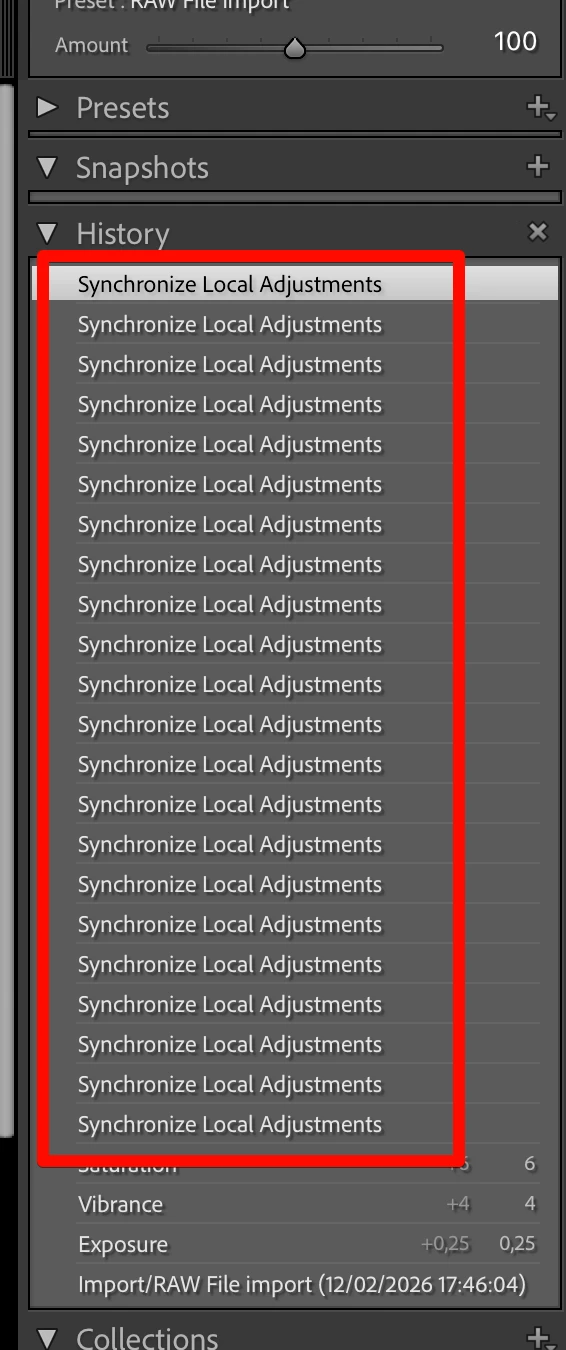
What happened and why?

All 2500+ pictures have been ruined by this...It drives me insane….


UPDATE:

I see that Develop Settings from one photo that I edited were applied to all my pictures. How do I revert that?

    2 replies

    dj_paige
    Legend
    February 22, 2026

    Try restoring a recent backup copy of your catalog file to remove the unwanted History steps.


    What happened and why?


    Just a guess, but if you select many or all photos in the grid or in the filmstrip, and then go into Develop Module with Auto Sync (accidentally?) turned on, then your local edits on one photo will show up in all selected photos, with the words shown “Synchronize Local Adjustments”.

    gary_sc
    Community Expert
    Community Expert
    February 22, 2026

    I concur with DJ, I often wish there were an option for Auto Sync that, after each use, a pop-up would ask if you want Auto Sync to remain on. This would come with a “Do not show again” option, but the time I’ve wasted backing up the various settings that weren't needed for all images was far longer than if the option were presented to me after each Auto Sync use.


    BTW, did this fix your images?

    BTW #2: since LR, LRC, and Adobe Camera Raw do not make permanent changes to an image, any mistake made by these means can easily be fixed by backing up your history. Alternatively, you can use the nuclear approach: remove ALL adjustments by right-clicking the image and selecting “Reset” from the Develop settings options. This restores your image to its original state when it was imported.


    JohanElzenga
    Community Expert
    Community Expert
    February 22, 2026

    Is Lightroom still open? If so, then you should be able to walk through several ‘Undo’ steps.

    -- Johan W. Elzenga