Participant
December 26, 2022
Answered

pictures not showing in filmstrip

  • December 26, 2022
  • 2 replies
  • 363 views

I am running Lightroom Classic v 12.1 on Windows 10. Creative Cloud says I am up to date. 

I have a problem that just started today.

For my drive E (which is where most of my photos reside) In the Library module, my folders show a number to the right of each folder name indicating the number of photos in that folder, but the filmstrip at the bottom shows 0 photos. Any folder I click on shows 0 folders in the filmstrip at the bottom. (I've attached a screen shot showing the problem).  For drive D or F, I do not have this problem. 
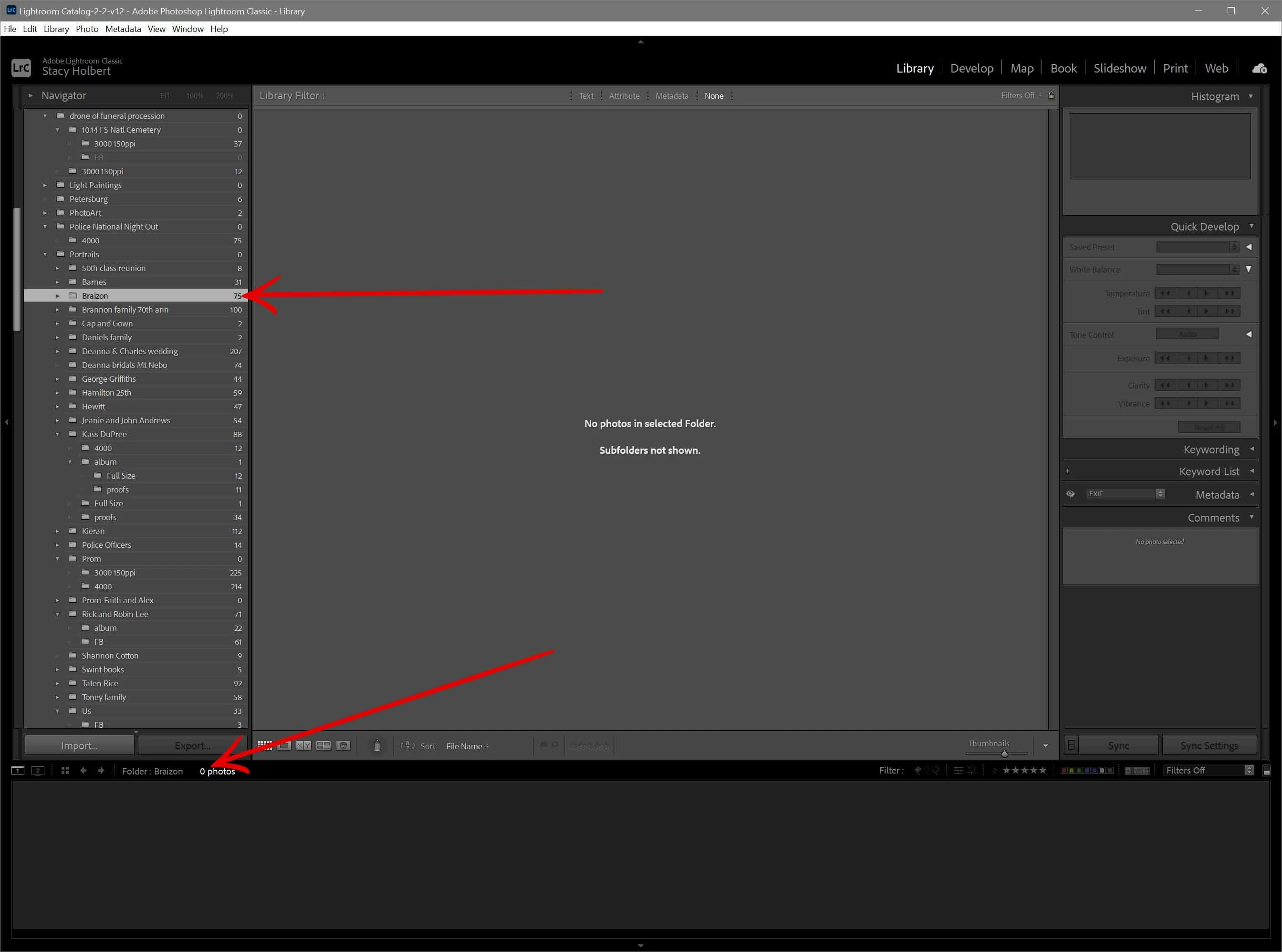
Also, I notice that under the Catalog window in the upper left it shows 

All Photographs  119838

All Synced Photographs   1846
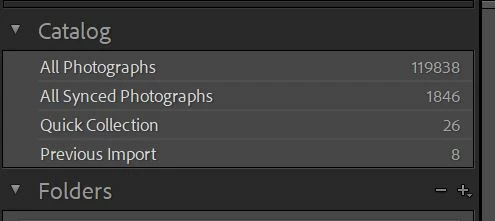
Did my photos become unsynced?  I have tried right-click Sync and it runs a long time, even on folders that only have a few photos.  (I've waited about 20 min and then canceled the sync.)

I would appreciate any help to solve this problem. Thanks!

This topic has been closed for replies.
Correct answer stacyh35

To fix this, I got on a chat with Adobe support. The technician remote connected to my PC. After he poked around my Lightroom for a few minutes he said the "Show Parent Folder" flag had become corrupted.  I'm not sure what he did to fix it, but everything is working OK now with no loss of settings or anything. I'm really relieved and appreciative of Adobe support!  

2 replies

stacyh35AuthorCorrect answer
Participant
December 27, 2022

To fix this, I got on a chat with Adobe support. The technician remote connected to my PC. After he poked around my Lightroom for a few minutes he said the "Show Parent Folder" flag had become corrupted.  I'm not sure what he did to fix it, but everything is working OK now with no loss of settings or anything. I'm really relieved and appreciative of Adobe support!  

GoldingD
Legend
December 26, 2022

You probably do not have the option to show photos in subfolders on. If you were to expand that (those) folder(s) and select the appropriate subfolders, the photos would show up. The 0 at the bottom represents photos shown, not photos existing.

stacyh35Author
Participant
December 27, 2022

That's not it. I've tried it with Show Photos in Subfolders on and off and it's the same. Also, photos do exist in that folder so they should show even with that off. And, it's the same with every folder I click on whether there are subfolders or not.