Participating Frequently
November 1, 2018
Question

Pixelation/Striation/Fringing on Export

  • November 1, 2018
  • 5 replies
  • 3913 views

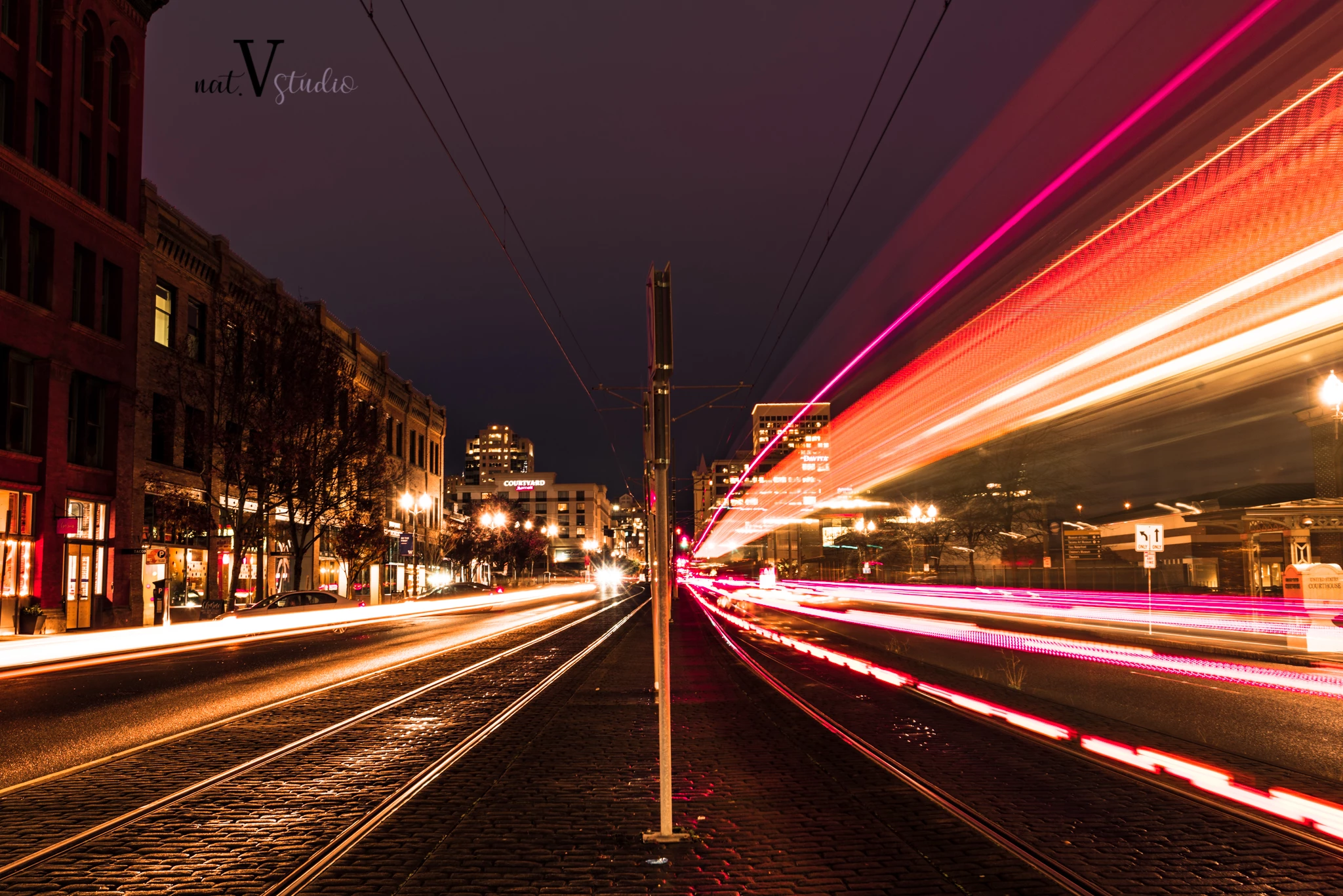
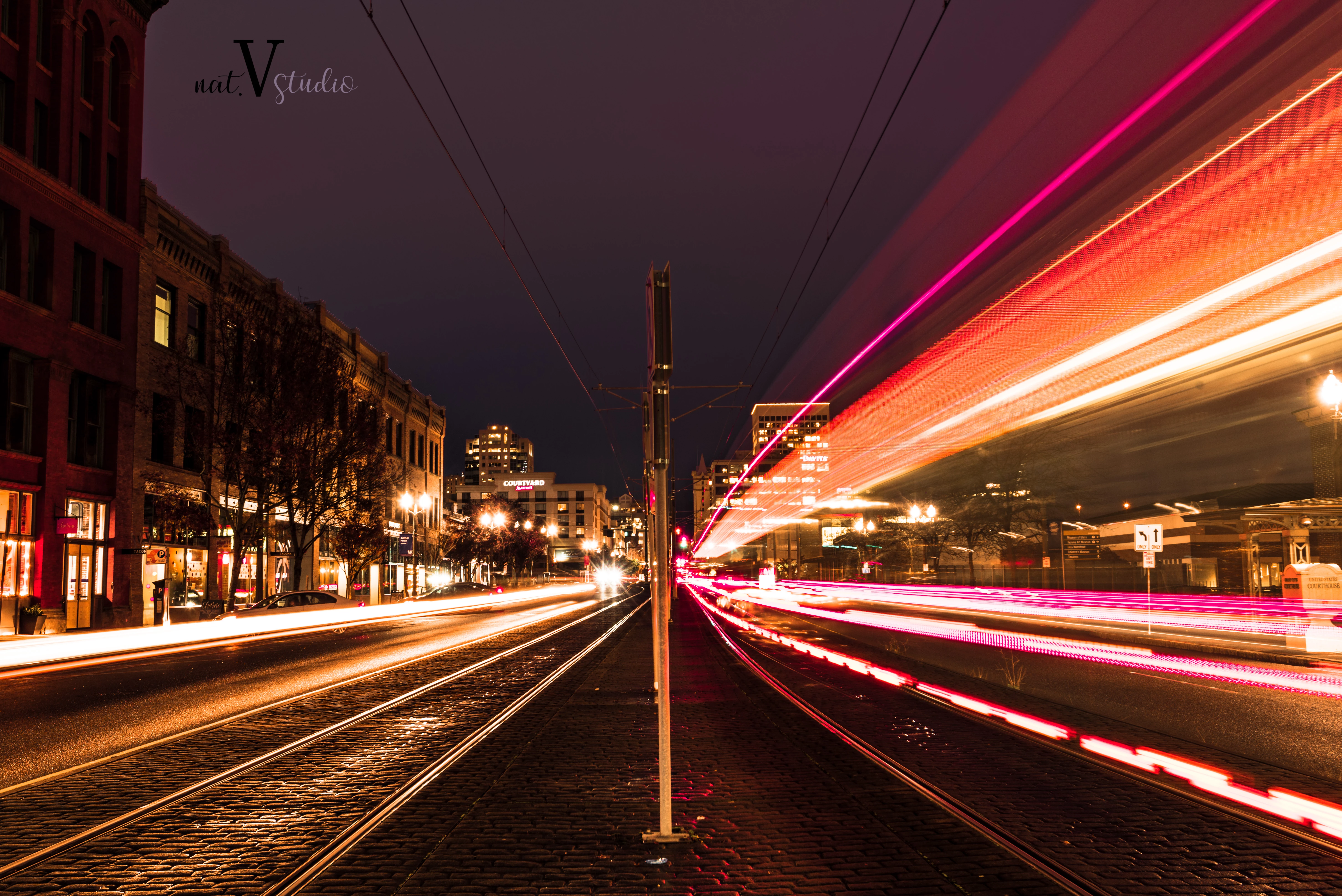
Hi, I'm having a problem with a long exposure shot I took.  The sky is looking extremely pixelated when I throw it on any other screen other than my computer I'm editing from (1080P), viewing on social media.  I am aware FB's recommendations of no more than 2048 pixels on the long edge, and even having tried exported accordingly, the sky is still pixelated.  I've tried working with the defringe tools but the problem I'm having is it looks just fine editing through Lightroom and even in my Lightroom library, it is the exported file itself that looks messed up.  I'm attaching pic 1, the quality at 80, no resizing; then pic 2, the quality at 100, resizing to 2048 pixels, though I know this forum is going to lower it even more, but maybe someone just seeing the pic will know what I'm talking about and how to help.  I understand there's a lot going on when taking long exposure.  The original I worked with is a RAW file, checked box for removal of chromatic aberration already.  Thanks.
    This topic has been closed for replies.

    5 replies

    Community Expert
    November 3, 2018

    How are you calibrating your screen? Todd is right that I only see very minor banding in the first two jpegs. It is there but have to zoom in to see it. I see lots of banding in the Facebook screenshot. This does not look like jpeg compression artifact to me and when I bring the screenshot into Photoshop, I can see that the bands are single bit steps in the file. This can be caused by the tone curve of your display being significantly different from sRGB and calibration having to correct for it which can introduce banding. If you post a link to the Facebook post, we can check whether this is the issue as the image should not look banded on our screens. You unfortunately can't fix Facebook compression but there are ways to fix banding caused by display response if your display has a contrast setting.

    Participating Frequently
    November 4, 2018

    I'm unsure how to make the link viewable without setting that image public which I haven't done yet but what I do have is the link to the Wordpress uploads.  I don't see banding on it on the iPad, on the export of no resizing.  I doubt then that you'd see banding on your screens with that one.  However, here is 2048 px one on Wordpress I believe is the same one I did upload to FB (I did some uploads to both yesterday to see if it was as simple as a FB issue, as in, if the banding was consistent on multiple screens when viewed on FB).  A couple of things... I did just now check the below link on my cell phone and see no banding, and also checked the properties of the image and see its bit depth is 24, and my screen being 6-bit, then I guess this is both a screen display and FB issue?

    https://natvstudio.files.wordpress.com/2018/11/dsc5347-3.jpg

    ssprengel
    Inspiring
    November 4, 2018

    Download the original-sized photo (should have _o.jpg not a _n.jpg suffix) from FB to your computer and see how big it is in bytes on disk, then Export the original in LR using that max-file-size on LR's Export panel and see how bad the LR Export with that filesize restriction looks.

    I'm sure FB is just compressing the photo significantly so it doesn't take up much bandwidth on various devices.  You can add random noise to make the banding less obvious, but of course it won't look as smooth as the original.

    Community Expert
    November 2, 2018

    What you are running into here is a limitation of 8-bit files. The steps you see in the sky are single bit steps in one of the color channels. You can see that if you open the files in Photoshop. Turn on the info taster and move your mouse over a step. You'll see it is a single bit jump. This can be fixed by dithering upon resize and color space conversion but Lightroom doesn't do as good a job at this as it could. If you open the image in Photoshop in prophotoRGB, and convert to sRGB, then to 8 bits and then scale and save as jpeg, you'll get less of this banding because it will use dithering to hide the steps. There is unfortunately nothing you can do about this problem in Lightroom itself.

    Community Expert
    November 2, 2018

    Oh and it is made worse in the screenshot because the conversion from sRGB to your display's colorspace will introduce more posterization since that is also done in 8 bits in order to send to the display. The only way to avoid that is to use a display that has a built-in 10-bits LUT mechanism to correct the tone curve. Needless to say those are higher end displays.

    Participating Frequently
    November 2, 2018

    Here is the FB screen shot, 2048px on quality at 100

    Todd Shaner
    Legend
    November 2, 2018

    natashav90914735  wrote

    Here is the FB screen shot, 2048px on quality at 100

    It looks like FB is compressing the uploaded image file perhaps because it exceeds the maximum file size (MB). Try using the below Export module settings with 80 Quality and then upload the file to a separate FB photo album. Also keep in mind that some people have their display brightness set way too high, which make artifacts more visible.

    Forgot to add that you need to make sure 'High Quality' is checked when you create the new FB album.

    Participating Frequently
    November 2, 2018

    I believe it does upload to high quality.  I uploaded it outside of an album, just a single photo, but I'll do some test uploads and set to "Only Me" to check it out.  Also, I don't check anything under the sharpen portion, but I noticed your screen shot reply showed that checked.  I read in another forum to not mess with that.  In this case, does that matter?

    Todd Shaner
    Legend
    November 1, 2018

    I see no actual "pixelation" in either screenshot. Please capture a screenshot on the system that exhibits the issue and then post it here with the system and display information. Most likely the issue is as   describes due to viewing at greater than 100% screen magnification.

    Participating Frequently
    November 2, 2018

    I posted the screen shot you asked for below.  Thanks so much!

    Per Berntsen
    Community Expert
    Community Expert
    November 1, 2018

    I see a little pixelation in the sky of the large image when viewing it at 100%. This is jpg blockiness, caused by the compression. Exporting at 100 quality should remove most, if not all of it.

    The smaller image (2048 px) looks perfectly fine when viewed at 100%, no pixelation that I can see.

    (and I can view both screenshots full size when I open them in a new tab)

    I'm guessing that you are viewing the image at a magnification other than 100% (1:1). 100% is the only accurate representation of the image on screen – one image pixel is represented by one screen pixel.

    Different applications use different algorithms when scaling images, and sometimes artifacts will appear.