
Participant
October 31, 2024
Answered

Populate Contact Sheet using Snapshots from single image?

  • October 31, 2024
  • 1 reply
  • 475 views

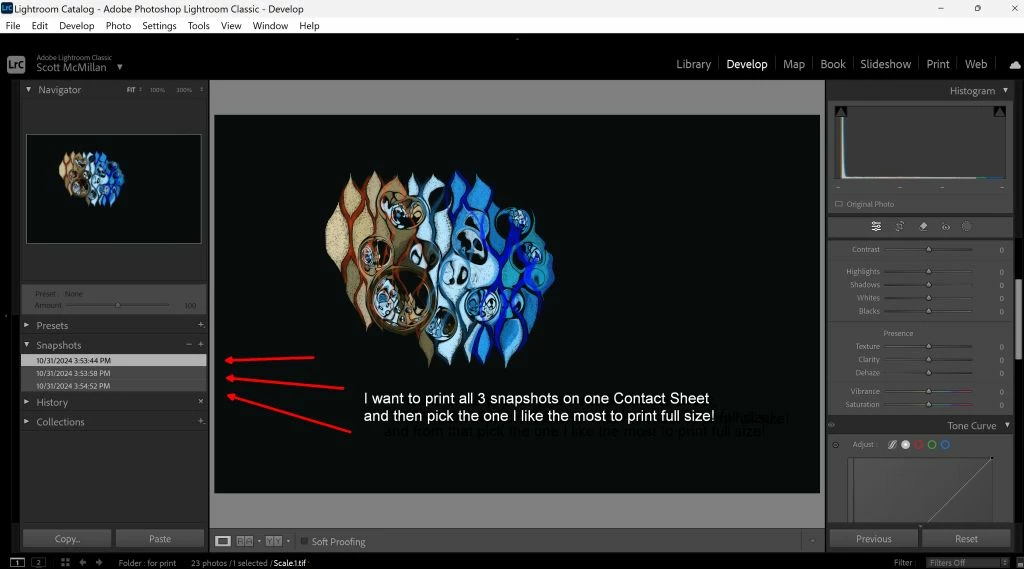
Hello! Am I able to use a Contact Sheet (within the Print Module) to print multiple snapshots from a single image? I would like to do this so I can view/pick out the one I want to print full size, thus saving paper and ink!
 

This topic has been closed for replies.
Correct answer Rob_Cullen

You don't necessarily need to Export derivative image files. Instead-

1) Select a Snapshot in an image history,

2) Press [Ctrl+'] to create a Virtual Copy  {Image FIlename +Copy1}

3) Repeat 1) and 2) for every Snapshot  {Image FIlename +Copy2}, {Image FIlename +Copy3}, etc.

4) Select original and all the Virtual Copies and go to the Print module.


1 reply

Participant
November 1, 2024

Aha! 

Yes it is possible. A little awkward but not too bad. Start with an image. Make some edits within the Develop module taking snapshots along the way. Here I’ve started with a dark image of a tree, bumping up the exposure in 3 steps with a snapshot after each.


Export each of these snapshots one at a time; select it within the Snapshot panel on the left, then right click on the source image in the filmstrip at the bottom and select export to create a new image file on the file system from that snapshot.


Now just re-import each of these files back into Lightroom. Because they are actual separate files now they are represented on the filmstrip individually and can be added into a Contact Sheet in the Print Module just like any other images.


Now I’m able to print this contact sheet, view the actual print and pick out the one I want to print full size!


Rob_Cullen
Community Expert
Rob_CullenCommunity ExpertCorrect answer
Community Expert
November 1, 2024

You don't necessarily need to Export derivative image files. Instead-

1) Select a Snapshot in an image history,

2) Press [Ctrl+'] to create a Virtual Copy  {Image FIlename +Copy1}

3) Repeat 1) and 2) for every Snapshot  {Image FIlename +Copy2}, {Image FIlename +Copy3}, etc.

4) Select original and all the Virtual Copies and go to the Print module.


Regards. My System: Windows-11, Lightroom-Classic 15.3, Photoshop 27.5, ACR 18.3, Lightroom 9.3, Lr-iOS 10.4.0, Bridge 16.0.3 .
Participant
November 1, 2024

Thanks so much! This is exactly what I was hoping for. I was thinking there must an easy and inuitive way to accomplish this because afterall, despite all the onscreen previews the printed result never quite matchs it. And really it doesn't have to. But if I'm looking at two images side by side (on a computer screen or printed paper) I'm going to see differences and have a preference.