Inspiring
June 21, 2026
Question

Printing problem with LrC

  • June 21, 2026
  • 9 replies
  • 59 views

I have been using Lightroom Classic since version 2.  Currently using the latest version on a Windows 11 computer.  Everything is up-to-date.  For years I was able to get satisfactory prints from LrC and used the print module all the time.  However, for the past couple of years the prints have come out with a very pinkish cast to them that I cannot resolve.  I can print from Epson print layout, Qimage, and Photoshop with no problems.  But when I try to print the same image, same profile, same paper with the same settings using LrC the colors are never what they should be anymore.  Any suggestions?  I know how to use the print module.  I have had success with it previously.  I can get quality images with other printing software, but LrC has become a real stumbling block.  I'm using an Epson ET-8550.
 

    9 replies

    JimHessAuthor
    Inspiring
    June 22, 2026

    Okay, I was wrong all along!  I thought I had set color correction to "none" but I had completely overlooked the sending and it was wrong.  I corrected it, and now LrC is printing the way it should.  Sorry to have bothered you.

    Participating Frequently
    June 22, 2026

    By the way, it also prints from MS Word… Could there be a bug in the 15.4 release?

    Per Berntsen
    Community Expert
    Community Expert
    June 22, 2026

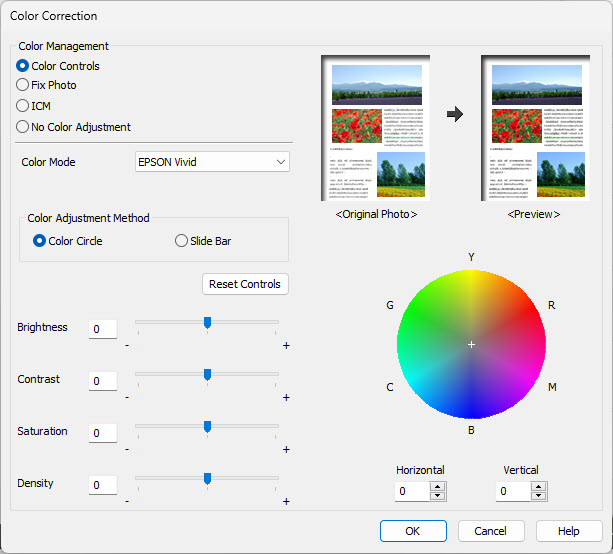
    Did you set Color Correction to No Color Adjustment in the printer driver?
    I’m not familiar with this printer, but I found this:

    https://www.redrivercatalog.com/infocenter/epson-et-8500-et-8550-windows-driver-software-tour.html


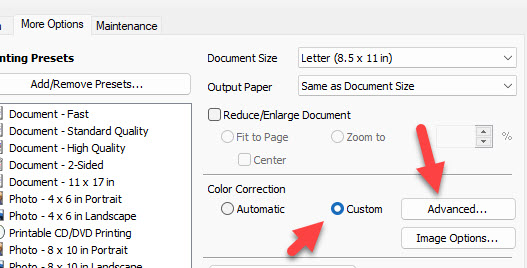
    Custom Advanced Color Correction

    Launch the dialog from the More Options tab > Color Correction Custom > Advanced.

    epson-et-8550-win-driver-moreoptions-custom-advanced_1698607557.jpg

    Color Management options are the heart of this dialog.

    epson-et-8550-win-driver-colorcorrection-colorcontrols_1698607577.jpg
    • Color Controls - allows the printer driver to manage color output
    • Fix Photo - another driver option to automatically correct issues it finds with your image. We do not recommend this for most print jobs as the results can be random.
    • ICM - allows the ancient Windows ICM system to manage colors. Not recommended.
    • No Color Adjustment - disables the printer driver's color management and allows an ICC color profile to manage colors from your application (Photoshop, Lightroom, etc.)


    JimHessAuthor
    Inspiring
    June 22, 2026

    Yes, there are other tabs.  The only relevant setting that I didn't include was that I made sure that, for the Lightroom set up, color management by the printer had been turned off.  That was something that I failed to include.

    Participating Frequently
    June 22, 2026

    Jim, Your setup looks fine, but in the printer properties there does not seem to show any colour management settings, is there any other tabs or settings which you have not shown, which has any relevence?

    JimHessAuthor
    Inspiring
    June 22, 2026

    Printer setup:

    LrC setup:

    EPL setup:


    Compare:


    Participating Frequently
    June 21, 2026

    I have printed from LrC to my Epson earlier, but now, after the latest update problems arise.

    The print enters the printer queue, the printer seems to start up, but suddenly report printing complete.

    I tried to print to pdf, then print from Acrobat - worked fine...

    Ian Lyons
    Community Expert
    Community Expert
    June 21, 2026

    Pinkish output usually indicates that the ICC profile for the media you’ve selected is not being applied. If you haven’t already tried the ‘Managed by Printer’ option in LrC Print Job panel, then please do so. Hopefully, someone with more knowledge of Windows 11 than me can offer more specific advice on driver setup, etc.

    JimHessAuthor
    Inspiring
    June 22, 2026

    Yes, that would be the logical answer.  However, I did apply the appropriate ICC profile, just as I always did when LrC printed properly.  I applied the exact same settings using the other printing options I have, and I get the expected results.  It is only in Lightroom Classic that, no matter what I do, I cannot get a "normal" print.

    Participating Frequently
    June 22, 2026

    Please see the snip I took of my setup using WIN11, hopefully yours should look the same, with mode in the printer dialogue turned off and the paper ICC profile selected in LRc 


    Participant
    June 21, 2026

    Hi, with MacOS/Epson SC-P900 when I change paper size (in both LrC and on the printer) the printer prints to the last size used and I end up wasting an inordinate amount of paper!
    I can close LrC shut down the printer and the computer, but it still repeats the previous print format. I find I have to either print a pdf (but it retains the size) and then print using preview or print through Ps.

    This keeps happening. What is the issue and is there a work around?