

drt5564069
Participant
March 11, 2026
Answered

Problem Importing Photos into Lightroom Classic

  • March 11, 2026
  • 1 reply
  • 24 views

I am trying to import phots from my camera into lightroom classic but keep getting a message saying either:

  •  “could not copy a file to the destination folder because it is not writable”

or

I am using a MacBook Pro with macOS Sequoia version 15.7.4

I am using Adobe Lightroom Classic Release 15.2

Destination Drive is an external Hard Drive which has all my Library Photos

Catalog is in the “Lightroom” folder inside the “Pictures” folder on my Mac 

I have already checked/done the following with no result:

  • The destination drive is not full and has sufficient space still available for the photos being imported
  • The folder into which I am trying to import the file has read and write permission in mac os
  • Adobe Lightroom Classic has “Full Disk Access” under mac OS Settings/Privacy & Security Settings
  • I have tried “Clear Recent Paths” in the Destination Folder
  • I have tried unticking “Make a Second Copy To : ” in the File Handling section and then importing
  • I have tried ticking “Make a Second Copy To : ” in the File Handling section and the creating a different location for the second copy
  • I have tried ticking and unticking “Into Subfolder”

The following image shows the Destination panel, currently with the “Into Subfolder” option unchecked. As can be seen (please see section at the bottom of the image circled in red) the folders in the year and date format for the photos being imported are being shown within the selected destination folder on my external hard drive and are ticked and also correctly reflect the number of images to be imported.


I am starting to go insane  as I think I have followed all suggested fixes that I have found online. I also have the exact same problem and error message when trying to import photos into the destination folder from my iPhone as well or from an SD card using my SD card slot on my Mac.

I am probably making a silly mistake or missing an obvious step or setting but I just can’t work it out. Therefore any help will be much appreciated. Thank you
    Correct answer drt5564069

    I have finally resolved my problem - the existing sub-folders within the destination folder did not have the necessary permissions. It appears that even though I was not importing anything into the existing sub folders (but rather creating new sub folders) I still needed to have the permission to read and write to these. Presumably by doing this, it creates the rule that new subfolders (as well as the existing sub folders) automatically have read and write access.

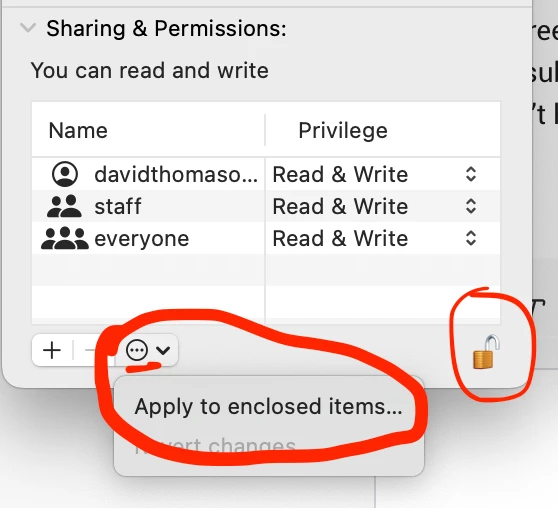
    For anyone else that may have this problem, I fixed this by going to my destination folder in the Finder window and clicking Get Info. Then, in the Get Info window, scroll down to Sharing & Permissions. First unlock permissions by clicking on the padlock and giving your password or fingerprint.

    Then, assuming your destination folder already has the permissions set to read and write, then click on the three dots in the circle and click on “Apply to enclosed items”. This then applies these permissions to all subfolders and files (see image below) and should then fix the problem. (If your destination folder doesn’t have read and write, then this will need to be set first and then applied to all subfolders)


    1 reply

    drt5564069
    drt5564069AuthorCorrect answer
    Participant
    March 11, 2026

    I have finally resolved my problem - the existing sub-folders within the destination folder did not have the necessary permissions. It appears that even though I was not importing anything into the existing sub folders (but rather creating new sub folders) I still needed to have the permission to read and write to these. Presumably by doing this, it creates the rule that new subfolders (as well as the existing sub folders) automatically have read and write access.

    For anyone else that may have this problem, I fixed this by going to my destination folder in the Finder window and clicking Get Info. Then, in the Get Info window, scroll down to Sharing & Permissions. First unlock permissions by clicking on the padlock and giving your password or fingerprint.

    Then, assuming your destination folder already has the permissions set to read and write, then click on the three dots in the circle and click on “Apply to enclosed items”. This then applies these permissions to all subfolders and files (see image below) and should then fix the problem. (If your destination folder doesn’t have read and write, then this will need to be set first and then applied to all subfolders)